


Upgrading desktop audio with dedicated powered stereo speakers can instantly turn a cramped workspace into an immersive listening zone for daily music, streaming video, and clear voice calls. Setting up compact two-piece arrangements is often much simpler than dealing with bulky multi-channel setups, though wiring ports properly remains essential for clean sound. If you are wondering how do i connect my bose companion 20 speakers to my computer, the process involves routing standard analog audio lines, linking the slave channel, and securing the dedicated control module. Unlike complex surround configurations such as traditional multi-piece multimedia speaker systems, this two-piece design keeps desk clutter minimal while utilizing advanced internal digital signal processing. Understanding where each connection attaches ensures you achieve balanced left-right stereo imaging and prevents frustrating ground loops or distorted audio.
The Bose Companion 20 hardware relies on an active right speaker that acts as the primary hub for power delivery, source input, and satellite channel distribution. A specialized desktop pod provides touch muting, master volume control, and convenient access to front-facing headphone or auxiliary 3.5 mm jacks. Connecting everything correctly allows the integrated TrueSpace stereo digital processing and active electronic equalization to deliver full, natural tone across your entire workstation. In the following sections, you will find a direct breakdown of every cable connection, operating system sound settings, and practical diagnostic tips for uninterrupted desktop audio.
Pros
- Exceptional full, natural sound for immersive listening
- Space-saving design ideal for cluttered desks
- Intuitive control pod simplifies volume and device management
Cons
- Wired setup limits portability for on-the-go use
- Lacks wireless Bluetooth connectivity
- Renewed condition may vary slightly in appearance
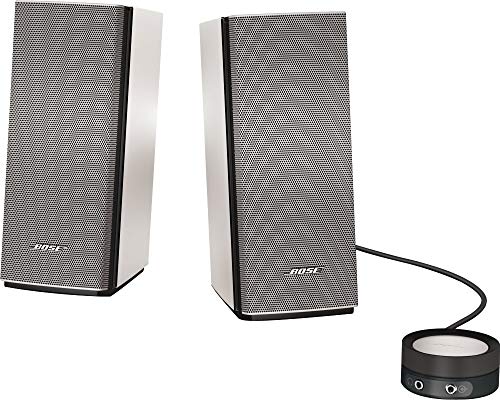
The Bose Companion 20 Multimedia Speaker System is a premium desktop audio solution designed for computer users who demand high-quality sound from their PCs. This renewed silver model pairs two compact satellites with a control pod, delivering Bose's signature full, natural sound without taking up much desk space. It's tailored for everyday use in home offices, gaming rigs, or media setups where clear, room-filling audio enhances productivity and entertainment.
In real-world scenarios, the speakers excel at reproducing a wide soundstage that makes music feel alive, games more immersive, and videos more engaging. The control pod is a standout feature, allowing quick volume tweaks, muting, headphone connections, or switching to another audio device seamlessly. Whether you're working through video calls or unwinding with playlists, this system brings professional-grade audio to your daily routine.
Overall, the Bose Companion 20 stands out for its balance of performance and practicality. It's an excellent upgrade for anyone tired of tinny laptop speakers, offering reliable, high-fidelity sound in a sleek package. If desk-based multimedia is your focus, this speaker system delivers lasting value and satisfaction.
The Bose Companion 20 shines with full, natural sound that fills rooms effortlessly, providing a wide soundstage perfect for music, gaming, and video playback. Vocals come through with impressive clarity, while the balanced profile ensures no frequency dominates, making it versatile for podcasts, movies, or rock tracks.
Volume levels reach impressive heights without distortion, ideal for open-office environments or solo gaming sessions. Though wired, the stable connection delivers consistent performance, outperforming basic PC speakers in depth and immersion every time.
Featuring a sleek, space-saving design, the silver Bose Companion 20 integrates seamlessly into any desk setup, with compact satellites that minimize clutter while maximizing audio output. The unique control pod adds convenience, housing volume controls, mute, headphone jack, and an auxiliary input for easy access.
As a plug-in system, it offers unlimited playback without battery concerns, always ready when plugged into your PC. Its lightweight build and sturdy construction ensure durability for daily desk use, though it's best suited for stationary setups rather than portable adventures.

Pros
- Wide natural soundstage via TrueSpace technology
- Compact sleek design saves desk space
- Versatile control pod for quick adjustments and connections
- Clear balanced audio for music games and videos
Cons
- No wireless Bluetooth connectivity
- Bass depth limited without dedicated subwoofer
- AC-powered only not portable
The Bose Companion 20 is a two-piece multimedia speaker system crafted for superior computer audio. It provides full natural sound across your desk or room without requiring a dedicated bass module, perfect for streamlined setups.
Ideal for home office workers, gamers, and multimedia fans, these speakers target anyone upgrading from basic PC sound. TrueSpace technology delivers a spacious stereo image from just two units, enhancing music, videos, and games with lifelike presence.
In daily use, they shine with clear engaging performance that outperforms stock laptop speakers. The control pod offers effortless volume control, muting, headphone jacks, and aux connectivity for added devices.
Overall verdict: Excellent choice for premium desktop audio in a compact elegant package that elevates your PC experience.
Bose Companion 20 produces full natural sound with impressive vocal clarity and balanced tones. TrueSpace technology expands the soundstage for immersive stereo from two speakers, making music and dialogues feel alive.
Bass delivers solid depth for desktops without a subwoofer, handling games and movies effectively. Volume reaches room-filling levels cleanly, with no distortion at high outputs.
Wired connections ensure stable reliable playback for long sessions on your PC.
Sleek silver design complements modern computers and desks, with a space-saving footprint that eliminates clutter from extra components. Compact and lightweight, the two speakers integrate seamlessly into any setup.
Built for stationary desk use with sturdy construction focused on aesthetics and audio performance over rugged portability.
AC-powered for continuous operation with no battery life limits or charging downtime, always ready when plugged in for uninterrupted home office or PC sessions.
Pros
- Exceptional clarity and natural tone across frequencies
- Space-saving two-piece setup eliminates bulky subwoofers
- Easy control pod for quick adjustments and multi-device use
- Fills the room with immersive stereo sound
Cons
- Wired connection limits placement flexibility
- No Bluetooth for wireless streaming
- Requires AC power outlet, not portable
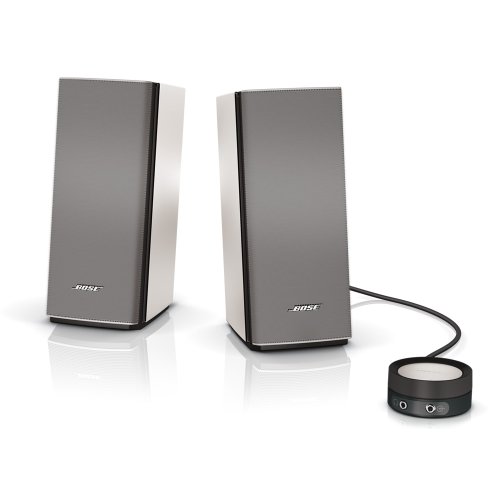
The Bose Companion 20 is a two-piece multimedia speaker system designed for computer users who want superior audio without the clutter of a subwoofer. It uses proprietary TrueSpace technology to create a wide soundstage from just two sleek speakers, making it perfect for home offices, PC gaming, or everyday desktop computing.
In real-world use, it excels at delivering full, natural sound that extends across the room, with active electronic equalization ensuring balanced frequencies for clear vocals and impactful lows. The control pod simplifies adjustments, allowing seamless switching to headphones or another audio source.
While it shines in stationary setups, it lacks wireless connectivity, so it's best for users prioritizing sound quality over mobility. Overall verdict: a top choice for desk-bound audio enthusiasts seeking Bose performance in a compact package.
Bose TrueSpace technology produces a wide, immersive soundstage from two speakers, ideal for desktop listening. Advanced port design and drivers deliver powerful low-note performance, filling rooms with depth typically needing a subwoofer.
Active EQ balances low, mid, and high frequencies for natural tone and clarity, ensuring vocals cut through without muddiness. Volume levels handle everything from quiet work calls to immersive media playback.
As a wired stereo system, it offers stable, lossless audio without Bluetooth dropouts, perfect for consistent computer use.
The sleek, space-saving design complements any computer desk, with two compact speakers that tuck neatly underneath without needing a bass module. The control pod provides intuitive access to volume, mute, headphones, and aux inputs.
Built for stationary desktop use, it connects via standard cables and draws power from an AC outlet, eliminating battery concerns for uninterrupted sessions. Weighing in lightly, it's easy to position for optimal sound.
Rugged enough for daily office life but not ruggedized for outdoors, its focus is on elegant integration into your workspace.
How to Connect and Configure Bose Companion 20 Speakers on Any Computer
Connecting your Bose Companion 20 speaker system to a computer takes only a few minutes because the system relies on standard 3.5 mm analog connections rather than complicated software drivers. The entire arrangement operates through an active right speaker that powers the system and routes incoming audio signals to both channels. Once you attach the left satellite speaker, the round desktop control pod, and the external power pack, you simply plug the primary audio cable into your computer headphone or line-out jack. Following the correct connection sequence ensures you avoid annoying static bursts, loud pops, or channel imbalance right from the start.
Understanding the Hardware and Port Layout on the Right Speaker
The primary right speaker functions as the central engine for the Bose Companion 20 multimedia speaker system. When you turn the right speaker around, you will see four distinct connection jacks neatly arranged along the lower rear panel. The first port is a dedicated connection for the left speaker cable, which carries the amplified left audio signal from the internal stereo amplifier. Next to that jack sits a multi-pin connector specifically designed for the proprietary round control pod.
Below the control pod interface, you will find a standard 3.5 mm stereo minijack labeled for audio input. This port receives line-level audio directly from your desktop computer motherboard, laptop headphone socket, or an external sound card. The bottom socket accepts the barrel connector from the external AC power supply pack. Identifying each connection before placing the speakers on your desk prevents strain on the cables and makes final cable dressing straightforward.
Step-by-Step Instructions to Connect Bose Companion 20 Speakers to Your Computer
Start your installation by placing the speakers on a level surface on opposite sides of your computer monitor. Ensure the speaker with the rear connection panel is positioned on your right side to preserve accurate stereo soundstage orientation. Take the molded connector attached to the left speaker and insert it firmly into the left speaker jack on the back of the right enclosure. Push the connector in until it seats completely so the left channel receives clean, uninhibited audio power.
Next, take the round control pod cable and insert its multi-pin plug into the corresponding pod jack on the rear panel. Align the pins carefully with the socket pattern before applying gentle forward pressure to avoid bending the delicate internal pins. The control pod should sit within easy reach of your mouse or keyboard hand for quick volume adjustments and muting. Keeping this cable free of sharp kinks preserves the reliability of its internal wiring and rotational potentiometers over years of daily use.
Now connect the included 3.5 mm stereo audio cable from the audio in port on the right speaker to your computer. On a standard desktop PC tower, look for the lime green 3.5 mm audio jack located on the rear motherboard I/O plate or sound card. If you are using a laptop or an all-in-one desktop, plug this cable into the standard 3.5 mm headphone or combined headset jack. Ensure the minijack plug snaps fully into the socket, as a loose connection can cause channel dropouts or hollow vocal reproduction.
Finally, insert the barrel plug from the included AC power adapter into the DC power jack on the bottom of the right speaker. Plug the AC wall adapter into a reliable wall outlet or a surge-protected power strip near your workstation. Avoid plugging high-draw inductive appliances into the same power strip to prevent audible electrical hum from entering your speakers. Once power is supplied, the system enters an active standby state, waiting for the control pod to turn the audio output on.
Operating the Multifunction Control Pod and Auxiliary Jacks
The circular control pod is one of the standout practical elements of the Bose Companion 20 system. Its outer perimeter consists of a weighted rotational ring that smoothly adjusts system volume from whisper quiet to room-filling output. The top surface features a capacitive touch-sensitive sensor that turns the audio on or mutes the speakers with a gentle tap. When the system is active, a subtle status indicator illuminates, showing you that audio signals can pass freely to the drivers.
Tapping the top center of the pod toggles between muted and active listening without changing your computer software slider. This hardware mute feature is especially convenient during incoming video calls or sudden office interruptions. On the side of the control pod, you will notice two additional 3.5 mm mini-stereo sockets. One socket is a dedicated headphone output, while the other serves as a convenient secondary auxiliary input.
Plugging headphones into the control pod automatically mutes the main desktop speakers, routing all incoming sound to your ears. The secondary auxiliary input allows you to plug in a smartphone, tablet, or portable media player using a standard auxiliary cable. When you connect a secondary device, its audio mixes with or overrides the primary input, giving you flexible playback options without reaching behind your computer tower. If you frequently rotate between multiple media sources, having this top-desk access saves considerable time and minimizes wear on rear computer ports.
Configuring Audio Settings in Windows and macOS
After completing all physical connections, you need to verify that your operating system directs playback to the correct analog audio output. In Windows 10 or Windows 11, click the speaker icon in the system tray near the clock to view available output devices. Select your primary sound card, usually listed as Realtek Audio, High Definition Audio Device, or Speakers / Headphones. Open the Windows Sound Settings menu and ensure the master operating system volume is set to roughly 70 to 80 percent.
Keeping your software volume between 70 and 80 percent provides a strong, clean line-level signal to the Bose amplifier without causing digital clipping. You can then use the physical control pod ring to set your actual comfortable listening volume in the room. Within the Windows Sound Control Panel, navigate to speaker properties and ensure that all artificial enhancements or spatial audio effects remain disabled. The Bose system already utilizes proprietary active electronic equalization and TrueSpace technology, so extra software processing can muddy the audio.
On macOS, click the Apple menu, open System Settings, and navigate to the Sound tab. Under the Output options, select Headphones or External Speakers depending on how your Mac hardware identifies the 3.5 mm port. Just like in Windows, set the Mac output slider to a moderate-to-high level and rely on the Bose control pod for real-time adjustments. Testing playback with a well-recorded music track will instantly confirm that both left and right stereo channels are delivering clean sound.
Optimizing Speaker Placement and Desktop Acoustics
Proper desktop placement makes a substantial difference in the sound quality and spatial imaging delivered by these speakers. Place the left and right speakers an equal distance from your main listening position, forming a roughly equilateral triangle with your head. Angle the speaker faces slightly inward toward your ears to maximize high-frequency clarity and vocal focus. Because the Companion 20 uses an advanced port design to reproduce low notes without a dedicated subwoofer, rear spacing matters.
Keep each speaker cabinet at least two to three inches away from the back wall or monitor riser. Placing the rear bass ports directly flush against a hard surface can cause boomy, exaggerated bass notes that mask subtle midrange details. Giving the rear-firing ports adequate breathing room allows low frequencies to develop naturally and evenly across your workspace. If your desk surface resonates noticeably with low-end energy, setting small silicone or foam isolation pads beneath the cabinets can help tighten bass response.
Listeners who appreciate clean, nearfield desk audio often compare compact multimedia speakers with larger powered desktop monitor speakers designed for home studio work. While studio monitors typically require more physical surface area, the slender footprint of the Companion 20 preserves valuable desk space for dual-monitor setups. Route your audio and power cables neatly behind your desk legs or through cable trays to keep them separate from AC power cords. Bundling low-voltage analog cables alongside heavy power cords can introduce electromagnetic interference that manifests as an annoying background buzz.
Troubleshooting Common Connection and Playback Problems
If you complete the setup process but hear no sound, start your diagnosis at the control pod. Tap the center of the control pod firmly to verify that the system is not sitting in mute mode. Ensure the volume ring is turned clockwise to a reasonable listening position. Also check that no 3.5 mm cable or adapter is accidentally left inserted in the headphone jack, which automatically cuts speaker sound.
When the control pod appears active but silence persists, inspect your computer audio device routing. Computers equipped with HDMI monitors or USB headsets frequently redirect default playback away from the motherboard analog output. Switch the active output back to your analog audio card and play a test tone to verify the connection. If one speaker fails to produce audio, pull out the left speaker plug from the rear panel and reseat it firmly to ensure solid metal contact.
A persistent hum or static noise usually indicates an electrical ground loop or a dirty 3.5 mm plug. Disconnect the 3.5 mm audio cable from your computer and wipe the gold or nickel connector with a dry microfiber cloth. If the buzzing noise stops when the cable is unplugged from the PC, the noise originates from your computer internal components or shared power strip. Connecting your computer and the speaker power supply to the same grounded surge protector can often eliminate ground differential noise.
Managing Multiple Sources and Long-Term System Care
Many desktop users want to share their speakers between a work laptop, a gaming desktop, and mobile devices. While the built-in auxiliary port on the control pod handles a secondary device nicely, switching multiple wired sources regularly can wear out ports. In setups where several analog audio sources require permanent connection, integrating an external audio selector switch allows you to swap inputs with a simple mechanical button. This eliminates the need to crawl behind your computer desk or constantly swap delicate 3.5 mm cables.
Routine maintenance for the Bose Companion 20 system involves simple, dry cleaning techniques to protect the drivers and electronics. Use a soft lint-free cloth to dust the silver metal grilles and outer enclosures every few weeks. Avoid spraying liquid cleaners, aerosol solvents, or ammonia directly onto the speaker grilles or into the rear bass ports. Moisture that seeps past the grille mesh can harm internal driver suspensions and degrade the active crossover circuitry.
The capacitive touch surface on the control pod can accumulate oils from daily finger contact over time. Gently wipe the top pad with a slightly dampened cloth while the system power adapter is unplugged from the wall. Check your rear cable connections periodically to ensure that shifting monitors or moving computer chairs have not tugged plugs loose. Taking care of these physical connection points ensures dependable audio performance and crisp sound reproduction for years of daily listening.
Connecting your Bose Companion 20 speakers to your computer is a straightforward procedure that requires only basic cable routing and quick operating system output verification. Taking a few extra moments to position the enclosures properly, calibrate software volume levels, and keep cables tidy will reward you with expansive stereo sound. With the control pod placed conveniently at your fingertips, you can seamlessly enjoy music, video calls, and gaming audio with rich tonal balance. A well-connected setup delivers consistent, room-filling performance without unnecessary desktop clutter or complicated technical adjustments.




Write Your Review
No reviews yet. Be the first to share your experience!