


Setting up a personal computer display often leads to confusion when expected system sounds fail to play through the screen. Many buyers assume that every desktop screen automatically functions as an all-in-one audiovisual device, only to find silent playback during their initial workstation configuration. Understanding this Does Asus Monitor Have Built In Speakers Guide helps clarify why hardware specifications differ dramatically across product families and display categories. While several office and portable models include integrated sound hardware, numerous performance-oriented gaming displays omit drivers entirely to prioritize thermal management and thin bezel profiles.
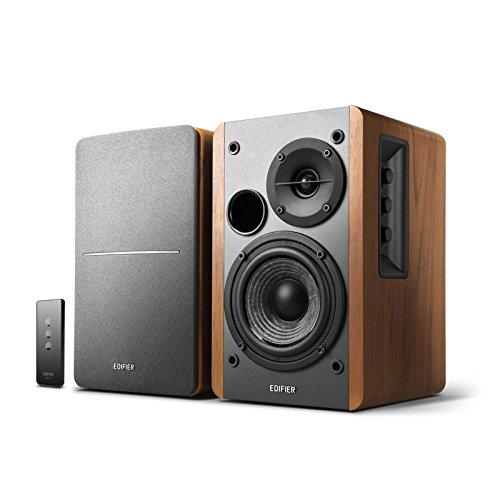
Confirming integrated sound capabilities before finalizing a desk layout prevents the frustration of missing system alerts, video audio, and casual voice communication. Display manufacturers frequently market screen panels for varied tasks, meaning an entry-level productivity panel might include modest drivers while an esports screen requires external audio output. Listeners who demand balanced low-frequency reproduction often look toward dedicated multimedia speaker options to handle demanding music and gaming content. Learning how signal cables, on-screen display menus, and operating system output devices interact ensures you get consistent playback from supported hardware without unnecessary troubleshooting.


A Practical Breakdown of ASUS Monitor Audio Capabilities
Determining whether a computer screen can output sound without external accessories is a vital first step when assembling any desktop or mobile workstation. Not all displays manufactured by ASUS come equipped with internal acoustic hardware, as audio components are omitted from certain models to reduce chassis thickness, manage retail costs, or focus strictly on visual refresh rates. Investigating your exact model number, reviewing manufacturer hardware sheets, and checking connector options will provide a definitive answer for your setup. This deep dive covers hardware identification, audio signal paths across different video cables, operating system configuration steps, and realistic acoustic expectations.
The Direct Reality: Do All ASUS Displays Feature Built-In Audio Drivers?
The short answer to whether an ASUS monitor includes internal drivers is that availability varies by product tier and intended usage. ASUS designs displays for diverse categories, ranging from budget business monitors and color-accurate creative displays to portable USB panels and high-speed competitive gaming screens. Because every target audience has distinct acoustic expectations, the manufacturer does not include internal hardware universally across all screen chassis.
In standard business and productivity monitors, small stereo drivers are often integrated directly into the housing to provide basic sound for video conferences, notifications, and web browsing. In contrast, many ultra-fast gaming monitors omit internal drivers entirely because serious gamers usually wear dedicated headsets for directional awareness. Portable travel screens also vary widely, where lightweight models omit sound hardware to save battery power while multimedia variants incorporate dual drivers for standalone convenience.
Assuming that every screen with an HDMI port outputs audible sound is one of the most common setup misconceptions. An HDMI cable easily carries multi-channel digital audio signals, but the receiving display must contain physical drivers and internal amplifier chips to reproduce those sound waves. Checking the exact technical specifications of your specific model remains the only reliable way to confirm integrated sound capabilities.
Identifying Physical Hardware: Grilles, Connectors, and On-Screen Menus
Inspecting the monitor enclosure provides several immediate physical clues regarding audio support. Integrated drivers require acoustic pathways, which typically appear as small perforated grilles, horizontal vents, or downward-firing speaker slots along the bottom or rear panel. If the plastic enclosure is completely smooth and unperforated without speaker slits, the monitor likely lacks internal acoustic transducers.
Connector arrays on the back or bottom edge offer additional evidence about sound hardware routing. A monitor featuring a 3.5 mm audio line-in port, usually colored green or labeled with an audio icon, is designed to receive analog sound from your computer motherboard when using legacy video cables. Conversely, a 3.5 mm port labeled with a headphone icon indicates an audio output jack, which routes audio signals from digital video inputs directly out to external headphones or powered desktop speakers.
Navigating the on-screen display menu provides definitive digital confirmation of built-in sound hardware. Using the physical control buttons or directional joystick on the monitor chassis, open the main setup menu and look for a dedicated audio section. If the menu contains adjustable volume sliders and mute toggles that control the display itself, the unit features built-in sound hardware. When the audio submenu is completely absent or grayed out despite active digital input, the screen generally operates strictly as a visual display.
Audio Signal Transmission Across Video Cables and Input Interfaces
Delivering audio to a computer monitor requires an interface capable of transmitting sound data alongside video frames. Modern digital connections, including standard HDMI, DisplayPort, and USB Type-C with DisplayPort Alternate Mode, carry high-bandwidth multi-channel audio directly over a single physical cable. When you connect a desktop computer or laptop through these digital interfaces, operating systems automatically detect the monitor as an available playback device.
Legacy video connections handle signals quite differently and cannot transmit sound over the video wire alone. Analog VGA cables, commonly recognized by blue D-sub connectors, transmit strictly analog visual information without any embedded sound channels. If you connect an ASUS monitor to a computer using VGA, you must connect a separate 3.5 mm stereo audio cable between the computer line-out port and the monitor line-in jack to hear sound through built-in drivers.
DisplayPort connections can occasionally introduce audio routing quirks depending on graphics card drivers and operating system power-saving policies. Certain graphics utility configurations may disable DisplayPort audio transmission when the screen enters a low-power standby state. Re-establishing the handshake by turning the screen off and on or updating graphics driver packages usually restores digital sound transmission over the interface.
Comparing Product Lines: Portable ZenScreens, Desktop VA and VP Series, and ROG Displays
Examining specific ASUS model lines highlights how hardware features align with distinct consumer use cases. Within the portable ZenScreen collection, models differ significantly in acoustic equipment based on power architecture. For example, some portable displays rely purely on lightweight bus power without internal sound hardware, while other multimedia models include built-in stereo drivers and integrated rechargeable batteries to deliver full standalone audiovisual presentation capabilities on the go.
Standard desktop business displays, such as the VA and VP series, show similar differentiation based on workstation requirements. Certain models integrate stereo sound hardware and ergonomic adjustable stands to provide an all-in-one desktop workstation for office tasks. Other models in the same display family focus entirely on affordable panel size and basic refresh rates while omitting internal sound transducers to minimize manufacturing costs for fleet deployments.
Flagship gaming lines like the Republic of Gamers series prioritize lightning-fast refresh rates, response times, and premium panel technologies. On high-end esports monitors, internal drivers are frequently omitted because competitive gamers demand high-fidelity spatial imaging through dedicated headsets rather than small ambient monitor drivers. On these gaming displays, the onboard audio circuitry primarily acts as an audio pass-through DAC, converting incoming HDMI or DisplayPort digital sound into clean analog output for your wired gaming headset.
Troubleshooting Missing Audio: Safe Steps When Your Display Stays Silent
When an ASUS monitor equipped with internal sound hardware fails to produce audio, the issue almost always stems from system configuration rather than broken hardware. The initial troubleshooting step involves checking the default audio playback output in your operating system. In Windows or macOS, connecting an external display can cause the system to route sound to the wrong device or leave playback assigned to internal laptop speakers.
Open your system sound settings and verify that the ASUS display model is explicitly selected as the default output device. If the monitor appears in the list but shows no sound activity, check that the volume level in the operating system is set above zero and not muted. Next, check the on-screen display menu of the monitor itself, as monitor volume controls function independently from system software volume sliders.
If the monitor does not appear as an audio output option at all, inspect the physical connection and graphics card drivers. Digital audio over HDMI or DisplayPort is managed by the high-definition audio controller embedded in your graphics processor. Reinstalling or updating your graphics card drivers, reseating both ends of the video cable, or testing a different certified cable often resolves missing digital audio handshakes safely.
Acoustic Expectations: Understanding the Limits of Monitor Transducers
Understanding the physical engineering constraints of internal monitor drivers helps set realistic expectations for daily listening. Computer monitors are designed with slim enclosures and minimal bezel borders, leaving almost no physical volume inside the chassis for acoustic resonance chambers. Most built-in monitor drivers measure only one or two inches in diameter and operate with modest power ratings between one and two watts per channel.
Because low-frequency bass reproduction requires physical air displacement and dedicated enclosure volume, built-in display drivers produce virtually no deep bass response. Audio output is predominantly concentrated in the midrange and lower treble bands, which makes vocal dialogue, system notification chimes, and basic speech clarity easily understandable. However, action movies, complex orchestral music, and modern video game soundscapes will inevitably sound thin and lacking in dynamic weight.
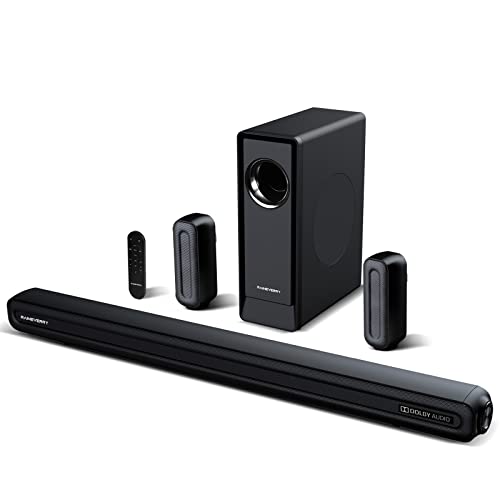
Listeners seeking rich musical reproduction or immersive gaming depth will find integrated display speakers inadequate for serious listening sessions. In those scenarios, pairing your workstation with high-fidelity stereo loudspeakers or a powered desktop sound system provides the dynamic range, bass extension, and channel separation that compact monitor chassis simply cannot deliver.
Configuring External Audio Upgrades and Workspace Routing
Setting up an effective audio pathway depends on how you choose to connect your external sound gear to your desktop environment. Many users choose to plug powered desktop speakers directly into the 3.5 mm audio output jack on the back of their ASUS monitor. This configuration allows the single HDMI or DisplayPort cable from your computer to carry both video and sound, leaving your desk tidy and minimizing cable clutter trailing to the computer tower.
While routing sound through the monitor audio-out jack is convenient, it relies on the internal digital-to-analog converter built into the monitor display board. These basic audio converters are engineered for general utility rather than audiophile-grade transparency, which can occasionally introduce faint background hiss or electrical noise during quiet passages. Connecting external speakers directly to your computer motherboard audio jacks or using a dedicated USB audio interface eliminates monitor circuitry processing for cleaner sound.
Workspace placement also plays an important role in how sound waves interact with your desk surface and room boundaries. Placing external bookshelf speakers or desktop audio monitors on small angled isolation pads prevents mechanical vibrations from transferring into the desktop surface. Elevating the speaker tweeters closer to ear height significantly improves clarity and imaging compared to downward-firing monitor drivers reflecting off desk clutter.
Practical Verification and Pre-Purchase Guidelines for Monitor Audio
Verifying audio features before buying a monitor saves time, avoids returns, and prevents unexpected desktop clutter. Always consult the official manufacturer specification sheet online, scrolling down specifically to the audio section rather than relying on general marketing titles. If a model includes sound hardware, the specifications will explicitly list the speaker wattage, such as two-watt dual stereo drivers, alongside the available connector types.
Consider your typical listening habits and primary use cases when deciding whether integrated monitor audio is truly necessary. If your workstation is located in a quiet office environment where you only need to hear calendar alerts, attend brief video meetings, or watch quick tutorials, integrated drivers offer a clean setup without extra wires. However, if your daily workflow involves audio editing, watching movies, or competitive gaming, plan from the beginning to use dedicated desktop speakers or high-grade headphones.
Taking a few moments to inspect physical connections, test operating system playback defaults, and understand your display capabilities ensures smooth audio performance. Whether your current screen features internal sound hardware or serves solely as a high-performance visual display, knowing how audio signals travel through your system gives you full control over your desk audio experience.







Write Your Review
No reviews yet. Be the first to share your experience!