
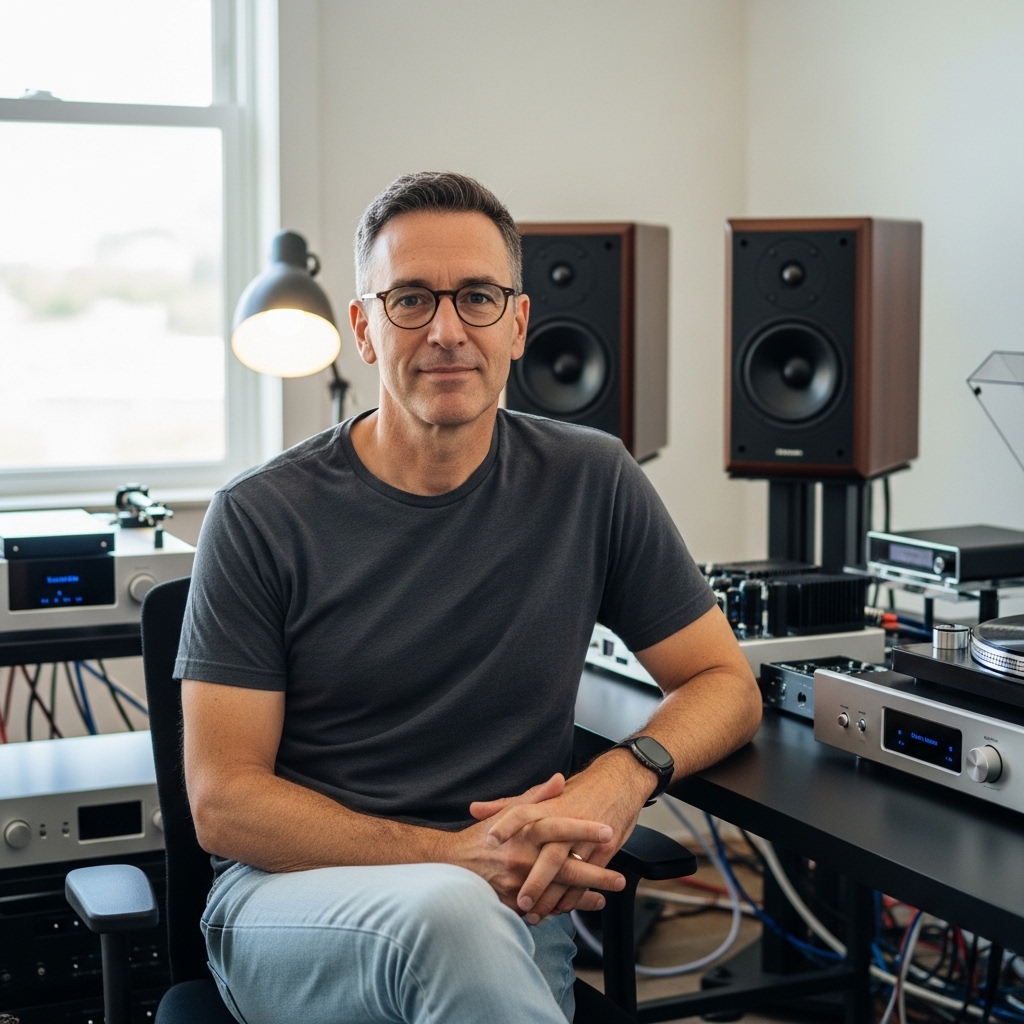

Setting up an immersive gaming space often prompts questions about how modern gaming consoles interface with external sound systems. Gamers wondering whether can playstation 4 output directly to 4 speakers typically want room-filling surround sound for spatial awareness during intense matches. Many players transitioning from speakers for gaming PC setups expect multiple analog jacks on the back of the machine. However, home consoles use a completely different audio architecture focused on digital streams.
The direct answer is that a PlayStation 4 cannot connect straight to four raw passive speakers or multiple independent analog desktop sets without extra hardware. The console does not contain an internal multi-channel power amplifier or four physical output terminals. Instead, it relies on digital outputs that require intermediate equipment such as an audio-video receiver or a specialized digital converter. Exploring how the console handles multi-channel audio helps you select the right bridge components for clean sound.



Understanding PlayStation 4 Audio Output Capabilities
Resolving whether can playstation 4 output directly to 4 speakers starts with recognizing the physical and electrical design of gaming consoles. The PlayStation 4 functions as a digital source device rather than an integrated audio amplifier. Because of this architecture, the console cannot directly supply electrical wattage to passive speaker cones or send discrete analog audio to four independent speaker jacks. To build a four-speaker soundstage, you must send the digital signal from the console to an external audio processing device.
Physical Output Limitations of the PlayStation 4 Hardware
Examining the rear panel of any PlayStation 4 model reveals a distinct lack of traditional analog speaker connections. Passive speakers require dedicated speaker wire terminals fed by internal amplification stages that deliver electrical wattage. The PlayStation 4 chassis contains no speaker binding posts, spring clips, or multi-channel analog jacks. Instead, all primary audio paths remain entirely in the digital domain until an external decoder or amplifier translates them into analog waveforms.
Even active powered speakers face immediate connectivity barriers when placed directly next to the console. The machine does not provide front-left, front-right, surround-left, and surround-right analog pre-outs like high-end PC sound cards do. Connecting multiple individual powered units directly to the console is physically impossible without an adapter. This hardware limitation means external signal distribution is mandatory for any multi-speaker installation.
Console Revisions and Available Audio Ports
Audio connectivity options vary depending on the specific hardware revision of your console. The original launch console and the enhanced PlayStation 4 Pro feature both an HDMI port and a dedicated digital optical TOSLINK output. These optical ports allow players to split digital audio directly to soundbars, older surround sound processors, or dedicated digital-to-analog converters. If you own an original or Pro unit, optical output offers a flexible path for routing digital sound to external hardware.
The PlayStation 4 Slim revised the physical chassis by removing the optical audio port entirely. As a result, the Slim model relies solely on its HDMI output for sending digital sound to displays or sound systems. Players using a Slim system who want external multi-channel audio must route the HDMI cable through an intermediary device. Understanding your specific console revision prevents purchasing cables or converters that your console cannot physically accept.
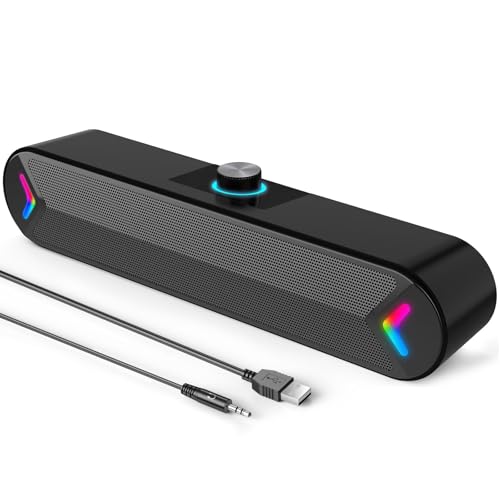
In addition to the rear ports, the console offers auxiliary audio through the DualShock 4 controller and USB slots. The controller headphone jack provides a convenient 3.5mm stereo output, but it only produces a two-channel stereo feed designed for headsets. Similarly, connecting USB audio devices or Bluetooth desktop speaker options with USB transmitters generally limits the signal to two discrete channels. None of these secondary ports support discrete four-channel analog distribution on their own.
True Multichannel Surround versus Mirrored Stereo
When planning a four-speaker setup, you must distinguish between true discrete multi-channel audio and dual stereo mirroring. In a true discrete setup, the game engine sends unique audio information to four distinct spatial channels. Front speakers handle directional effects and dialogue, while rear surround speakers deliver ambient cues and positional alerts. This configuration creates authentic immersion because sounds originate from realistic positions in your room.
Mirrored stereo simply duplicates the standard left and right channels across two extra speakers. In this arrangement, the rear speakers play the exact same sound as the front speakers. While this increases overall room volume and sound coverage, it removes the competitive advantage of true directional surround sound. Players often assume having four speakers automatically means surround sound, but source signal formatting determines spatial accuracy.
Games on the platform natively encode audio in sophisticated surround sound formats like Linear PCM, Dolby Digital, or DTS. When connected to a system without a center channel or subwoofer, a processor can run a four-channel phantom mode. This downmix routes center channel dialogue equally between the front left and right drivers while keeping rear effects separated. Achieving this authentic balance requires a processing unit capable of decoding the console digital bitstream.
Connecting Four Speakers Using an AV Receiver
The most reliable and acoustically sound method to run four speakers is pairing the console with an audio-video receiver. An AV receiver accepts the digital HDMI or optical signal directly from the console and decodes the multi-channel soundtrack. The receiver internal amplifier then sends dedicated, amplified power through speaker wire to each connected passive cabinet. This setup safely provides clean power while handling all necessary audio decoding internally.
Most multi-channel receivers are configured out of the box for 5.1 or 7.1 surround sound configurations. However, modern receivers allow you to customize speaker assignments within their setup menus to operate in a 4.0 configuration. In 4.0 mode, you designate front left, front right, surround left, and surround right while toggling the center and subwoofer to none. The receiver automatically distributes dialogue and bass frequencies into the four connected speakers without missing sonic detail.
Using an AV receiver also safeguards your equipment from electrical impedance mismatches. Attempting to wire multiple speakers together without an amplifier can drop electrical impedance below safe operational thresholds, risking amplifier overload. A dedicated receiver manages impedance ratings properly, ensuring your drivers receive steady, undistorted power during dynamic gaming sequences. This makes an external receiver the gold standard for multi-speaker console gaming.
Using an HDMI Audio Extractor or Digital Converter
Players who prefer powered desktop speakers or studio monitors often do not want a bulky, traditional AV receiver. In these situations, an active HDMI audio extractor or multi-channel digital-to-analog converter can bridge the gap. These compact converter boxes receive the console HDMI cable, pass video through to the monitor, and extract the audio stream. The extractor then splits the sound into multiple analog outputs suitable for powered speaker inputs.
To achieve a true four-speaker setup with active monitors, the extractor must support multi-channel LPCM decoding with discrete outputs. Many basic extractors on the market only output two-channel stereo via RCA or 3.5mm jacks. A true multi-channel unit provides separate front and surround line-level analog outputs for each powered speaker pair. Always inspect converter specifications to confirm it handles discrete surround outputs rather than basic stereo extraction.
Latency is an important technical consideration when choosing third-party digital audio extractors. Low-quality converters can introduce subtle audio lag between what you see on screen and what you hear from your drivers. High-bandwidth converters supporting uncompressed audio pass-through keep video and sound synchronized for competitive play. Investing in a capable converter ensures clean line-level audio without noticeable processing delay.
Dangers of Passive Signal Splitting and Wiring Mistakes
A common temptation among DIY audio enthusiasts is using cheap Y-splitters to connect four speakers to a single stereo output. Running an analog splitter from a controller or monitor output simply creates two pairs of mirrored stereo speakers. While this works without damaging powered speakers, it fails to produce true positional surround audio. Splitting analog line-level signals excessively can reduce overall signal voltage, resulting in lower volume and increased background hiss.
A far more dangerous mistake involves wiring multiple passive speakers together in parallel to a single amplifier channel. Connecting two four-ohm or eight-ohm passive speakers to the same terminal halves the total impedance seen by the amplifier. If an amplifier is not rated for low-impedance loads, the resulting heat buildup can trigger thermal shutdown or cause permanent circuit failure. Passive drivers must always be connected to individually amplified channels matched to their rated impedance.
Daisy-chaining speakers without checking their electrical requirements can also severely degrade audio quality. Signals sent through improperly matched wiring suffer from uneven frequency response, muted high frequencies, and boomy, distorted bass. To protect both your speakers and your listening experience, always rely on discrete amplifier channels rather than makeshift wire splices. Dedicated amplification keeps each driver performing within its intended acoustic parameters.
Configuring Console Audio Output Settings
Connecting the proper hardware bridges is only half the process; you must also configure the internal system software. On the console home screen, navigate to Settings, select Sound and Screen, and open Audio Output Settings. From this menu, you select your primary output port based on your setup, choosing either HDMI OUT or Digital Out Optical. Slim console owners will see HDMI OUT as their only primary physical hardware choice.
The next critical setting is Audio Format Priority, which determines how the console packages the outgoing sound stream. Choosing Linear PCM instructs the console to decode audio internally and send uncompressed multi-channel audio over HDMI. If you are using an optical connection to an AV receiver or older surround decoder, Bitstream Dolby or Bitstream DTS is required. Optical connections lack the bandwidth for uncompressed multi-channel PCM, making compressed bitstream formats essential for surround playback.
Setting the format incorrectly can result in silent rear channels or complete audio dropout. If your audio processor does not support DTS decoding, selecting DTS priority will produce silence or loud digital static. Setting priority to Dolby Digital provides wide compatibility across almost all multi-channel audio equipment and soundbars. Testing each format while listening for clear channel separation ensures your system functions as intended.
Troubleshooting Missing Channels and Audio Delays
Encountering audio issues after connecting an external multi-speaker system is often related to handshake or downmix errors. If your four-speaker setup produces faint dialogue during gameplay, the system may be sending voices to a non-existent center channel. When configuring an AV receiver, confirm that the center speaker is explicitly set to none or off. This forces the processor to blend the center channel dialogue into the front left and right speakers.
Another frequent issue is acoustic delay, where gunfire or footsteps lag noticeably behind on-screen actions. Audio latency commonly occurs when televisions attempt complex digital processing on incoming HDMI audio before passing it downstream. To resolve lag, connect the console directly to your receiver or extractor first, then pass video to the display. You can also engage game mode on your television to disable unnecessary audio and video buffering stages.
Check physical connections and source cable integrity whenever audio sounds thin, muffled, or distorted. A pinched optical cable can drop digital packets, causing intermittent audio clicking or sudden channel dropouts. Loose RCA or speaker wire terminations create audible hums and weak low-frequency output. Taking time to inspect your physical cabling ensures your four-speaker gaming setup delivers crisp, immersive sound across every play session.
Making the Right Hardware Decision for Your Setup
Selecting the best path to connect four speakers ultimately depends on your listening room, equipment budget, and acoustic goals. Casual gamers who simply want more ambient volume may find that a dual-stereo setup with powered speakers provides adequate coverage. Enthusiasts seeking pinpoint competitive spatial accuracy will gain far more value from an AV receiver driving four discrete surround channels. Deciding between mirrored stereo and true surround sound dictates whether you need a simple splitter or a dedicated surround decoder.
Before buying additional cables, converters, or speaker cabinets, assess the ports available on your specific console model. Verify whether your hardware requires an HDMI audio extractor or if an existing optical port can feed your audio processor. Pairing proper signal decoders with adequately powered speaker channels protects your electronics from damage while providing superior gaming audio. Careful system planning ensures your four-speaker audio setup delivers the realism, depth, and spatial precision you expect.






Write Your Review
No reviews yet. Be the first to share your experience!