


Setting up ambient outdoor audio often transforms a backyard patio or evening gathering into an inviting retreat. While tiki torch styling adds visual warmth, figuring out how to pair tikitunes speakers requires understanding both standard Bluetooth connections and dual-unit synchronization. Many listeners run into initial confusion when attempting to link two units together for stereo playback or when their smartphone connects to only one device at a time. Exploring versatile budget-friendly Bluetooth audio options reveals that portable torch speakers need a specific sequence to establish master and secondary channels properly.
Limitless Innovations designed these flame-effect units to deliver five-watt sound alongside flickering atmospheric LED lighting. Understanding how to pair tikitunes speakers correctly ensures steady wireless playback without sudden dropouts or desynchronization between channels. Whether you use a single unit mounted on a patio pole or a matched pair staking into the garden, following the correct button combinations eliminates connection headaches. Once you master the pairing sequence, you can stream your favorite playlists across an entire outdoor living space with minimal fuss.
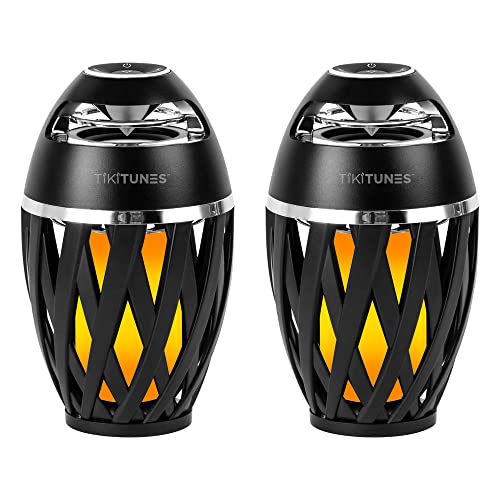

Mastering TikiTunes Speaker Connections and Dual Syncing
Connecting outdoor wireless audio should be a straightforward process that lets you focus on entertaining guests. Pairing TikiTunes speakers involves two distinct procedures depending on whether you operate a single standalone unit or synchronize two units for stereo playback. Following the precise power-on order prevents standard connection errors and establishes a stable wireless signal. This guide walks through every phase of device pairing, true wireless stereo syncing, control operations, and diagnostic checks.
Direct Bluetooth Pairing to a Single Device
Powering on a single TikiTunes speaker initiates Bluetooth discovery automatically whenever the device lacks an active memory connection. The top control panel contains soft-touch buttons that manage power, playback, and illumination. Press and hold the central power button for approximately three seconds until the speaker emits a clear startup chime and the status indicator begins blinking blue. This flashing pattern confirms that the internal radio is actively broadcasting its discovery beacon to nearby compatible hardware.
Open the Bluetooth configuration menu on your phone, tablet, or laptop to scan for local equipment. Verify that Bluetooth is enabled, then review the list of available connections until you locate the speaker name listed as TikiTunes. Tap the entry to trigger the initial wireless handshake between your source device and the internal receiver. Pairing typically completes within five to ten seconds under normal conditions.
Once linked, the speaker emits an audible confirmation chime, and the flashing blue light transitions to a steady solid illumination. Your phone or tablet will now route streaming music, podcasts, or video audio directly through the five-watt internal speaker driver. Keep your mobile device within reasonable proximity during this initial test to ensure a clear transmission path. Testing playback immediately with your preferred media player confirms that volume and audio stream signals flow without interruption.
Synchronizing Two TikiTunes Speakers for Stereo Audio
Creating a true wireless stereo field requires establishing a direct link between two TikiTunes units before connecting them to any mobile device. If your phone connects to one speaker first, the unit locks its wireless channel and cannot accept a secondary audio bridge. Begin by ensuring that both TikiTunes speakers are powered off completely. Disabling Bluetooth temporarily on your smartphone or tablet guarantees neither speaker connects to an external device prematurely during setup.
Position the two speakers near one another on a level surface, ideally within three feet of separation. Press and hold the power buttons on both units at the same time until both emit their startup chimes. Both speakers will start with flashing blue indicator lights, signifying that both units are active and searching for available connections. Keeping them physically close during this initial handshake ensures the lowest possible radio interference.
Press and hold the play or pause button on one of the speakers for approximately two to three seconds until you hear a distinct secondary chime. This action assigns that unit as the master controller while searching for its stereo partner. Within a few moments, the two speakers communicate and chime together, confirming successful synchronization. The master speaker will continue flashing its blue indicator light, while the secondary speaker light becomes solid blue to indicate paired standby status.
Understanding the Master and Secondary Wireless Hierarchy
Operating two speakers in tandem relies on an organized master and secondary hierarchy to manage incoming digital audio streams. The master speaker acts as the central hub, receiving the primary stereo Bluetooth feed from your mobile device. After processing the signal, the master unit splits the audio and transmits the matching channel wirelessly to the secondary speaker. This dedicated wireless bridge maintains tight synchronization so both units play simultaneously without audible delay or echo.
After the two speakers finish linking to each other, re-enable Bluetooth on your smartphone, tablet, or computer. Open your device connection menu and look for the TikiTunes entry, which should appear as a single listing rather than two separate devices. Select this entry to pair your phone directly with the master speaker. The master unit indicator light will turn solid blue once the connection succeeds, signaling that both units are ready for coordinated playback.
Problems occur when users pair both speakers individually to a smartphone before initiating the dual sync sequence. When a mobile operating system sees two identical Bluetooth profiles, it usually routes media sound to only one profile at a time. If you ever see two active TikiTunes listings connected in your phone menu, disconnect both and turn off phone Bluetooth. Repeating the speaker-to-speaker sync first resolves the hierarchy confusion and restores true dual-channel playback.
Navigating Button Controls and Atmospheric Flame Modes
The control interface on each TikiTunes speaker features intuitive rubberized buttons designed to withstand outdoor use while providing tactile feedback. The central button handles main power toggling and sync management, flanked by volume and tracking keys. A short tap on the plus or minus buttons adjusts audio volume incrementally, allowing easy volume matching directly at the speaker. Long presses on these same buttons command track skipping forward or backward on compatible streaming apps.
The ambient LED flame effect operates independently from the internal five-watt audio amplifier. A dedicated flame button toggles the flickering amber light pattern without requiring music playback, functioning as a standalone decorative lantern. This independent control allows you to enjoy ambient evening lighting while conserving battery power if you prefer quiet relaxation. Conversely, you can play daytime music with the light switched off to extend continuous battery runtime.
Adjusting the volume on the master speaker changes output levels across both synced units simultaneously to maintain balanced volume. However, making volume adjustments directly on your connected phone provides wider dynamic range and smoother fading. Keeping both speakers at equal physical volume settings prevents one side of your patio from overpowering the other. The integrated control panel gives quick access without needing to unlock your mobile screen every time you want to pause audio.
Bluetooth Transmission Range and Placement Guidelines
Maintaining a dependable wireless connection requires understanding how radio frequencies travel across outdoor living environments. Limitless Innovations specifies an operating range of up to thirty feet between the host device and the speakers. The same thirty-foot limit applies to the wireless bridge between the master and secondary speakers. Operating within these physical boundaries ensures uninterrupted streaming free from digital artifacts, popping, or sudden channel dropouts.
Physical obstacles significantly impact Bluetooth performance because radio waves struggle to penetrate solid, dense materials. Masonry walls, heavy glass patio doors, dense shrubbery, and metal outdoor furniture can weaken the broadcast signal between devices. Placing the master speaker in a central location between your phone and the secondary speaker maximizes signal strength. Raising speakers off the ground using mounting poles or tabletop surfaces reduces soil-level signal absorption.
High-density wireless environments can introduce radio frequency congestion that interferes with smooth audio transmission. Nearby exterior Wi-Fi access points, microwave ovens, and active cordless equipment broadcast along adjacent wireless bands. If you encounter occasional audio sputtering on a patio, repositioning your phone closer to the master speaker typically resolves the issue. Creating a direct line of sight between the two synced speakers also prevents environmental obstacles from interrupting stereo coordination.
Testing Stereo Audio Separation and Acoustic Balance
Verifying that your two TikiTunes units output distinct stereo channels completes the setup process and ensures optimal sound reproduction. True wireless stereo architecture delivers separate left and right acoustic information, expanding the soundstage beyond what a single mono enclosure can produce. When positioned properly on opposite sides of a seating area, the dual setup produces an open, atmospheric listening environment that complements outdoor gatherings.
You can easily verify your stereo separation by playing audio specifically mixed with prominent left and right panning effects. When testing your setup, testing sound with high quality demo tracks provides an easy way to verify channel balance and frequency clarity across your garden or patio. Listen from a central seated position to confirm that instruments or vocals move naturally between the two speakers. If both speakers seem to output identical sound, verify that the dual sync chime occurred during the initial connection sequence.
While these compact five-watt drivers excel at creating pleasing outdoor ambient background audio, their small acoustic chambers have inherent output limits. Listeners seeking deep sub-bass reproduction or high-volume sound pressure for large gatherings often rely on dedicated home music speakers engineered with multi-way driver crossover networks. However, for patio dining, deck relaxation, or garden walkways, the combination of warm flickering illumination and distributed stereo sound provides a satisfying balance of form and function.
Troubleshooting Pairing Failures, Audio Lag, and Dropouts
Intermittent sound or sudden uncoupling between synced speakers ranks among the most common issues reported by wireless audio users. Low internal battery charge is frequently the underlying culprit, as dropping voltage weakens the Bluetooth transceiver before the audio amplifier cuts out. When battery reserves fall below operational thresholds, the secondary speaker may repeatedly drop its link or produce intermittent static. Recharging both units completely with standard USB power often resolves seemingly unexplained wireless disconnects.
Another frequent diagnostic point involves aggressive automatic reconnect behavior from secondary household devices. If a tablet or a previously paired laptop is powered on nearby, that device may automatically capture one speaker before you can initiate dual syncing. When this happens, the occupied speaker ignores sync commands from its partner unit. Turning off Bluetooth on all surrounding secondary devices during setup ensures that only your intended source communicates with the master speaker.
If one speaker remains completely silent while its indicator light blinks continuously, the internal wireless profile may require a quick power cycle. Press and hold the power button on both speakers to turn them off completely, then pause for fifteen seconds before restarting. This brief delay discharges internal capacitors and clears temporary cache errors in the Bluetooth microprocessor. Restarting the dual sync sequence from a powered-down state usually re-establishes the stereo bridge on the first attempt.
Battery Management, Charging Habits, and Outdoor Maintenance
Each TikiTunes speaker contains a built-in 2000 mAh rechargeable battery designed to support portable outdoor operation. Under standard playback conditions at moderate listening levels, users can expect continuous operation between six and nine hours depending on specific usage patterns. Running the audio driver at maximum volume while simultaneously powering the flickering LED flame increases energy consumption, pulling total runtime closer to the lower end of that spectrum.
Recharging the internal cell requires connecting the included micro USB charging cable to a standard five-volt USB power supply or computer port. A dedicated red indicator light illuminates near the charging port while power flows into the battery. Once the internal charging circuitry detects that the 2000 mAh cell has reached capacity, the indicator light extinguishes or turns blue. A full recharge cycle typically requires approximately three to four hours from a fully depleted state.
The speaker housing features an IP65 ingress protection rating, making it dust-tight and resistant to low-pressure water sprays from any direction. Maintaining this water resistance requires ensuring that the rubberized port cover remains firmly seated over the micro USB input during outdoor use. Clean exterior surfaces periodically with a soft damp cloth to remove pollen and dust, and store the speakers indoors during winter months to protect internal lithium battery health.
Setting up and pairing TikiTunes speakers becomes straightforward once you respect the relationship between master and secondary units. By syncing the two speakers to each other before introducing your smartphone or tablet, you establish a stable wireless stereo link that fills your outdoor space with balanced sound and atmospheric lighting. Regular attention to battery charging habits, clean port seals, and sensible speaker spacing ensures consistent performance during backyard gatherings, quiet patio evenings, and seasonal outdoor entertainment.





Write Your Review
No reviews yet. Be the first to share your experience!