


Streaming high-resolution audio throughout a living space often hits a wall when vintage amplifiers, wired monitors, or older wireless gear enter the equation. Many listeners wonder how to make speakers airplay 2 compatible without discarding perfectly capable hardware that already delivers exceptional sound. While standard Bluetooth often compresses dynamic range and limits multi-room synchronization, Apple AirPlay 2 relies on local network bandwidth to keep audio playback smooth across multiple rooms simultaneously. Adding this functionality allows existing hardware to integrate directly with iPhones, iPads, and Mac computers for effortless whole-home playback.
Achieving seamless network streaming does not require an advanced background in electrical engineering or an immediate total replacement of your gear. Depending on your current setup, you can either introduce a compact external streaming adapter into your signal path or transition to modern high-fidelity home music speakers engineered with native network capability. Each path provides distinct advantages in terms of physical cable management, sound output, and long-term convenience. Understanding the hardware requirements will help you select the exact upgrade path suited for your listening room.
Pros
- High-fidelity WiFi streaming with Alexa, AirPlay 2, and music service integration
- Large drivers deliver vibrant bass and clear highs for home audio
- Stereo and multi-room capabilities expand sound across your house
- Bluetooth 5.0 provides stable wireless connectivity
- DSP technology maintains audio quality at max volume
Cons
- No built-in microphone requires separate Alexa device for voice control
- Lacks portability as it needs a power outlet for continuous use
- Large 6x6x8-inch size may not suit very small spaces
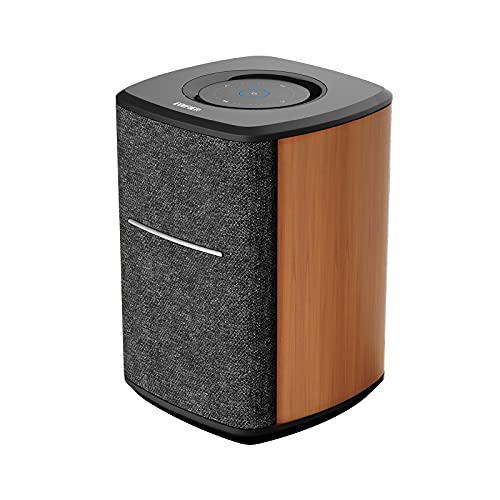
The Edifier MS50A is a powerful WiFi smart speaker designed for privacy-focused users, featuring 40W RMS output without a built-in microphone. It connects effortlessly to Alexa, AirPlay 2, Spotify Connect, and Tidal Link for high-definition streaming over your home network, plus Bluetooth 5.0 for quick phone pairing.
Ideal for American households seeking whole-home audio, it shines in multi-room setups where you group multiple units for synchronized playback or pair two for stereo soundstages that fill living rooms with vibrant energy. Setup is straightforward via WiFi, making it perfect for tech-savvy families who value clear, distortion-free music during gatherings or daily routines.
In real-world use, the 4-inch woofer and 1-inch tweeter produce room-filling sound with punchy bass and crisp details, enhanced by updated DSP tech. While not portable, its stationary power delivers consistent performance for home offices, kitchens, or entertainment spaces.
Verdict: A top pick for privacy-conscious streamers wanting robust WiFi audio without voice spying risks. Grab it if multi-room immersion is your goal.
The MS50A punches above its size with a 4-inch woofer delivering deep, vibrant bass that anchors tracks, paired with a 1-inch tweeter for sparkling vocal clarity and highs. DSP processing ensures zero distortion even at party-level volumes, creating an expansive soundstage ideal for filling medium to large rooms.
WiFi connectivity via AirPlay 2 and music services streams lossless HD audio flawlessly, while Bluetooth 5.0 offers stable range up to 30 feet for phone control. Stereo pairing doubles the immersion, making it outperform single-unit speakers for home theater vibes or background music.
Overall, expect balanced sound with emphasis on full-bodied lows and clear mids, perfect for genres from rock to podcasts without muddiness.
At 6x6x8 inches, the MS50A boasts a substantial build as one of the largest WiFi speakers, housing premium drivers in a sleek, compact enclosure that fits shelves or stands without dominating spaces. Its one-piece design prioritizes stability for permanent home placement.
No battery means endless playback when plugged in, eliminating recharge worries for all-day or multi-room use; just connect to AC power for non-stop streaming sessions. Weight feels solid yet manageable for repositioning around the house.
Lacking IP ratings, it's best for indoor lifestyles like cozy evenings or kitchen cookouts, focusing on durability through quality construction rather than rugged outdoor adventures.
Practical Methods for Enabling AirPlay 2 Streaming on Audio Speakers
Apple AirPlay 2 transforms how digital audio moves through a household by leveraging Wi-Fi networks instead of short-range point-to-point connections. If you want to know how to make speakers airplay 2 compatible, the practical solution depends on whether you are working with existing passive speakers, powered monitors, or purpose-built standalone units. You can either bridge analog and digital inputs using a dedicated network streaming receiver or integrate an all-in-one smart speaker built specifically with native AirPlay 2 firmware. Both methods unlock multi-room grouping, low-latency playback, and direct control through iOS audio menus.
Evaluating your physical listening space and existing components marks the logical first step before purchasing new hardware. Classic passive bookshelf speakers connected to a stereo receiver require a line-level or optical audio feed from an external streaming bridge. In contrast, modern powered systems often provide straightforward auxiliary inputs or direct network chips that simplify the physical footprint. By identifying the exact input terminals on your audio gear, you can implement network streaming without running into impedance mismatches or signal loss.
How AirPlay 2 Architecture Handles Network Audio Playback
Understanding the technical foundation of AirPlay 2 clarifies why this protocol outperforms basic wireless options for home listening. Unlike conventional Bluetooth connections that compress audio heavily and drop signal when leaving the immediate room, AirPlay 2 transmits CD-quality audio over 2.4 GHz or 5 GHz Wi-Fi bands. This higher data throughput preserves dynamic range and instrument separation while eliminating irritating notification sounds from interrupting your music. Your Apple device acts essentially as a remote controller, allowing the target speaker or adapter to fetch audio streams cleanly over the local network.
The primary leap from legacy AirPlay to AirPlay 2 lies in buffer management and multi-room synchronization. The original protocol suffered from slight timing drifts and brief latency spikes whenever users attempted to stream audio to multiple locations at once. AirPlay 2 resolves this by utilizing an expansive multi-second cache, ensuring that every speaker in the network maintains precise sample-accurate timing. This mechanism allows you to group different rooms together through the Apple Home application without encountering echo effects or phasing issues.
Security and privacy also distinguish AirPlay 2 from other smart home audio ecosystems. Because the protocol operates inside your private local area network, communication between the source device and receiving hardware remains local. You do not need to route every playback command through external third-party cloud servers to begin streaming your favorite tracks. This local architecture provides fast response times when tapping play, pausing a track, or adjusting master volume from an iPhone lock screen.
Connecting External Streaming Adapters to Existing Passive and Powered Speakers
The most economical method to modernize existing passive or active speakers involves connecting an external Wi-Fi audio adapter. These compact bridge units receive the AirPlay 2 wireless stream from your network and convert the digital bits into an analog or optical digital signal. For powered speakers with their own internal amplifiers, a simple 3.5mm auxiliary or dual RCA patch cable connects the adapter output directly to the speaker line-in port. This configuration preserves the acoustic performance of high-end active monitors while granting immediate network functionality.
Passive speaker setups require a slightly different signal chain because the speakers lack built-in amplification. In this scenario, the external AirPlay 2 receiver plugs into an available auxiliary, tape, or optical input on your integrated amplifier or stereo receiver. The amplifier then powers the passive speaker pair normally via standard speaker wire. Utilizing an optical SPDIF digital connection between the adapter and amplifier is often preferable because it bypasses the budget digital-to-analog converters found inside small streaming pucks.
Integrating legacy hardware this way breathes fresh utility into vintage audio systems that were manufactured decades before wireless streaming existed. High-end analog amplifiers and wooden speaker enclosures often possess superior driver construction and tonal warmth compared to budget modern plastics. Adding a small streaming puck behind a stereo cabinet preserves that analog character while granting touch-screen convenience from your smartphone. It prevents functional equipment from ending up in landfills while saving significant money on complete system overhauls.
Cable selection and grounding warrant careful attention when using external bridge receivers. Budget power bricks packaged with compact streaming devices occasionally induce ground-loop hum through analog RCA cables into the main amplifier. Using a dedicated ground-loop isolator or switching to an optical Toslink cable will completely eliminate electrical ground noise from reaching your speaker cones. Verifying these connections during the initial setup guarantees clean, silent backgrounds during quiet musical passages.
Upgrading to All-in-One Smart Speakers with Native AirPlay 2 Support
While adapters work well for existing components, selecting an all-in-one smart speaker with factory-integrated AirPlay 2 represents the cleanest solution for secondary rooms or uncluttered desks. Purpose-built wireless systems eliminate messy external power bricks, patch cords, and component stacking. These units house the network interface, digital signal processor (DSP), internal amplifier, and speaker drivers inside a single engineered enclosure. Listeners seeking room-filling sound without complex component matching often favor this streamlined design.
The Edifier WiFi Smart Speaker Without Microphone exemplifies this modern integrated approach. Measuring 6 by 6 by 8 inches, this model incorporates a large 4-inch woofer and a dedicated 1-inch tweeter driven by 40W RMS of amplified power. Its updated DSP technology manages driver excursions to reproduce vibrant, room-filling sound without noticeable harmonic distortion even at elevated listening levels. Connecting this speaker to your home Wi-Fi network enables native Apple AirPlay 2, Spotify Connect, and Tidal Connect playback right out of the box.
Privacy-conscious users will particularly appreciate that this Edifier model operates without built-in microphones. Many competing smart speakers require active voice listeners that constantly monitor ambient room noise, raising privacy concerns in bedrooms or private home offices. By focusing strictly on audio fidelity and network reception, the unit provides compatibility with Alexa grouping and AirPlay 2 controls while protecting personal household privacy. It also includes Bluetooth 5.0 connectivity as a secondary backup for guests who might not be connected to your local Wi-Fi router.
Scaling your listening environment becomes remarkably simple with native wireless speakers. When using two matching MS50A speakers, you can link them wirelessly over your Wi-Fi network to configure a genuine stereo pair. This expands the acoustic soundstage far beyond what a single mono cabinet can produce, delivering left and right channel separation that rivals a traditional stereo speaker system. Alternatively, you can place single units in separate rooms and group them through AirPlay 2 for unified whole-home entertainment.
Local Network Optimization and Bandwidth Management
Reliable AirPlay 2 streaming hinges on the stability and configuration of your local Wi-Fi network. Because audio packets stream continuously in real time, sudden network congestion or radio frequency interference can cause momentary dropouts or failed speaker handshakes. Placing your audio hardware within a strong signal zone on either the 2.4 GHz or 5 GHz frequency band prevents packet buffer depletion. If your router features dual-band smart steering, ensuring your mobile device and speakers communicate across the same subnet is crucial.
Router settings play a significant role in device visibility across Apple platforms. AirPlay relies heavily on multicast DNS (mDNS), also known as Bonjour networking, to discover compatible hardware across the household. If your router has “AP Isolation” or “Client Isolation” toggled on inside its security settings, connected wireless devices will be prevented from communicating with each other. Disabling client isolation allows your iPhone or Mac to instantly locate your AirPlay 2 speakers whenever you open the audio output selection menu.
Assigning static IP addresses or DHCP reservations through your router management portal is another effective practice for multi-speaker households. When wireless speakers change IP addresses after router reboots, iOS devices occasionally cache the old address and display a “Cannot Connect” error. Locking each speaker or streaming adapter to a permanent local IP address guarantees that your network devices maintain persistent, uninterrupted communication pathways. This step minimizes handshake lag and keeps multi-room groups permanently responsive.
Step-by-Step Setup Guide Using the Apple Home Application
Configuring your AirPlay 2 hardware requires only a few minutes when following the standard Apple ecosystem workflow. Begin by positioning your speaker or adapter in its permanent location and connecting it to mains power. If using an external adapter, plug the audio output cable into your amplifier or powered speaker before powering on the electronics. Ensure your iPhone or iPad is connected to the exact 2.4 GHz or 5 GHz Wi-Fi network you intend to use for home audio distribution.
Open the Apple Home app on your iOS device and tap the addition symbol in the upper corner to add an accessory. If your speaker or streaming adapter features a HomeKit setup code, scan the numeric graphic using your device camera. For hardware without a printed setup code, hold your iPhone near the accessory or select “More options” to view nearby discoverable AirPlay devices. The on-screen wizard will prompt you to name the speaker and assign it to a specific room, such as the living room, kitchen, or home office.
Once assigned, the speaker integrates directly into your Control Center audio menu. Swipe down from the top right corner of your iOS screen, tap the AirPlay icon within the media playback widget, and select your newly configured speaker. You will see a dedicated volume slider and a circular checkmark confirming active playback. From this same interface, you can select multiple rooms simultaneously to initiate synchronized multi-room audio throughout the home.
Integration with Siri voice commands functions automatically once the hardware is linked inside the Apple Home app. Even if your speaker lacks an onboard microphone, speaking to your iPhone, Apple Watch, or HomePod allows you to control the stream. Commands like “Play acoustic rock in the living room” or “Set kitchen volume to forty percent” execute cleanly over your home network. This hands-free flexibility demonstrates how modern software interfaces effortlessly unite physical hardware.
Diagnostic Steps for Connection Drops and Discovery Failures
Even well-designed network audio systems encounter occasional communication hiccups that degrade the listening experience. If a previously connected speaker suddenly disappears from your AirPlay output menu, the issue usually stems from temporary network cache desynchronization. A safe and simple first step involves toggling Wi-Fi off and on within your iPhone control settings to force an immediate network discovery scan. If the speaker remains undetected, power-cycling the audio hardware clears its temporary RAM and initiates a fresh network handshake.
Audio latency or physical desynchronization between grouped speakers typically indicates local wireless congestion rather than defective speaker components. When microwave ovens, dense brick walls, or crowded neighboring Wi-Fi channels interfere with data packets, audio buffers can struggle to maintain lockstep timing. Shifting your streaming hardware to an uncongested 5 GHz wireless channel or connecting bridge adapters via physical Ethernet cables where available resolves latency problems immediately. Keeping router firmware updated also ensures optimal packet routing protocols.
Distorted sound or unexpectedly thin bass usually points toward incorrect physical connections or audio settings rather than software bugs. Ensure that analog 3.5mm and RCA connectors are fully seated into their corresponding jacks, as partial insertions can drop a stereo channel or create phase cancellation. If your speaker or amplifier offers input gain or EQ adjustments, verify that the incoming signal is not overloading the preamp stage. Maintaining source volume on your streaming device around eighty percent provides clean headroom without clipping the input converter.
Firmware updates for both your streaming hardware and iOS operating systems should be applied routinely. Audio manufacturers frequently issue software patches to maintain compliance with Apple ecosystem updates and security enhancements. Using the companion app provided by your hardware maker to verify current firmware eliminates stubborn connection bugs. Maintaining updated software across all linked devices guarantees that your multi-room groups operate smoothly over long periods of daily use.
Selecting Between External Hardware Adapters and Dedicated Wi-Fi Systems
Choosing between an external network adapter and an all-in-one wireless speaker comes down to your priorities regarding existing equipment, aesthetics, and acoustic demands. If you already own high-end floorstanding speakers or audiophile reference monitors, discarding those components in favor of a compact smart speaker would represent a step backward in pure acoustic scale. In that scenario, purchasing a quality streaming bridge preserves your initial investment while granting modern wireless convenience at a modest fraction of the cost.
Conversely, bedrooms, kitchens, and private offices frequently benefit from the streamlined footprint of self-contained units. Running interconnect cables and accommodating bulky amplifiers on a compact kitchen counter or nightstand creates unwanted physical clutter. Units like the Edifier MS50A provide a self-contained acoustic package with tuned enclosures and matched internal amplification that deliver surprising clarity from a modest footprint. Exploring standalone wireless options allows you to introduce high-quality sound into smaller spaces without rearranging furniture or wrestling with loose wiring.
Long-term versatility also merits consideration when planning whole-home audio architecture. Hybrid configurations often yield the best practical results: keep your primary component stereo intact in the main living room with an adapter, and place discrete native AirPlay speakers in auxiliary rooms. Because AirPlay 2 synchronizes regardless of hardware brand or form factor, all rooms integrate seamlessly within the same iOS interface. This modular approach allows your audio system to expand organically over time without forcing you into a single proprietary ecosystem.
Final Practical Checks for Reliable Daily Operation
Before completing your installation, conducting a few practical checks guarantees effortless day-to-day operation for all household members. Play a track with wide dynamic range and verify that left and right channels output correctly without buzzing or static. Test playback across different streaming services, including Apple Music, Spotify, and podcast applications, to confirm that transport controls respond promptly. If multiple family members share the living space, invite them to your Apple Home group so everyone enjoys seamless control without needing manual pairing routines.
Transforming traditional audio gear into responsive network players bridges the gap between classic acoustic performance and modern digital convenience. Whether you choose to attach an external streaming adapter to a cherished amplifier or place a native AirPlay 2 smart speaker on a bookshelf, the upgrade simplifies how you enjoy music every day. By verifying solid network coverage and choosing the right connection path for your room, you ensure dependable, high-fidelity wireless audio for years to come.




Write Your Review
No reviews yet. Be the first to share your experience!