


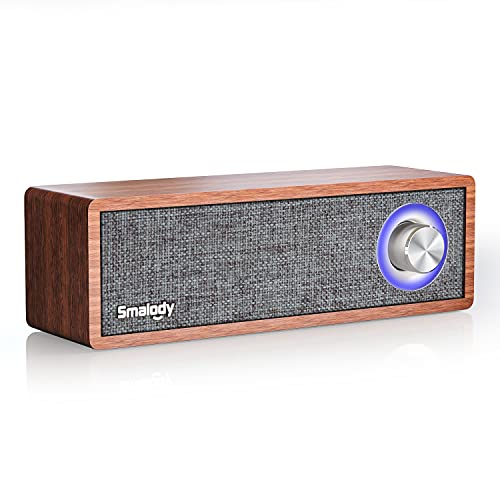
Streaming internet radio through a home audio setup transforms everyday listening into a continuous, effortless music experience. Whether someone wants personalized acoustic stations while cooking or energetic workout playlists throughout the living room, understanding how to connect pandora to wireless speakers ensures smooth audio playback without frustrating dropouts. Many listeners encounter pairing roadblocks when attempting to bridge their mobile devices with modern wireless speakers, especially when navigating differences between Bluetooth and networked Wi-Fi protocols. Integrating reliable wireless hardware like dedicated home music speakers creates a solid foundation for uninterrupted streaming across any living space.
Modern streaming environments offer multiple connection paths ranging from direct device casting to dedicated ecosystem integration within specialized manufacturer applications. Recognizing the distinction between transmitting compressed audio over short-range radio signals and streaming directly from the cloud through a synchronized home network saves listeners significant troubleshooting time. By configuring audio sources correctly from the start, music fans can eliminate unexpected buffering, phone battery drain, and notification interruptions. Setting up these wireless pathways properly allows Pandora’s adaptive music stations to fill every room with rich, balanced sound.


Complete Guide to Streaming Pandora on Wireless Audio Hardware
Connecting Pandora to wireless speakers requires matching the right transmission protocol to your specific hardware. Listeners can stream music through direct Bluetooth pairing, cast audio across a local Wi-Fi network, or link Pandora natively inside smart speaker software. Choosing the appropriate method ensures stable playback and unlocks clear, room-filling sound throughout your home.
Understanding Wi-Fi Streaming Versus Bluetooth Audio
Wireless speakers receive streaming audio through two main technologies: direct Bluetooth communication or networked Wi-Fi data transfer. Bluetooth establishes an encrypted, short-range link directly between a mobile device and the target speaker. This universal approach works without requiring an active local internet router, though the playback device must remain nearby to prevent dropouts.
Wi-Fi network streaming handles audio data by using your home router as a high-bandwidth communication hub. Instead of relaying audio from your phone, network-enabled speakers connect directly to Pandora servers over your internet connection. This architecture frees your phone from transmitting data, preventing incoming calls or notification chimes from interrupting your music.
Choosing between these two streaming paths shapes your daily listening habits and overall system versatility. Listeners who take portable speakers outdoors rely on Bluetooth for its effortless offline pairing. Home listeners setting up stationary sound equipment usually benefit more from the expanded range and synchronized grouping of Wi-Fi streaming.
Pairing Pandora via Direct Bluetooth Connections
Setting up a basic Bluetooth connection is the quickest way to get Pandora playing through any compatible wireless speaker. Power on your wireless speaker and press its pairing button until the status light flashes. Open the Bluetooth settings menu on your smartphone or computer, locate the speaker name, and tap it to complete pairing.
Once the hardware confirms a successful connection, launch the Pandora application on your source device. Select any preferred station, tap play, and verify that sound emerges cleanly from your wireless speaker. You can adjust output volume using either the physical buttons on the speaker chassis or the controls on your phone.
Operating over Bluetooth has clear operational limits that listeners should keep in mind during daily use. Physical obstacles such as thick walls and competing signals can cause audio sputtering if the source device moves away. Choosing among affordable Bluetooth speaker setups provides dependable local playback, especially when keeping the playback phone within clear line of sight.
Linking Pandora Inside Dedicated Smart Speaker Apps
Dedicated smart speaker systems handle streaming audio by integrating music services directly into their centralized companion software. Instead of beaming audio from a handset, the manufacturer platform communicates directly with your Pandora profile through cloud authorization. This native architecture allows multiple household members to manage music playback without needing a single host device.
Connecting your account inside a smart speaker app begins by opening the system software on your mobile device. Navigate to the settings tab, select the music services menu, and tap the option to link Pandora. Enter your registered account credentials when prompted to populate your customized stations and saved artist channels inside the controller app.
Native integration also unlocks seamless multiroom grouping features that standard Bluetooth connections cannot support. You can link multiple speakers across different rooms so the same Pandora station plays in perfect acoustic synchronization. Because the speakers stream data directly from the cloud, individual rooms can be powered off or adjusted in volume independently.
Utilizing Pandora Direct Control and In-App Casting
Listeners who prefer the familiar interface of the official Pandora mobile app can use Pandora Direct Control to broadcast music to compatible wireless speakers. This feature uses local network discovery protocols to detect supported Wi-Fi hardware operating on your home router. When supported speakers are detected, a dedicated casting icon appears on the Now Playing screen inside Pandora.
Initiating a stream through Direct Control transfers playback management straight to the target speaker hardware. Select your target room from the pop-up list, and the speaker will connect directly with the Pandora streaming server. The mobile app continues to display album artwork and track details while retaining complete access to thumbs-up and thumbs-down rating tools.
Direct Control offers substantial convenience benefits compared to switching between different proprietary speaker apps throughout the day. It allows guests connected to your home Wi-Fi to share their own personalized stations without installing separate audio management tools. If you leave your house with your smartphone, the speaker continues streaming the current station without cutting out.
Streaming with Apple AirPlay and Google Cast Protocols
Apple AirPlay provides an elegant wireless streaming pathway for listeners using iPhone, iPad, or Mac hardware with AirPlay-enabled speakers. To stream Pandora via AirPlay, begin playing your station, swipe down to open the iOS Control Center, and tap the AirPlay icon. Select your wireless speaker from the hardware list to route the uncompressed audio stream over your network.
Android and cross-platform users can achieve similar multiroom flexibility by taking advantage of Google Cast technology on compatible wireless speakers. When your mobile device shares a network with a Cast-ready speaker, tapping the cast badge inside Pandora immediately reveals available audio targets. Google Cast handles audio processing onboard the speaker hardware, ensuring that background tasks do not terminate playback.
Both casting protocols surpass basic Bluetooth transmission in audio clarity and operational range. Because they stream over robust Wi-Fi channels, your music stream maintains higher digital bandwidth without aggressive codec compression. You can freely walk between rooms, answer incoming phone calls, and browse the web without broadcasting notification sounds through your living room speakers.
Configuring Pandora on Sonos Play: 3 and Play: 5 Hardware
Hardware options like the Sonos Play: 3 – Mid-Sized Wireless Smart Home and the Sonos Play:5 Wireless Smart Speaker – Black provide purpose-built platforms for streaming Pandora. The mid-sized Play: 3 design delivers balanced stereo audio that suits bedrooms and home offices with minimal clutter. In contrast, the larger Play:5 chassis incorporates multi-driver arrays engineered to project deep bass and dynamic sound across expansive rooms.
To configure Pandora on either Sonos unit, ensure your speaker has completed its initial hardware setup within the Sonos mobile controller app. From the settings menu, choose Services and Voice, and tap the Add a Service button under the music category. Select Pandora from the available catalog, tap Add to Sonos, and sign in with your active Pandora account credentials.
Because the Play: 3 and Play:5 are engineered for clean acoustic output, positioning them properly enhances your listening experience significantly. Placing a compact Play: 3 on a sturdy bookshelf at ear height provides clear vocal reproduction for acoustic genres. Setting a Play:5 on an open credenza away from tight corners prevents deep bass frequencies from becoming boomy or muddy.
Troubleshooting Playback Drops, Buffering, and Connection Errors
Intermittent audio dropouts and persistent buffering during Pandora playback usually stem from local wireless network congestion or router communication barriers. If your Wi-Fi speaker cuts out mid-song, verify that it is connected to a strong 2.4 GHz or 5 GHz frequency band. Assigning a dedicated, static local IP address to your wireless speaker in your router dashboard helps eliminate recurring disconnects.
Authentication failures and sudden station loading errors often indicate that your Pandora account authorization token has expired inside your speaker software. To correct this, open your speaker companion app, navigate to the linked accounts section, and remove the existing Pandora profile. Re-entering your username and password refreshes the secure cloud connection required for uninterrupted music streaming.
For Bluetooth setups experiencing audio stutter or unexpected disconnections, check for competing device pairings and radio interference. If multiple family members have previously paired their phones to the speaker, the hardware may attempt to connect to several devices at once. Clearing the speaker pairing memory and keeping microwave ovens away from the signal path prevents sudden packet loss.
Optimizing Pandora Audio Quality and System Fidelity
Achieving clean sound from your wireless speaker requires configuring the audio bit rate settings within your Pandora mobile application. Free Pandora accounts stream at a standard bit rate, whereas Pandora Plus and Premium tiers offer higher-fidelity streaming options up to 192 kbps. Opening the Pandora app settings menu and choosing the High quality setting ensures your speakers receive the richest possible stream.
Evaluating your speaker output with specialized acoustic material helps you verify whether your wireless connection is delivering clean dynamics. Playing diverse tracks designed to test speaker fidelity allows you to evaluate bass response, midrange vocal clarity, and high-frequency balance across your room. If you notice harsh treble during playback, use your speaker companion app to fine-tune the built-in equalizer.
Consistent station curation also plays a major role in keeping your Pandora wireless streaming experience fresh and enjoyable. Using the thumbs-up and thumbs-down controls directly from your speaker app helps refine station algorithms over time. Adding variety by seeding stations with complementary artists prevents musical repetition during extended daily listening sessions.
Long-Term Setup Verification and Network Maintenance
After completing your initial Pandora connection, performing a quick system verification ensures long-term operational stability. Test station playback across several different genres to confirm that dynamic range and volume levels remain consistent from song to song. If you utilize multiroom speaker grouping, verify that sound remains perfectly synchronized without perceptible delay between adjacent rooms.
Routine network maintenance helps prevent streaming disruptions before they start, especially as more smart devices join your household router. Rebooting your network modem and router every few months purges routing tables and clears digital congestion across local channels. Keeping your wireless speaker firmware and the Pandora mobile application updated ensures ongoing compatibility with new streaming security certificates.
Establishing a dependable connection between Pandora and your wireless audio equipment eliminates the friction of everyday music listening. Whether you rely on direct Bluetooth pairing for personal listening or integrated Wi-Fi streaming for whole-home entertainment, the right setup delivers continuous sound. Taking time to dial in your settings and position your speakers thoughtfully lets your favorite stations fill your space with ease.






Write Your Review
No reviews yet. Be the first to share your experience!