
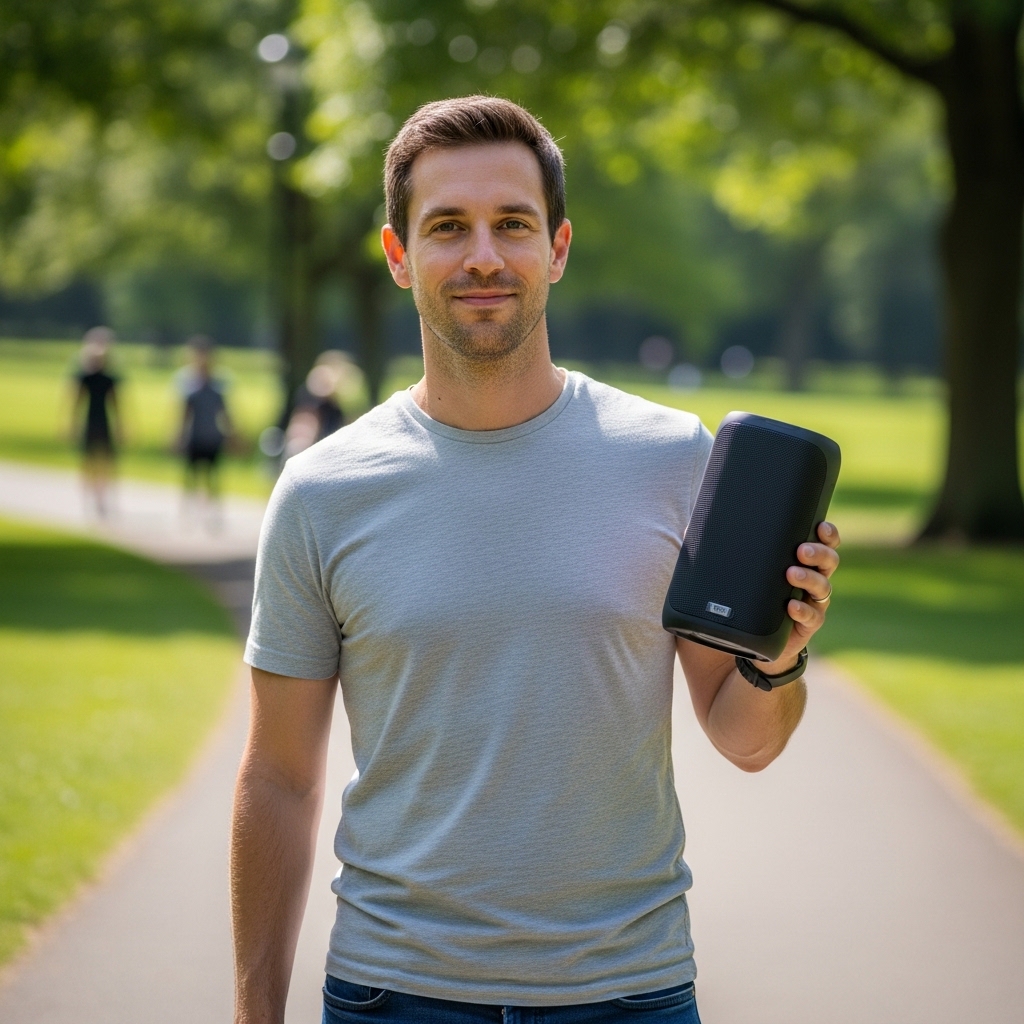

Wireless audio playback gives you the freedom to stream music, podcasts, or video calls anywhere in your home without dealing with tangled cords. Learning how to connect bluetooth speaker to phone samsung devices allows you to take advantage of One UI audio management, quick pairing controls, and dual audio features. Modern hardware handles these connections reliably, whether you are using a compact desktop dock or evaluating Bluetooth speakers with deep bass for home entertainment. Understanding the initial connection routine ensures your Samsung Galaxy handset recognizes and routes media seamlessly every time you power on the accessory.
Pairing issues often occur when a speaker remains tethered to a previously used phone, or when Bluetooth visibility settings on the mobile device are temporarily hidden. A systematic setup process clarifies how your Samsung phone scans for active peripherals, pairs through standard authentication protocols, and retains stored connections for instant reconnection. By learning the standard Bluetooth handshake, you can switch between wireless transmission and specialized hardware options such as magnetic induction docks with complete confidence.

Pros
- Versatile 5-in-1 design combines speaker, stand, charger, and lights
- Strong bass and HD stereo sound from 5W driver at any volume
- Quick Bluetooth 5.3 pairing with reliable signal
- Foldable and adjustable for comfortable neck-free viewing
- Built-in USB port for emergency recharges
Cons
- Induction mode requires removing phone case for best sound
- Max volume needs button hold to reach, no quick access
- No waterproof rating, best for indoor or dry outdoor use
The AKLLCCR speaker is a clever 5-in-1 gadget that merges wireless induction audio, Bluetooth playback, phone charging, a adjustable stand, and colorful ambient lights into one compact unit. It shines for busy Americans juggling work calls, video streaming, or outdoor adventures like camping, where hands-free setup and extra battery life make a real difference.
Targeted at tech enthusiasts, gifts for men and women, or even elderly users needing louder sound, it supports phones and tablets from 4 to 13 inches. In real-world use, placing your device on the stand delivers instant music with punchy bass, while the stand's 300-degree rotation lets you pick the perfect angle for FaceTime or Netflix without neck strain.
Performance stands out with stable Bluetooth 5.3 for lag-free audio and a USB port for on-the-go charging. The anti-slip base keeps everything secure. Overall verdict: a fun, practical buy at an affordable price that punches above its weight for everyday versatility.
Expect shocking sound with strong bass, tight mid-range, and clear treble from the 5W driver, filling small rooms or campsites with HD stereo surround. Induction mode plays music directly from your phone's vibrations for zero-delay playback, ideal for quick jams during cooking or yoga.
Bluetooth 5.3 offers faster transmission, lower power draw, and stable signals up to typical home or office ranges without dropouts. Volume scales cleanly; hold the right arrow for max output signaled by a beep, delivering loud, distortion-free audio for movies or calls.
Vocal clarity shines for podcasts or meetings, making it a solid pick for home offices or travel.
The foldable design collapses flat for easy portability, weighing light enough for pockets or bags, perfect for hiking or office desks. The 300-degree horizontal rotation and anti-slip pads ensure stable, customizable viewing in landscape or portrait, reducing neck fatigue during long sessions.
Built tough for daily use with a sturdy phone holder for various devices, though it lacks waterproofing, so keep it dry for camping or indoor vibes. RGB lights add 11 vibrant modes along the stand for a party-like glow.
The 3000mAh battery powers extended playtime and serves as an emergency charger via USB port, recharging quickly to last through tailgates or all-day work without worry.
Complete Step-by-Step Guide to Connecting a Bluetooth Speaker to Samsung Phones
Connecting a wireless speaker to a Samsung Galaxy smartphone takes less than two minutes when both devices are in discovery mode. The handshake requires placing your audio device into pairing mode, enabling Bluetooth on your Samsung handset, and selecting the speaker from available devices. Once linked, Samsung One UI remembers the profile and routes outbound media streams whenever both gadgets power on nearby. This guide covers the complete pairing sequence, essential software settings, hardware controls, and troubleshooting steps to keep your audio flowing smoothly.
Step-by-Step Bluetooth Pairing Procedure on Samsung Galaxy
To begin, power on your Bluetooth speaker and activate its pairing mode. Most standalone units indicate active discovery with a flashing blue LED indicator, an audible chime, or a pulsing wireless icon. If you are configuring a multifunctional unit like the AKLLCCR Wireless Induction Audio Bluetooth Speaker, verify the power switch is set to Bluetooth mode rather than induction standby. Placing the speaker within a few feet of your Samsung phone during initial pairing helps eliminate signal interference.
On your Samsung Galaxy smartphone, swipe down from the top of your screen twice to open the complete Quick Settings panel. Tap and hold the Bluetooth tile to open the dedicated wireless connection menu immediately. Ensure the primary toggle switch at the top of the display shows the active blue state. Your smartphone will instantly begin scanning local frequencies for broadcasting audio receivers ready to pair.
Check the list under Available Devices at the bottom of the Samsung Bluetooth screen. When your speaker model name appears, tap the listing once to initiate the digital handshake between the phone and audio hardware. If a Bluetooth pairing request prompt appears asking for confirmation, tap Pair to authorize media audio access. Your speaker will emit a steady light or confirmation tone signaling a successful link.
Understanding Bluetooth Streaming Versus Wireless Induction Playback
Certain tabletop audio units offer alternative playback mechanisms that differ from standard radio frequency pairing. For example, the AKLLCCR Wireless Induction Audio Bluetooth Speaker integrates Bluetooth 5.3 technology alongside a zero-configuration wireless induction audio sensor. Bluetooth mode relies on standard digital transmission across the 2.4 GHz spectrum to the speaker receiver. This traditional wireless route allows you to carry your Samsung phone around the room while music continues playing.
Induction audio operates through internal magnetic sensors that capture sound directly from your mobile phone bottom speaker coil. In induction mode, you do not need to activate Bluetooth, pair devices, or open system menus. You simply set your Samsung Galaxy handset directly onto the cradle stand so the phone bottom speaker aligns with the sensor plate. The physical placement instantly amplifies video or music playback through the built-in 5W speaker driver.
Users should note that thick protective cases can weaken magnetic induction coupling and produce lower volume. Removing heavy cases or adjusting the handset slightly on the support ledge ensures the clearest magnetic pickup. If you need room-filling sound and unrestricted mobility, switching to standard Bluetooth 5.3 mode remains the preferred approach for continuous streaming.
Managing Media Routing and the Samsung Audio Output Panel
Samsung One UI includes specialized media routing options that give listeners clear control over where audio tracks play. When your Bluetooth speaker is connected, swipe down once from the top of the display to access the notification shade and tap the Media Output button. This panel presents a list of all active audio destinations, including phone speakers, connected Bluetooth peripherals, and nearby displays. You can quickly switch between devices or adjust output levels without opening main system settings.
The Media Output interface is particularly valuable when you receive incoming phone calls while streaming podcasts or music. You can keep telephone voice audio through the phone earpiece while leaving media audio on the external speaker. This prevents unexpected interruptions when listening to music around other people. The panel also displays battery percentages for compatible accessories, helping you track charge levels during long sessions.
If you regularly use different sound setups, comparing your portable dock with higher-wattage Bluetooth speakers highlights how One UI manages diverse audio hardware. High-output speakers often maintain persistent connections, which Samsung handles cleanly through smart audio switching. Familiarity with the Media Output panel prevents accidental disconnects and ensures your speaker receives the intended audio stream.
Configuring Separate App Sound for Dedicated Speaker Playback
One of the most useful sound features on Samsung Galaxy devices is native Separate App Sound. This utility allows you to assign specific applications, such as Spotify or YouTube, to stream strictly through your Bluetooth speaker while other phone audio stays local. System notifications, navigation prompts, and social media videos will play through the handset speaker without interrupting your primary music stream.
To configure this setting, open Settings on your Samsung phone and select Sounds and Vibration. Scroll down to tap Separate App Sound, then toggle the main switch to the on position. Tap Select to choose your preferred music or podcast application from the list of installed apps. Next, tap Audio Device and assign your paired Bluetooth speaker as the dedicated output target.
Using Separate App Sound eliminates loud notification rings that disrupt relaxing tracks or workout playlists. If you close the designated music application, your Samsung phone automatically restores unified audio playback without requiring a manual reset. This feature functions across standard Bluetooth accessories and helps maintain an uninterrupted listening environment in home or office setups.
Troubleshooting Visibility and Pairing Failures on Samsung Devices
If your Samsung smartphone fails to discover your Bluetooth speaker during a scan, the speaker might be connected to another nearby device. Bluetooth audio receivers typically prioritize reconnecting to the last paired phone, tablet, or laptop within wireless range. Turn off Bluetooth on any previously linked laptops or family tablets in the room, or press the speaker pairing button to reset its broadcast beacon.
When connection drops or discovery glitches persist on your phone, clearing the temporary Android Bluetooth cache often resolves the conflict. Open Settings on your Samsung handset, choose Apps, and tap the filter icon to show system apps. Scroll down to select Bluetooth, tap Storage, and choose Clear Cache at the bottom of the screen. Restart your phone afterward to refresh the networking stack and repeat the scanning sequence.
Persistent pairing errors may also indicate stored configuration conflicts within your mobile network settings. If simple restarts do not help, you can perform a network reset by navigating to Settings, General Management, Reset, and selecting Reset Mobile Network and Bluetooth Settings. This action clears saved Wi-Fi networks and Bluetooth pairings, so you will need to re-enter your Wi-Fi passwords afterward. This reset consistently resolves stubborn pairing loops between Samsung handsets and audio gear.
Resolving Low Volume, Sound Distortion, and Volume Synchronization
A common issue when pairing Bluetooth speakers to Android phones is unexpectedly quiet playback, even when the phone volume slider sits at maximum. Android often manages mobile audio output and peripheral hardware output through independent volume channels. On hardware such as the AKLLCCR 5-in-1 speaker stand, adjusting physical button controls is required to unlock full loudness. The manufacturer notes that you must press and hold the right arrow button until you hear a confirmation beep indicating maximum hardware volume.
Samsung devices also include an Absolute Volume setting inside Developer Options that synchronizes phone volume keys with speaker hardware amplifiers. If your volume controls feel mismatched or behave erratically, toggling this setting can stabilize volume increments. To check this option, enable Developer Options by tapping your phone Build Number seven times in About Phone, then search for Absolute Volume in Developer Options.
Distorted audio or unexpected cracking sounds usually stem from low battery power or physical wireless barriers. When exploring portable speakers for large rooms, keeping line-of-sight between your phone and the audio receiver prevents packet loss. Maintaining adequate battery charge on both your phone and the speaker prevents internal amplifier strain, which is a frequent cause of distortion at high listening levels.
Leveraging Dual Audio and Multi-Device Management in Samsung One UI
Samsung Galaxy smartphones running modern One UI versions support Dual Audio, an advanced feature allowing simultaneous streaming to two separate wireless receivers. This capability lets you pair two different Bluetooth speakers and broadcast identical music across separate areas in your home or patio. Dual Audio eliminates the need for matching proprietary speaker brands, giving you substantial flexibility when combining portable audio gear.
To activate Dual Audio, ensure both Bluetooth speakers are independently paired and actively connected to your Samsung handset. Swipe down to open the Quick Settings panel, tap the Media Output tile, and locate your connected audio devices listed under the audio destination header. Place a checkmark next to both speaker names to route your media output to both receivers simultaneously.
Once enabled, individual volume sliders appear for each connected speaker directly inside the Media Output panel. You can balance sound levels between rooms or compensate for differing driver efficiencies across your hardware collection. While slight transmission latency may occasionally arise between mismatched speaker models, Dual Audio remains an outstanding built-in tool for creating broader sound coverage without purchasing specialized multi-room equipment.
Practical Hardware Handling, Adjustability, and Power Management
Proper physical placement and power maintenance are critical for keeping your Bluetooth audio accessories functioning reliably over time. Multifunctional devices like the AKLLCCR speaker incorporate an integrated 3000mAh rechargeable battery alongside an adjustable phone stand. The stand rotates up to 300 degrees horizontally, allowing you to position your Samsung phone at an ergonomic viewing angle for hands-free video calls, movies, or gaming while audio streams in the background.
When using an all-in-one stand that offers emergency power output, monitoring cable connections and device temperatures is essential. The built-in USB emergency charging port can provide backup power to your phone during extended streaming sessions, but charging generates minor thermal buildup. Always keep the speaker on a flat, well-ventilated surface and avoid stacking papers or insulating fabrics around the enclosure during simultaneous playback and charging cycles.
Built-in decorative features like the dynamic ambient LED lighting with monochrome and hybrid modes add visual feedback to your desk setup, but lighting features draw supplementary current from the internal cell. If you require extended battery longevity away from wall chargers, toggling auxiliary LED lighting off preserves more milliamp-hours for uninterrupted audio amplification. Routine maintenance simply involves wiping the anti-slip silicone pads with a dry microfiber cloth to keep your smartphone held securely on the cradle.
Verifying Reconnection and Maintaining Clean Bluetooth Profiles
After establishing your initial pairing, verifying automatic reconnection saves time during daily routines. Turn your Bluetooth speaker off, wait ten seconds, and switch it back on while keeping Bluetooth active on your Samsung handset. A properly registered speaker should reconnect automatically within five to ten seconds, confirmed by a brief audio tone or status LED change without requiring you to reopen phone menus.
Over months of using accessories, Samsung phones tend to accumulate dozens of forgotten Bluetooth pairings from rental cars, headphones, and temporary audio links. Having an excessive number of dormant profiles in your Bluetooth registry can occasionally slow down automatic reconnection scans. Periodically open your Bluetooth settings, tap the gear icon next to inactive or outdated devices, and tap Unpair to keep your wireless connection index clean and responsive.
Taking a few moments to organize your paired audio devices and master Samsung One UI controls ensures consistent acoustic performance every time you press play. Whether you rely on straightforward Bluetooth 5.3 streaming for freedom of movement or physical induction audio for rapid desk docking, your Samsung Galaxy smartphone provides all the software tools required for a dependable wireless audio setup.



Write Your Review
No reviews yet. Be the first to share your experience!