
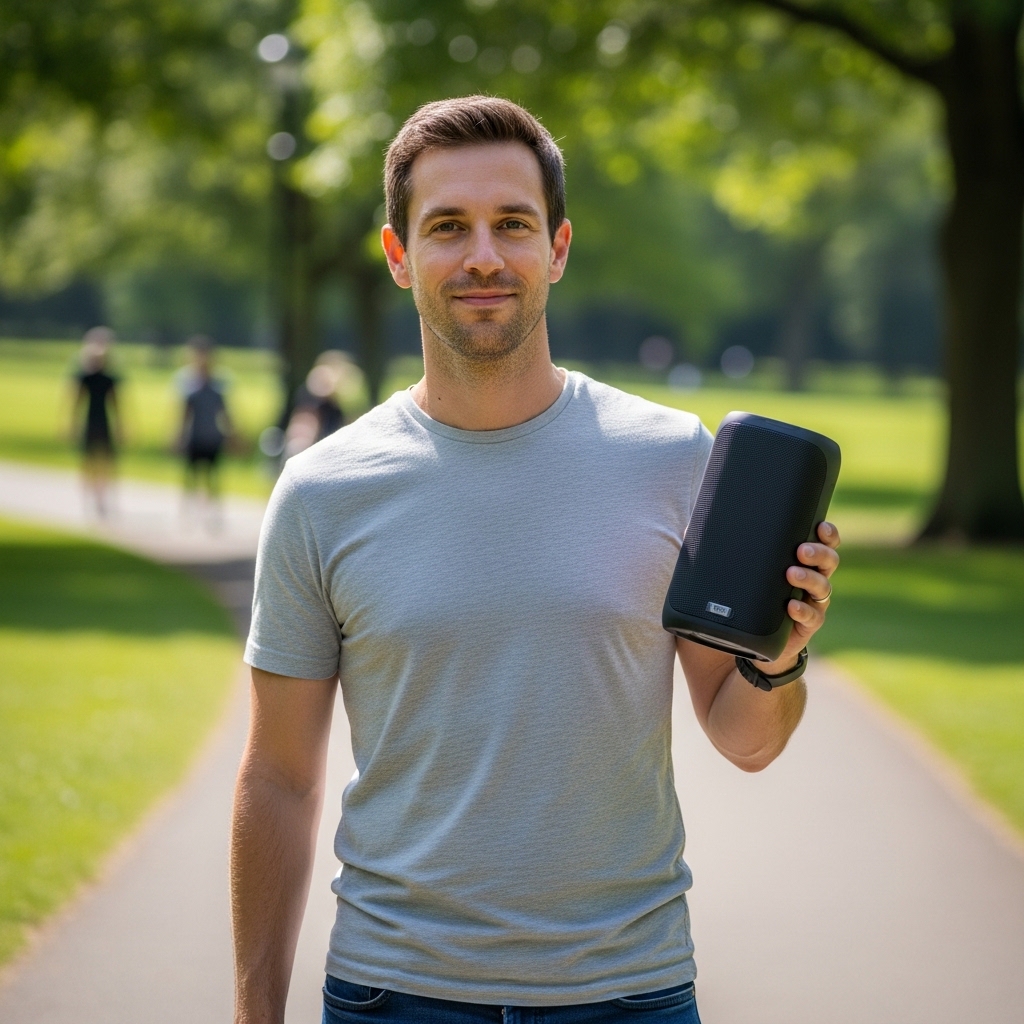

Starting to stream a favorite playlist, video podcast, or tutorial on YouTube often leads listeners to seek better volume and depth than small phone or laptop drivers can deliver. Routing that audio to an external setup changes the entire listening experience, whether you are relaxing at home or working in a garage. Understanding %how to play youtube on wireless speakers% ensures that you avoid annoying sync delays, dropped connections, and poor audio balance. Using reliable Bluetooth stereo speaker setups allows users to enjoy rich dialogue and vibrant music directly from their portable devices or desktop computers.
Modern wireless speakers provide several convenient methods to receive audio streams, ranging from standard Bluetooth pairing to advanced Wi-Fi network casting. Selecting the proper transmission method depends on your playback device, operating system, and the specific physical speaker you own. Compact options like the KREAFUNK aGO2 Portable Bluetooth Speaker, Black highlight grab-and-go convenience, while versatile models such as the Bobtot Portable Bluetooth Speaker with a wireless microphone cater to events and sing-alongs. Getting everything working seamlessly requires just a few basic setting adjustments across your source devices.


Comprehensive Guide to Streaming YouTube Audio to Wireless Speakers
Playing YouTube audio through an external wireless speaker is one of the easiest ways to upgrade your daily listening experience. Whether you want to stream background music from YouTube Music, follow along with an instructional cooking video, or enjoy long-form video podcasts, built-in phone and laptop speakers rarely provide sufficient volume or low-end presence. Routing the sound signal through an external Bluetooth or Wi-Fi speaker creates a fuller acoustic stage while freeing you to move around your space. The process is straightforward once you know how your source device communicates with your audio hardware.
Understanding Wireless Audio Transmission Methods for YouTube
Audio transmission from a video source generally relies on two primary wireless technologies: Bluetooth and Wi-Fi network casting. Bluetooth forms a direct peer-to-peer radio link between your playback hardware and the speaker. This connection method is universally supported across smartphones, tablets, laptops, and smart televisions. It does not require an active local network connection, making it ideal for portable speakers taken outdoors or moved between rooms.
Wi-Fi transmission relies on protocols such as Apple AirPlay, Google Cast, and network-based streaming architectures. Under this arrangement, both the source device and the speaker connect to the same local wireless router. Wi-Fi connections generally deliver higher bandwidth, allowing uncompressed or less compressed audio data compared to standard Bluetooth streaming. Furthermore, Wi-Fi streaming often allows the speaker to pull audio streams directly from cloud servers, which keeps notification chimes and phone ringers from interrupting your video soundtrack.
Choosing between these two methods depends heavily on your environment and the capabilities of your equipment. Portable units prioritize Bluetooth for convenience and battery preservation during mobile use. Stationary home speakers and multiroom systems frequently incorporate Wi-Fi receivers to support multi-channel grouping and whole-house playback. Both methods work well with YouTube, though they handle video synchronicity and data buffering differently.
Connecting via Bluetooth on Mobile Devices
Streaming YouTube from an iOS device requires pairing your iPhone or iPad through the central Bluetooth settings menu before launching the media player. Put your wireless speaker into pairing mode, which typically involves holding the power or dedicated Bluetooth button until an indicator light blinks rapidly. Open the Settings app on your iOS device, tap Bluetooth, and select your speaker from the list of discovered accessories. A brief chime or steady LED indicator on the speaker confirms a successful handshake.
Once the pairing is established, open the YouTube application and select the video you wish to play. The audio track should immediately route to the paired external speaker rather than the internal phone speakers. If the sound continues playing through the phone, swipe down from the top right corner of the screen to reveal the Control Center. Tap the small AirPlay audio icon located in the upper right corner of the media playback card, then manually select your Bluetooth speaker from the output list.
Android devices follow a similar pairing procedure with slight interface variations depending on the device manufacturer. Swipe down from the top of your display to open the Quick Settings panel, then press and hold the Bluetooth tile to open the pairing dashboard. Select your speaker under available devices to complete the connection. Android also features a dedicated Media Output button within the volume slider interface, which allows you to toggle between internal speakers, Bluetooth devices, and connected accessories without leaving the YouTube app.
Pairing and Routing YouTube Audio from Desktop Computers
Connecting a personal computer to a wireless speaker for YouTube playback requires configuring both system-level hardware settings and web browser preferences. On Windows systems, open the Settings menu and navigate to the Bluetooth and Devices tab. Turn on the Bluetooth toggle, select the option to add a device, and choose your speaker once its pairing name appears. Windows will automatically configure the audio drivers and register the unit as a recognized playback device.
After pairing, verify that Windows has designated the speaker as the active audio endpoint. Click the speaker icon in the taskbar notification area, click the sound output selector icon, and choose your wireless speaker. When you launch a browser such as Chrome, Edge, or Firefox and start a YouTube stream, the sound should route instantly to your speaker. If the browser remains silent, check the advanced sound settings in Windows to ensure the individual browser application is not routed to a disabled audio device.
Mac computers running macOS offer a streamlined configuration process through System Settings. Open the Bluetooth menu, place your speaker in discoverable mode, and click Connect next to the listed speaker name. You can quickly switch audio outputs by clicking the Control Center icon in the menu bar and selecting the speaker under the Sound header. Apple systems generally manage audio switching smoothly, though restarting the browser can resolve rare instances where the web player fails to recognize a newly connected audio device.
Using Wi-Fi Casting, AirPlay, and Smart Speaker Integrations
Wi-Fi casting offers an alternative to Bluetooth that is particularly well-suited for high-resolution audio and home entertainment environments. If you use an AirPlay-compatible wireless speaker, you can stream YouTube audio directly from an Apple device across your local home network. In the YouTube mobile app or desktop Safari browser, tap the casting or AirPlay icon and select your home speaker. AirPlay buffers the audio feed to prevent dropouts, making it a reliable choice for long listening sessions.
Google Cast functionality operates seamlessly through Android devices, Google Chrome browsers, and Chromecast-enabled smart speakers. When casting from the YouTube app, tap the rectangular Cast icon in the upper portion of the video player window. The app will search for compatible devices connected to your local Wi-Fi network and present them in a pop-up selection box. Once connected, your speaker receives the stream directly, allowing you to use your mobile device for other tasks without pausing or muting the media playback.
Smart voice assistants from Amazon or Google can also act as wireless audio receivers for YouTube content. While direct voice-activated YouTube streaming might be restricted depending on brand ecosystems, almost all smart speakers allow standard Bluetooth receiver mode. You can issue a voice command instructing the assistant to enter pairing mode, then connect your phone or laptop just like any conventional speaker. This hybrid approach lets you utilize smart household hardware for general video and music streaming.
Eliminating Audio-Video Sync Delay and Latency Issues
Latency is the most common technical irritation when streaming video audio to wireless speakers. Because audio data must be compressed, transmitted over radio frequencies, and decompressed by the speaker, a fraction of a second can elapse between the video frame and the corresponding sound. When watching talking-head videos, music performances, or movie trailers on YouTube, this delay creates distracting lip-sync discrepancies. Modern systems employ software compensation to minimize this effect, but issues can still arise.
The YouTube mobile app and popular desktop browsers incorporate automatic latency compensation routines for standard Bluetooth audio. When the video player detects an active Bluetooth connection, it subtly delays the video display to align with the estimated audio transit time. However, this synchronization can falter if the speaker uses high internal digital signal processing or if the wireless link suffers from interference. High-output units, including powerful loud portable speakers, occasionally require extra processing time to manage dynamic equalization, which can slightly increase transit delay.
Several practical adjustments can restore proper alignment between picture and sound. If your wireless speaker offers a low-latency or gaming mode, enabling that feature reduces buffer times at the expense of a negligible amount of transmission range. Restarting the YouTube application or refreshing the browser tab often prompts the media player to recalculate transmission delay and resynchronize the stream. For persistent issues on desktop computers, browser extensions designed for audio-video alignment allow users to shift the sound track backward or forward in millisecond increments.
Optimizing YouTube App Settings for Better Sound Fidelity
Achieving clean sound from your wireless speaker also requires configuring YouTube app settings appropriately. The standard YouTube video platform applies dynamic compression algorithms to maintain manageable bandwidth for millions of concurrent streams. If you subscribe to YouTube Premium, you can access higher bitrates by navigating to the app settings and setting mobile or Wi-Fi audio quality to high. This setting preserves frequency detail in high-hats, vocal sibilance, and deep bass lines.
Another useful setting inside the YouTube player is the Stable Volume toggle. Stable Volume applies normalization across different videos, leveling out sudden loudness spikes between quiet speech and explosive sound effects. While convenient for casual background listening, this feature can sometimes compress musical dynamics. If you notice your wireless speaker sounding somewhat flat or constrained during live concert streams, disabling Stable Volume allows the track to breathe with its original dynamic range.
Source-level equalization provides another avenue for tailoring audio reproduction to your speaker’s physical capabilities. Many smartphones include built-in graphic equalizers within their audio accessibility or Dolby Atmos menus. Adjusting these sliders allows you to compensate for environmental acoustics, such as boosting midrange frequencies to clarify speech when listening in noisy environments. Pairing software equalization with a well-placed speaker ensures dialogue remains distinct even at modest volume levels.
Hardware Considerations: Portable Utility and Special Features
Different wireless speaker designs offer specific hardware advantages that influence how you experience YouTube content. Compact models prioritize durability and portability, allowing you to carry your audio anywhere around the home or outdoors. The KREAFUNK aGO2 Portable Bluetooth Speaker, Black exemplifies this grab-and-go form factor. Its IPX5 water resistance protects internal components against splashes, while its listed playback time of up to 25 hours supports extended streaming sessions. It also features voice assistant integration and true wireless stereo pairing support, which allows two compatible units to form a broader stereo image.
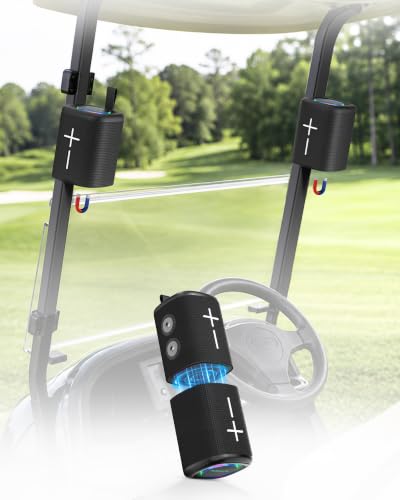
Other setups require dynamic features tailored toward entertainment and interactive social gatherings. The Bobtot Portable Bluetooth Speaker with a wireless microphone demonstrates how versatile mobile audio gear can be. Beyond handling standard YouTube music streams, this type of hardware allows users to play karaoke backing tracks from YouTube while singing along through the bundled microphone. The combination of portable sound reinforcement and live vocal input transforms a simple video stream into an engaging party centerpiece.
Environmental demands should also guide your hardware selection. When listening near sinks, bathtubs, or outdoor pool decks, choosing certified waterproof wireless speakers prevents moisture damage from interrupting your entertainment. Robust enclosures with silicone bumpers or fabric grilles withstand bumps and drops during travel. Selecting hardware that balances battery endurance, acoustic output, and physical durability ensures your speaker remains functional across diverse listening environments.
Troubleshooting Common Playback and Connection Failures
Technical glitches can occasionally interrupt your audio stream, but most wireless playback problems stem from simple configuration errors. A frequent complaint involves video playing normally while sound refuses to route through the connected speaker. This typically happens when another accessory, such as a smartwatch or car stereo, claims priority over the audio channel. Disconnecting competing Bluetooth devices in your phone settings and toggling Bluetooth off and on usually restores the proper sound path.
Audio stuttering and intermittent dropouts point toward radio frequency interference or physical range limitations. Bluetooth operates on the 2.4 GHz frequency band, which is heavily shared by household microwave ovens, older Wi-Fi routers, and cordless electronics. Maintaining a clear line of sight between your playback source and the speaker minimizes physical obstruction. If dropouts persist, moving the phone closer to the speaker or switching your home Wi-Fi network to a 5 GHz band significantly reduces wireless congestion.
Mobile background playback represents another common hurdle when using YouTube with wireless speakers. On standard unpaid YouTube accounts, locking your phone screen or switching to another application automatically pauses video and audio playback. To keep listening with your screen turned off, you must either subscribe to YouTube Premium or open YouTube within a mobile browser that supports background audio playback in desktop view mode. Understanding these platform rules prevents confusion when streams abruptly halt upon locking your device.
Practical Setup Checklist for Reliable Everyday Streaming
Establishing a dependable listening routine requires just a few seconds of preparation before initiating your YouTube session. Begin by verifying the battery charge of your wireless speaker, as low battery states frequently cause power-saving circuits to introduce audio stuttering or premature shutdowns. Power on the speaker and confirm it establishes an immediate link with your primary source device before launching the media app.
Next, set your source device volume to roughly eighty percent before adjusting the physical volume knob on the speaker itself. Setting source volume too low forces the speaker amplifier to work harder, which can introduce background hiss, while setting it to one hundred percent can sometimes induce digital clipping. Finally, verify that your network connection is stable, particularly when streaming high-definition video feeds alongside uncompressed audio tracks.
Following these straightforward guidelines ensures an effortless streaming experience across all your personal devices. Modern wireless audio equipment provides the flexibility to enjoy rich sound anywhere without the constraint of physical cables. By understanding connection options, latency management, and basic app configurations, you can easily unlock the full acoustic potential of your favorite YouTube content.




Write Your Review
No reviews yet. Be the first to share your experience!