
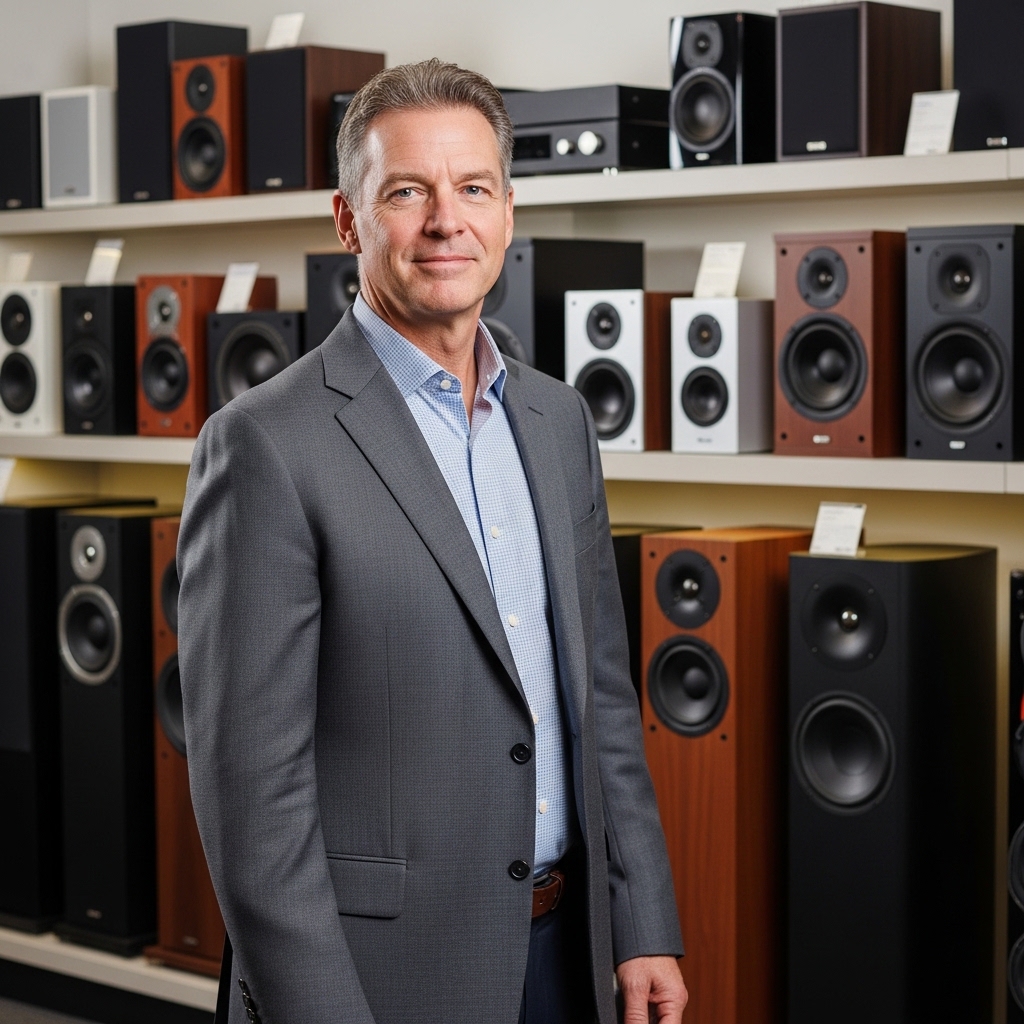

Delivering a multimedia presentation in front of colleagues or clients often hinges on reliable sound clarity. Built-in laptop drivers frequently struggle to project clear speech, which makes understanding how when using presentation software programs speakers should deliver audio crucial for any presenter. Integrating reliable external notebook speakers can instantly elevate voice projection and prevent muffled narration from ruining important slides.
Many presenters encounter abrupt volume shifts, muffled commentary, or distracting system alerts when switching between video clips and spoken remarks. Setting up versatile wireless Bluetooth PC speakers or direct wired desktop monitors provides the headroom needed for room-filling sound without pushing drivers into harsh distortion. Understanding the best practices for hardware selection, output routing, and audio leveling ensures that your audience stays engaged with the message rather than distracted by acoustic flaws.

Best Practices for Configuring Audio Speakers During Slide Presentations
When delivering multimedia slide decks, audio playback devices require careful calibration to deliver intelligible speech and balanced media tracks. Audiences notice harsh volume transitions or muddy acoustics immediately, which quickly detracts from professional delivery. Establishing a clean signal chain from your slide application to your physical speakers provides consistent clarity across any meeting space. Taking time to configure audio before opening your deck ensures that media clips enhance your delivery rather than disrupting it.
Core Requirements for Presentation Audio Hardware
When using presentation software programs speakers should deliver balanced, uncolored sound that prioritizes vocal clarity over exaggerated low-frequency rumble. Presentation decks frequently combine human voice narration, corporate interview clips, and soft background music within the same file. If a speaker system emphasizes booming bass, spoken sentences become boomy and hard to understand across large conference rooms. Compact full-range drivers or balanced two-way monitors maintain vocal intelligibility and keep the focus squarely on the speaker’s message.
Volume consistency across different presentation slides represents another critical priority for audio hardware. Presenters often paste audio files gathered from multiple online libraries or mobile recordings into their slide decks without checking RMS levels. A properly configured speaker system must offer sufficient dynamic range so soft dialogue remains audible without causing louder video tracks to clip. Setting physical hardware controls to a moderate baseline allows fine volume adjustments directly from the operating system without creating hiss.
Physical dispersion patterns also dictate how well audio travels through meeting spaces and presentation halls. Narrow-dispersion drivers force sound into a tight beam, leaving listeners seated off to the sides straining to hear video dialogue clearly. Wide-dispersion speaker systems distribute frequencies evenly across the room, preventing acoustic dead spots and reducing the need to push the volume to uncomfortable levels. Placing speakers slightly elevated and aimed toward ear height ensures that everyone in the room experiences consistent sound quality.
Audio Level Normalization and File Preparation
Audio files embedded into presentation decks often suffer from wildly inconsistent recording volumes and background noise. One slide might feature a whisper-quiet interview, while the next contains a jarring intro sequence with loud music. Using dedicated editing tools like WavePad Audio Editing Software allows presenters to inspect waveforms, trim unwanted silence, and normalize peak amplitudes before inserting audio into slide templates. This preliminary step prevents embarrassing volume spikes that force the presenter to scramble for the volume knob during a live presentation.
Beyond simple leveling, specialized editing software helps eliminate persistent low-frequency hums and HVAC rumble from field recordings. Presenters can apply high-pass filters and subtle equalization curves to lift vocal frequencies between one and four kilohertz, where human speech recognition is strongest. Cleaning up these rough audio tracks ensures that presentation speakers reproduce clear dialogue without buzzing or resonance. Preparing high-resolution, uncompressed or high-bitrate audio formats also prevents the metallic compression artifacts common in low-quality web audio.
Embedding pre-processed audio tracks directly into presentation files also reduces the strain placed on portable sound equipment. When audio waveforms are compressed and normalized beforehand, compact amplifiers operate comfortably within their clean linear range. This efficient gain structure stops smaller transducers from overheating or bottoming out on sudden transient peaks. Taking the time to refine audio files in advance guarantees that your physical sound gear delivers predictable, professional performance throughout the entire deck.
Connecting Presentation Speakers: Wired Versus Wireless Options
Choosing between a hardwired connection and wireless playback fundamentally affects audio stability during high-stakes presentations. Standard analog auxiliary cables or USB digital connections provide instantaneous audio synchronization with slide transitions. In contrast, wireless protocols can introduce noticeable latency that desynchronizes lip movement in embedded video clips from the sound coming through the speakers. For mission-critical keynotes or hybrid conference meetings, a direct wired link eliminates transmission stutter and ensures crisp audio cues.
Wireless audio options remain convenient for quick boardroom presentations or informal team standups where cable clutter must be minimized. Modern Bluetooth speakers with low-latency codecs handle background ambient audio and presentation sound effects with minimal delay. However, crowded conference environments often suffer from radio-frequency interference from surrounding Wi-Fi routers and mobile devices. If wireless playback begins to drop packets or crackle, switching immediately to an auxiliary cable provides an instant, dependable backup path.
USB-powered desktop monitors and compact soundbars represent an attractive middle ground for traveling presenters. These systems receive both digital audio information and operational power through a single USB connection from the presenter’s laptop. Eliminating the need for separate AC power adapters simplifies podium setup while bypassing mediocre onboard laptop sound cards. Choosing well-designed dedicated PC speakers with integrated digital-to-analog converters yields cleaner background music and punchier sound effects for professional slide shows.
Gain Staging and Software Volume Management
Establishing proper gain staging between your presentation software, computer operating system, and external speaker amplifier prevents severe audio distortion. A frequent operational mistake involves setting presentation media volume to ten percent while cranking the external speaker amplifier to maximum capacity. This unbalanced configuration amplifies the computer’s internal electrical noise floor, resulting in an annoying background hiss whenever slides are silent. The correct approach involves raising software and operating system volumes to approximately eighty percent, then using the speaker knob to set room loudness.
Slide software programs usually feature their own independent volume sliders within embedded media controls. Presenters should check that individual media clips are balanced against each other inside the presentation editor prior to presentation day. If one video clip is recorded naturally hot, lowering its individual clip gain prevents sudden overload when advancing to that slide. Maintaining uniform digital output levels ensures that the physical speaker amplifier receives a clean, unclipped input signal from slide to slide.
Presenters should also verify that the host computer’s master audio output avoids digital clipping. When an operating system’s software volume slider hits one hundred percent, aggressive equalizer presets or spatial audio enhancers can push peaks into harsh digital clipping. Backing the master output down to eighty-five or ninety percent leaves comfortable headroom for transient sound effects. This simple calibration step safeguards speaker drivers against distorted square waves that degrade sound clarity and stress delicate voice coils.
Managing Operating System Audio and Notification Sounds
Unintended system chimes, incoming email alerts, and calendar notifications can easily disrupt an otherwise flawless presentation. When presentation software engages full-screen presenter mode, computer audio drivers continue processing all background system alerts through the primary speakers. Audiences immediately lose focus when an urgent ping or chat chime interrupts a poignant video testimonial or client case study. Disabling operating system sounds or engaging dedicated presentation focus modes guarantees that only intentional slide media reaches the room speakers.
Operating systems also handle multiple sound output devices simultaneously, which can cause confusion when plugging into external conference hardware. If an external display is connected via HDMI, the computer might automatically route presentation audio to tinny monitor speakers instead of your premium audio system. Presenters should open sound settings immediately after connecting display cables to manually route output to the intended speaker hardware. Locking this setting before launching slide shows avoids frantic last-minute troubleshooting in front of an expectant audience.
Conferencing software integration introduces additional routing complexities during hybrid presentations where remote attendees must hear slide media. Presenters frequently struggle when slide audio plays through in-room speakers but fails to transmit across virtual meeting platforms. Utilizing virtual audio routing or checking the share computer sound checkbox inside conferencing software ensures seamless transmission to both room speakers and remote participants. Testing this signal path during rehearsal prevents awkward pauses and complaints from online viewers.
Acoustic Placement and Feedback Prevention in Meeting Rooms
Speaker placement within a meeting space dictates whether audio sounds natural or reverberant and unintelligible. Placing speaker cabinets directly against hard walls or deep inside corners creates artificial boundary reinforcement that bloats low-mid frequencies. This acoustic buildup turns natural spoken dialogue into a boomy drone that bounces off glass conference tables and drywall. Angling speakers slightly inward toward the audience and pulling them forward away from rear boundaries yields significantly clearer sound reproduction.
Presenters who utilize lapel, handheld, or podium microphones must pay close attention to the physical relationship between microphones and speakers. Position speakers strictly forward of the microphone pickup zone to prevent acoustic feedback loops. If an omnidirectional microphone catches sound radiating from nearby speaker cones, it creates an ear-piercing squeal that instantly halts the presentation. Maintaining a clear line of separation between speaker output patterns and live microphones keeps voice reinforcement stable and feedback-free.
Tabletop vibrations can also introduce subtle mechanical rattles that degrade presentation audio clarity. Compact speakers placed directly on polished conference tables can transfer mechanical cabinet vibrations into tabletops, causing unwanted resonance. Utilizing rubber isolation feet, angled foam wedges, or compact desktop stands decouples the speaker chassis from hard surfaces. This mechanical decoupling cleans up midrange clarity while aiming high-frequency drivers directly toward the listeners’ ears rather than their chests.
Diagnosing Common Presentation Audio Failures
Sudden silence when clicking on a video slide represents the most common presentation nightmare for public speakers. When this occurs, presenters should avoid panicking and systematically verify three core links in the audio chain. First, check that the embedded video player inside the presentation software is not individually muted. Second, inspect the computer’s system tray to ensure the master output device remains selected rather than reverting to a disconnected headphone jack. Finally, verify that physical speaker power switches and cable connections remain firmly seated.
Crackling sounds or intermittent dropouts during slide transitions usually point toward loose cables or digital buffering hiccups. Analog 3.5mm connectors can oxidize or collect pocket lint, creating static whenever the presentation laptop shifts slightly on the podium. Inspecting connector jacks and rotating plugs gently often resolves temporary contact static without requiring equipment replacement. If crackling persists on digital USB speakers, switching to an alternative USB port or adjusting audio buffer sizes inside system settings resolves data transfer bottlenecks.
Severe audio lag that causes video characters to speak out of sync typically stems from wireless latency or computer hardware throttling. High-resolution video slides demand significant processing power, which can bog down older presentation laptops and delay audio synchronization. Closing resource-heavy background applications frees up processor overhead, allowing presentation software to decode video and audio frames in lockstep. If wireless Bluetooth latency continues to cause sync drift, reverting to an auxiliary audio cable resolves timing mismatches immediately.
Essential Audio Checklist Before Starting Your Slide Deck
Conducting a systematic five-minute sound check before attendees enter the room eliminates ninety percent of presentation audio errors. Begin by powering on external speakers and verifying battery reserves or secure AC power connections. Next, play your presentation’s loudest media slide to confirm room-filling volume without driver distortion or harsh clipping. Walk to the back of the seating area during playback to ensure that spoken dialogue cuts through ambient room air conditioning noise cleanly.
Confirm that your presentation computer’s power management settings will not force connected audio hardware into sleep mode during prolonged pauses between video clips. Certain energy-efficient external speakers automatically enter standby mode after several minutes of silence, clipping off the first few seconds of subsequent media slides. Playing a brief silent test tone or adjusting sleep timers in speaker control utilities keeps audio circuits warm and instantly responsive. This ensures seamless audio transitions whenever you decide to cue up your next media asset.
Preparing a backup plan for audio delivery provides peace of mind during critical client pitches or executive presentations. Keep a spare auxiliary cable, a USB audio adapter, and a compact backup speaker inside your travel gear at all times. If venue equipment fails or built-in AV systems prove incompatible with your laptop’s output ports, having independent portable audio gear guarantees presentation success. Confident presenters master both their slide visual design and their physical sound equipment to deliver unforgettable multimedia presentations.


Write Your Review
No reviews yet. Be the first to share your experience!