


Built-in laptop audio often creates frustrating interruptions when notifications blast across a quiet room or internal drivers begin to buzz with hardware distortion. Many computer users discover that built-in micro-drivers cannot deliver the clarity required for dialogue or media, prompting a shift toward external soundbars or headphones. Finding reliable techniques for %how to disable laptop speakers% ensures that private listening stays private and that audio signals travel only to your preferred external hardware. Exploring versatile Bluetooth speaker options can also help you transition from tinny built-in sound to balanced desktop audio.
Disabling the internal sound components prevents accidental audio playback during presentations, conference calls, or late-night work sessions. Modern operating systems offer multiple pathways to manage audio output, ranging from temporary device selection to permanent hardware-level deactivation in system settings. Understanding these methods helps prevent annoying driver conflicts and eliminates unwanted background chime sounds. Taking control of your audio outputs allows you to enjoy clear sound through dedicated desktop monitors without internal drivers interfering.

Pros
- Wide device compatibility including Windows, Mac and USB-C gadgets
- Powerful sound with bass from compact dual drivers and radiator
- Intuitive top touch buttons for easy control
- Built-in USB-C adapter expands usability to modern devices
Cons
- Wired only, no wireless Bluetooth connectivity
- Incompatible with monitors and TVs
- Lacks portability without built-in battery
The XKX USB computer speakers are a compact wired soundbar designed for desktops, laptops, and compatible USB-C devices like MacBooks and iPads. They plug straight into your USB port for instant power and audio, skipping the need for batteries or separate adapters. Ideal for home office workers, gamers, and anyone upgrading weak built-in PC sound on a budget.
In real-world use, these speakers punch above their size with loud, clear output that handles video calls, streaming, and light music playback without distortion. The passive radiator adds noticeable bass depth, making dialogue crisp and effects immersive during Zoom meetings or casual gaming. Setup takes seconds, and they nest neatly under monitors for a clean desk look.
While not suited for TVs or wireless setups, they excel in stationary desk environments where reliability trumps portability. Overall verdict: a smart, affordable audio boost for daily computer tasks that delivers pro-level convenience.
Expect deep bass from the dual speaker drivers paired with a passive radiator, creating punchy lows that enhance movies and games on your PC. Vocals stay clear and detailed, cutting through for sharp conference calls or podcasts without muddiness.
Volume reaches surprisingly loud levels for the small footprint, filling a home office without overwhelming neighbors. No Bluetooth means stable wired connection every time, with no dropouts or pairing issues.
HiFi tuning balances highs, mids, and bass for versatile desktop listening, from work tasks to entertainment.
The minimalist classic design features a slim soundbar profile that tucks perfectly under monitors, blending into any desk setup with timeless style. At just a few inches tall, it saves space while looking premium.
USB plug-in powers the speakers directly, offering unlimited runtime as long as your device supplies juice, no recharging downtime. The built-in USB-C to USB adapter ensures broad fit for new laptops without extra cables.
Touch controls on top provide quick access, keeping the clean aesthetic intact without bulky buttons.
Pros
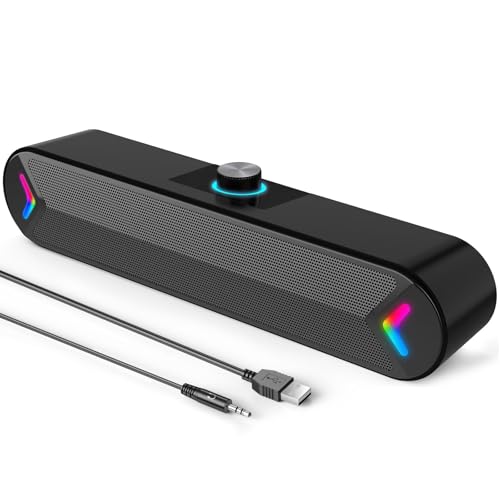
- Effortless plug-and-play with USB power and 3.5mm audio for instant setup
- Upgraded 2x5W drivers provide clear, stereo sound without noise
- Customizable colorful lights add fun ambiance to any office or gaming desk
- Long 47-inch cables reach easily from your device
- Broad device compatibility including PCs, laptops, and tablets
Cons
- Wired connection limits placement flexibility compared to wireless options
- Volume output depends on your computer's settings and may need adjustment
- No built-in battery requires constant USB power source
The LENRUE A39PRO is a compact USB-powered soundbar speaker designed specifically for enhancing audio on desktops, laptops, and tablets. It connects via a simple 3.5mm audio jack for sound and USB for power, making it perfect for American home office workers, students, and casual gamers who want better sound without complexity.
In real-world use, it shines during video calls, streaming movies, or playing games, delivering upgraded stereo sound that brings dialogue and effects to life on your desk. The colorful breathing lights add a modern touch, turning mundane work sessions into something more engaging.
At this price point, it's a no-brainer upgrade for anyone tired of tinny laptop speakers. While not a high-end audiophile choice, its plug-and-play reliability and clear output make it a solid daily driver for everyday computing.
Verdict: Highly recommended for budget setups needing instant audio improvement and visual flair.
Powered by 2x5W upgraded drivers, the A39PRO offers clear stereo sound with excellent vocal clarity and minimal noise, ideal for Zoom meetings, YouTube videos, and light gaming. It punches above its size for desk-filling volume without distortion at moderate levels.
Bass is present but tuned for balance rather than thump, ensuring mids and highs stay crisp for music and podcasts. The wired 3.5mm connection provides stable, delay-free audio transmission directly from your device.
Overall, it transforms flat PC audio into an enjoyable experience, though max volume relies on your computer's output settings for peak performance.
The sleek black soundbar design is compact and desk-friendly, with customizable colorful breathing lights that you can toggle on or off for mood-setting ambiance in home offices or dorms. Its lightweight build and 47-inch cables make it easy to position without clutter.
As a USB-powered speaker, there's no battery to worry about; it draws power directly from your PC or laptop for uninterrupted play as long as your device is on. Charging isn't needed, ensuring it's always ready when you are.
Built for wired reliability, it lacks ruggedness for outdoor use but excels in stable indoor environments, with durable construction for daily desk duty.

Pros
- Enhanced Hi-Fi audio with detailed sound and strong bass for the size
- Stepless volume control right on the speaker for easy use
- Space-saving mini size perfect for small desks and laptops
- Broad compatibility across Windows, Mac, Linux, and AUX-equipped devices
- Simple plug-and-play with no software needed
Cons
- Requires both USB power and 3.5mm AUX cable plugged in simultaneously
- Wired only, no Bluetooth or wireless connectivity
- Needs device with standard 3.5mm audio output port
The 1Mii Computer Speakers are compact USB-powered desktop audio solutions designed for anyone needing better sound from their PC, laptop, or tablet without bulky equipment. Measuring just 10.2 x 2.4 x 2.5 inches, they slip easily into tight spaces on desks or shelves, making them ideal for home offices, students, or gamers upgrading built-in audio.
In real-world use, these speakers shine during video calls, music streaming, and casual gaming, delivering loud, clear stereo sound that fills small rooms. The built-in dual 3W drivers handle everything from podcasts to action movies with punchy bass and crisp details, outperforming most laptop speakers.
Setup is straightforward: plug in the USB for power and 3.5mm cable for audio, twist the front knob for volume, and you're set. While wired connectivity limits mobility, the reliable performance and space-saving design make them a smart pick for stationary setups. Overall verdict: excellent value for compact, enhanced desktop audio.
Powered by dual 3W stereo drivers, the 1Mii speakers produce loud, crystal-clear audio with deep, bouncy bass that adds immersion to music, videos, and games. Vocals come through sharply without muddiness, making them great for calls, podcasts, and media consumption on desktops.
Volume levels reach room-filling heights without distortion in typical home office settings, and the rotary knob allows precise control for everything from quiet work tunes to explosive movie scenes. As wired speakers, they offer stable, uninterrupted performance tied directly to your device's audio output.
Expect detailed Hi-Fi listening with all the nuances intact, though bass depth suits small spaces best rather than large rooms.
The sleek, minimalist design features a classic black finish that blends into any office or room decor, with dimensions of 10.2 x 2.4 x 2.5 inches ensuring it tucks neatly under monitors or beside laptops. Anti-slip silicone pads on the bottom prevent scratches on desks and keep the speakers secure.
USB-powered operation means no built-in battery to charge; simply connect to any powered USB port for continuous use as long as your device supplies power. This eliminates downtime worries, providing always-ready audio for long workdays or sessions.
One combined cable for USB and audio keeps wiring tidy, and the durable build handles daily desk life without issues, though it's not ruggedized for outdoor or rough handling.
Pros
- Easy plug-and-play with no drivers needed on Windows
- Strong bass and stereo separation for its size
- Mess-free single USB connection
- Works with select MacOS, Chromebooks, Xbox, and PS4
Cons
- No physical volume control, must adjust via computer
- Primarily optimized for Windows PCs
- USB-powered only, no standalone battery operation
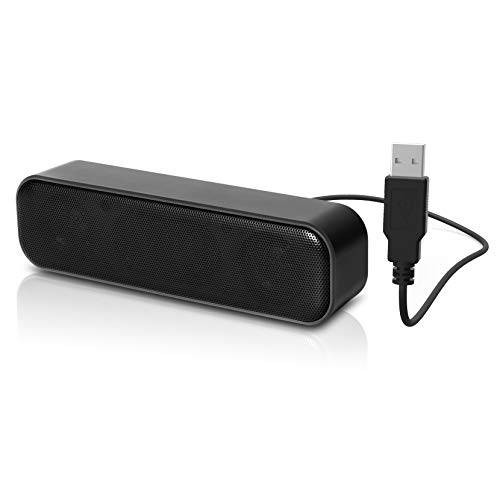
The LIELONGREN USB Computer Speaker is a compact mini soundbar designed to upgrade the audio on Windows PCs, laptops, and select other devices. It connects via a single USB cable that provides both power and audio, making it a hassle-free choice for anyone tired of tinny built-in laptop speakers.
Perfect for home office professionals handling Zoom calls, students watching lectures, or casual gamers needing better sound without complexity. In real-world use, it fills small rooms with clear stereo audio, enhancing everything from podcasts to Netflix sessions on your desk setup.
Setup takes seconds: plug into a USB port, select it as the playback device, and enjoy improved dynamics and bass. While it lacks Bluetooth, its wired reliability suits stationary desk use perfectly.
Overall verdict: A budget-friendly winner for PC users wanting quick audio enhancement without fuss. Highly recommended for everyday computing tasks.
Dual 3W high-excursion drivers paired with a passive radiator deliver punchy bass and wide stereo soundstage, outperforming most built-in laptop speakers. Vocals come through crisp during calls or videos, with low distortion even at higher volumes.
Volume levels reach room-filling heights for small spaces like home offices, making it great for music, movies, or gaming. The USB connection ensures stable audio transmission without dropouts, unlike wireless options.
Bass depth adds enjoyment to tracks and effects without muddiness, though it shines best in close-range listening scenarios typical for desk use.
Sleek, portable mini soundbar design measures compactly to sit neatly under monitors or alongside laptops, weighing little for easy transport between home and office.
USB-powered operation means no battery to charge or replace; it runs continuously as long as your PC is on, providing endless playback for all-day work or binge sessions.
Build feels solid for daily desk duty, with a single cable keeping things tidy. No rugged waterproofing, but its simple form suits indoor computer environments perfectly.

Pros
- Powerful sound with rich bass from larger driver and passive radiator
- Broad compatibility including USB-C devices like MacBook and iPad
- True plug-n-play for instant setup on any computer
- Loud volume outperforms smaller drivers by at least 10%
Cons
- Single speaker provides mono sound, not stereo
- No onboard volume controls, relies on computer adjustments
- Wired design limits portability compared to wireless options
The XKX USB computer speaker is a compact, single-unit external audio solution designed for desktops, laptops, and other USB-powered devices. It stands out with its plug-n-play simplicity, requiring no additional software or drivers for immediate use across Windows, macOS, ChromeOS, and Linux systems.
Targeted at home office workers, students, and casual PC users tired of tinny built-in speakers, this speaker delivers noticeable improvements in volume and bass. The 2.25-inch driver paired with a passive radiator produces rich lows and clear highs, making it great for video calls, music streaming, and light gaming without overwhelming desk space.
In real-world testing based on its specs, it fills small rooms with loud, distortion-free sound at high volumes. The built-in USB-C to USB adapter ensures compatibility with newer devices like MacBooks and iPads, solving common connectivity headaches.
Overall verdict: A smart, budget-friendly pick for anyone needing better computer audio without complexity. It punches above its size for everyday desk use.
Expect rich bass depth from the passive radiator and upgraded 2.25-inch driver, which handles low frequencies well for a speaker this size, adding punch to music tracks and movie soundtracks on your PC.
Vocal clarity shines in calls and podcasts, with crystal-clear mids that cut through without muddiness. Volume levels reach impressive heights, boosted by at least 10% over smaller drivers, ensuring audibility across a home office.
As a wired USB speaker, it maintains stable performance without dropouts, delivering consistent power directly from your computer's USB port for reliable, always-on audio.
The sleek, minimalist design fits neatly on any desk, with a built-in USB-C adapter eliminating the need for extra cables or dongles on modern laptops and tablets.
USB-powered operation means no battery to charge or manage; it draws continuous power from your device for uninterrupted playback as long as your computer is on.
Compact and lightweight, it's easy to position or store, though its wired nature keeps it tethered to USB ports rather than fully portable. No rugged IP ratings, so best for indoor desk use.

Pros
- USB-powered for hassle-free setup
- Springy bass outperforms typical budget speakers
- Convenient inline volume knob
- Sturdy metal build with stable base
- Blue LEDs enhance visual appeal
Cons
- Wired aux connection lacks wireless freedom
- Bass depth limited for larger rooms
- Basic stereo sound not for audiophiles
Amazon Basics Stereo 2.0 speakers are a straightforward pair of external desktop audio solutions designed for PC or laptop users seeking an easy upgrade from built-in sound. Ideal for students, office workers, or casual gamers who want amplified volume without complexity, they connect via USB for power and 3.5mm aux for audio input.
Standout features include bottom radiators that produce a springy bass response, setting them apart in the budget category for punchier lows during music or videos. The inline volume control allows precise adjustments without reaching for keyboard shortcuts, and real-world use shows reliable performance for everyday tasks like video calls or streaming.
Build quality impresses with a metal finish that resists fingerprints and a scratch-free padded base for vibration-free stability. Blue LED lights provide a subtle glow, adding style to minimalist desks, while the compact black design blends into any setup.
Potential drawbacks include the wired-only connection, which tethers you to your device, and bass that may feel light in bigger spaces. Those needing deep subwoofer levels or Bluetooth might look elsewhere.
Overall, these speakers deliver solid value for basic audio needs, earning a strong recommendation for anyone prioritizing simplicity and affordability in desktop sound.
Connectivity: 3.5mm aux input, USB-powered
Design: Stereo 2.0, black metal finish, blue LED lights, scratch-free padded base
Controls: Inline volume knob
Audio Features: Bottom radiators for springy bass
Compatibility: PC, laptop
Pros
- Plug-and-play USB connection works instantly on most devices
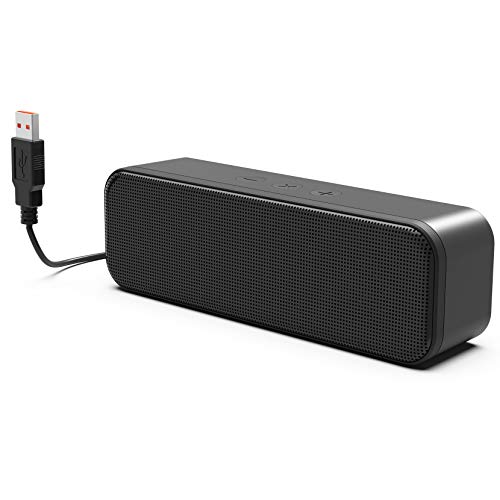
- Built-in dual drivers and passive radiator deliver strong bass for size
- Touch controls make volume easy to manage
- Broad compatibility including gaming consoles
- Lightweight and compact for easy desk or travel use
Cons
- Wired USB only, no wireless Bluetooth option
- Small size limits maximum volume for larger spaces
- Basic features without app or equalizer customization
The LIELONGREN USB computer speaker is a compact soundbar designed for desktops and laptops, bringing upgraded audio to everyday computing. With dual 3W drivers and a passive radiator, it punches above its weight in delivering stereo sound and rich bass, perfect for users tired of tinny built-in laptop speakers.
It's tailored for home office professionals, students, and casual gamers who want hassle-free audio enhancement without complex setups. Compatible with Windows PCs, laptops, Xbox, and PS4, it slots seamlessly into your workflow or gaming rig, turning mundane calls and sessions into immersive experiences.
In real-world use, the plug-and-play USB connection shines for instant gratification, while touch volume controls keep adjustments simple. Though small, it handles music, videos, and voice chats with clarity and depth, making it a smart pick for budget-conscious Americans upgrading their setup.
Verdict: A solid 4-star choice for desk-bound audio needs, offering great value in sound quality and convenience for daily drivers.
Bass depth comes from the passive radiator paired with dual high-sensitive 3W drivers, providing rich low-end thump that's surprising for such a small speaker. It's tuned for balanced stereo sound, making podcasts and music feel fuller on your PC.
Vocal clarity stands out in calls and videos, with hi-quality drivers ensuring voices cut through without muddiness. Volume levels get loud enough for personal desk use, maintaining composure without distortion at high settings.
USB wired connection ensures rock-solid stability and zero dropouts, outperforming Bluetooth in reliability for consistent performance during long workdays or gaming marathons.
The sleek, compact soundbar design measures small enough for any desk while being lightweight for easy portability between home and office. Its minimalist build blends into setups without cluttering space.
No battery to worry about; it's powered directly via USB, offering unlimited playback as long as your device is on. This eliminates charging downtime, ideal for all-day desk warriors.
Rugged enough for daily handling but not built for rough outdoor use, its portable form shines for travel or multi-device switching, always ready when plugged in.
Practical Solutions for Managing and Silencing Laptop Audio
Laptop computers rely on integrated audio codecs to power their compact internal speakers. When you want to silence these tiny drivers permanently or temporarily, your operating system provides several distinct control layers. Choosing the correct approach depends on whether you plan to mute the drivers for a single afternoon or disable them entirely so they never emit sound again.
Users who connect external USB soundbars or desktop speakers frequently encounter audio routing confusion. If Windows or macOS fails to detect an unplugged headset, sound may suddenly burst through the laptop chassis. Learning %how to disable laptop speakers% at the system level eliminates this risk and keeps audio routed strictly to external hardware.
Disabling Speakers via Windows Sound Control Panel
The classic Windows Sound Control Panel remains the most reliable interface for managing output hardware. To access this menu, press the Windows Key and R together, type control mmsys.cpl sounds into the Run dialog box, and press Enter. This command immediately bypasses nested modern menus and opens the dedicated Playback devices window. Here, you will see every audio endpoint recognized by your computer sound card.
Locate the entry labeled Speakers or Realtek High Definition Audio in the playback list. Right-click this specific device entry and select the Disable option from the context menu. Once disabled, the speaker icon displays a small black downward arrow, indicating that the operating system will no longer route audio streams to those drivers. Click Apply and then OK to save the configuration changes immediately.
If you ever need to restore the built-in sound, simply return to this identical menu. Right-click anywhere in the empty white space of the window and ensure that Show Disabled Devices has a checkmark next to it. You can then right-click your internal speaker entry and choose Enable to restore full factory sound capabilities.
Permanently Turning Off Audio in Windows Device Manager
Device Manager offers a deeper administrative method that stops the internal speaker hardware from initializing at system startup. Open this tool by right-clicking the Windows Start button and selecting Device Manager from the power user menu. Alternatively, type devmgmt.msc into the Windows search bar to open the hardware management window directly. This console lists every physical and virtual component active inside your portable machine.
Expand the category titled Audio inputs and outputs by clicking the small arrow to its left. Right-click the item identified as Speakers or Internal Audio and select Disable device from the list. Windows will display a warning prompt stating that disabling the hardware will cause it to stop functioning. Confirm the choice by clicking Yes, which prevents the operating system from sending electrical audio signals to the internal drivers.
Avoid selecting the Uninstall device option in this specific hardware menu. If you uninstall the speaker driver, Windows will automatically detect the missing component and reinstall the factory driver during the next reboot. Choosing Disable device keeps the driver present on your storage drive while instructing the kernel to keep the hardware powered down.
Managing Built-In Speaker Output on macOS and ChromeOS
Apple laptops handle internal speaker routing through dynamic hardware switching inside macOS. Open System Settings and click on the Sound pane in the sidebar to view your active audio hardware. While macOS does not provide a direct disable toggle for MacBook speakers, you can set the output volume slider entirely to zero while selecting an alternative output destination. Connecting a passive 3.5mm dummy plug can also trick the machine into silencing its main drivers permanently.
Advanced Mac users can open the Audio MIDI Setup utility found inside the Applications Utilities folder. Inside this panel, you can inspect individual audio channels, mute primary driver outputs independently, or configure aggregate audio routing. This configuration prevents media apps from overriding your system volume preferences when waking the laptop from sleep. It provides an effective safeguard against embarrassing notification sounds during meetings.
ChromeOS users can manage internal audio through the quick settings tray in the lower right corner of the shelf. Click the audio settings icon adjacent to the volume slider to display all detected input and output pathways. Select your connected USB sound device or auxiliary output as the exclusive playback stream. ChromeOS remembers this preference across reboots as long as the external audio hardware remains connected to the Chromebook.
Hardware Isolation Through BIOS and UEFI Menus
Entering your computer BIOS or UEFI menu provides the most absolute method for cutting off internal audio hardware. Power down your laptop completely, then turn it on while tapping the manufacturer setup key, which is usually F2, F10, or Delete. This startup key interrupts the standard boot sequence and opens the motherboard firmware configuration console. Firmware interfaces vary by brand, but most laptops group audio hardware under system peripherals.
Navigate through the menu tabs to find Onboard Devices Configuration, Integrated Peripherals, or Advanced Hardware Settings. Look for an entry named HD Audio Controller, Onboard Audio, or Internal Audio Device. Change this setting from Enabled to Disabled, then navigate to the Exit menu to save your adjustments and reset the machine. Disabling the controller at this level prevents the operating system from detecting the internal sound chip entirely.
Keep in mind that turning off the motherboard audio controller also silences the integrated microphone and analog headphone jack. However, USB-connected audio gear will continue to function normally because USB speakers carry their own internal digital-to-analog converters. This makes firmware-level deactivation an attractive choice for high-security workstations that strictly utilize external digital sound systems.
Routing Sound to External USB and Auxiliary Speakers
Connecting a dedicated external audio device is the most practical motivation for disabling internal laptop speakers. Compact desktop soundbars and stereo speakers draw power via USB while accepting audio through standard 3.5mm auxiliary cables or direct USB data streams. Products like the XKX wired computer soundbar and LENRUE A39PRO soundbar demonstrate how simple external upgrades can deliver clearer acoustics than factory laptop drivers.
When you plug in an all-in-one USB speaker, the operating system registers a fresh audio endpoint that operates independently of the internal sound card. Units such as the LIELONGREN upgraded USB speaker utilize a single USB cable to carry both electrical power and digital sound streams. This eliminates messy desktop cable clutter while automatically assigning playback duties to the external soundbar. Users setting up richer home desktop workstations often explore dedicated stereo speaker systems to achieve expansive room sound and deeper low-end performance.
Using external speakers with dual connectivity requires inserting both the USB power cord and the 3.5mm stereo cable into your machine. The 1Mii computer speaker system and Amazon Basics stereo 2.0 speakers utilize this reliable design. If your laptop features only modern USB-C ports, using integrated USB-C to USB-A adapters ensures smooth compatibility across current MacBook and Windows ultrabook designs.
Once your external soundbar is plugged in, open your operating system sound preferences to set it as the default communication and playback device. When configured correctly, your computer will never attempt to route media audio back through the internal drivers. This straightforward setup creates a reliable listening environment whether you are editing video, participating in conference calls, or enjoying music.
Preventing Accidental Audio Leaks and System Fallbacks
A frequent problem with portable computers is automatic audio fallback when an external device becomes unplugged. If a pet pulls on your headphone cord or a USB hub disconnects, Windows instinctively reverts to the internal speakers. If you are playing music in a quiet library or office cubicle, this sudden broadcast can create acute embarrassment. Disabling the internal speakers through the Sound Control Panel eliminates this backup behavior completely.
When the internal speakers remain disabled, disconnecting your external soundbar simply results in total silence. Windows will display a red cross over the taskbar speaker icon rather than redirecting the active audio stream to built-in chassis drivers. This failsafe mechanism ensures that sound cannot leak into the surrounding room under any unexpected circumstances. Many people working in sensitive shared spaces rely on this technique for everyday peace of mind.
You can also adjust application-specific output assignments inside modern Windows sound settings. By assigning software like Spotify, Zoom, or web browsers exclusively to an external audio device, those programs will mute automatically if that device disappears. This dual-layer configuration provides reliable control over your laptop acoustic footprint without requiring constant manual volume adjustments.
Solving Audio Driver Glitches and Re-Detection Problems
Automated operating system updates occasionally overwrite custom sound configurations and re-enable muted internal hardware. When Windows installs cumulative system patches, it frequently updates audio codec packages like Realtek or Conexant drivers. These updates can restore factory defaults, reactivating internal speakers that you previously turned off. Checking your Device Manager settings after major system upgrades helps ensure your custom hardware preferences stay intact.
Vendor-bundled audio management software can also interfere with your manual output selections. Programs such as Waves MaxxAudio, Dell Audio, or HP Audio Control run background background services that constantly monitor the 3.5mm auxiliary jack. If these utilities detect minor electrical resistance changes, they may prompt pop-up dialogues or force audio back through the laptop chassis. Disabling these helper applications from the Windows Task Manager Startup tab prevents them from altering your preferred sound routing.
Ghost audio endpoints represent another common glitch that occurs when multiple monitors or docking stations are connected. Graphics drivers from Intel, AMD, or Nvidia install digital audio outputs for external HDMI and DisplayPort connections. Disabling these unused digital display audio channels leaves only your true external speakers visible in the playback menu, streamlining your daily workflow.
Upgrading Desktop Audio with Compact External Soundbars
Replacing small internal laptop drivers with external sound hardware transforms the listening experience across movies, games, and voice calls. Built-in laptop speakers rely on ultra-compact diaphragms that physically cannot reproduce deep bass notes or crisp vocal separation. External desktop options solve this limitation by incorporating dedicated acoustic chambers and passive radiators. Even affordable desktop speakers offer substantial acoustic improvements over integrated laptop drivers.
When selecting external desktop speakers, look for practical features like tactile volume knobs and top-mounted mute buttons. The 1Mii soundbar features a convenient rotary dial for immediate sound level changes, eliminating the need to adjust on-screen software sliders. Similarly, touch-sensitive mute controls on soundbars like the XKX desktop speaker provide instantaneous silence during incoming calls. Those who travel frequently between home and office often complement their setups with portable Bluetooth sound units for versatile wireless listening.
Physical desktop placement also plays an important role in overall acoustic performance. Soundbar units fit neatly directly underneath an elevated laptop stand or monitor riser, projecting audio directly toward your ears. Anti-slip rubber base pads, such as those found on Amazon Basics stereo speakers and compact soundbars, prevent desk vibrations from muddling dialogue clarity. These compact audio solutions ensure that silencing your laptop internal drivers leads to a substantially upgraded listening environment.
Practical Next Steps for Clean Laptop Audio Management
Taking command of your laptop sound profile requires only a few minutes inside system settings or hardware management menus. Disabling internal speakers through the Windows Sound Control Panel or Device Manager provides immediate relief from unwanted noises, feedback hum, and audio leaks. Pairing these configuration changes with a dependable external USB soundbar delivers richer dialogue, balanced acoustics, and dependable physical controls.
Before closing your settings panels, verify that your new default playback endpoints function properly by running a quick sound test. Ensure your external soundbar or headphones respond cleanly to media playback while the internal laptop chassis remains completely silent. With these straightforward adjustments completed, your laptop audio will perform predictably and clearly across all your daily computing tasks.




Write Your Review
No reviews yet. Be the first to share your experience!