

Desktop audio setups frequently encounter limitations when standard desktop towers or older office machines lack built-in wireless transmitters. Learning how to connect bluetooth speaker to pc via usb solves this issue by connecting modern portable speakers with desktop operating systems. While many computer users assume that plugging a standard USB charging cord will immediately transmit audio, the actual hardware connection depends on whether your speaker supports USB digital decoding or requires an external wireless bridge. Workstations configuring diverse audio paths often look at dual speaker setup options to balance wired clarity with wireless convenience.
Adding a dedicated USB Bluetooth transmitter or adopting a powered wired desktop setup helps prevent driver conflicts and audio delay. Many external speakers use their USB connectors strictly to recharge internal lithium-ion batteries rather than transfer digital sound packets. Identifying your computer ports and selecting compatible hardware ensures reliable playback for business calls, gaming, and daily music listening. This practical guide walks through every step of connecting your PC to external speakers via USB, detailing wireless adapter pairing, direct USB cable configurations, and critical Windows sound management.

Pros
- Clean, reliable stereo wireless transmission with minimal background noise
- Ultra-small nano USB design leaves adjacent computer ports accessible
- Supports pairing with up to 7 Bluetooth peripherals at the same time
- Effortless plug-and-play installation on Windows 10 and Windows 11
Cons
- Strictly limited to Windows PCs; incompatible with Mac, Linux, gaming consoles, and car stereos
- Only one Bluetooth audio device can stream sound or take calls at any given time
- Does not connect to proprietary 2.4GHz wireless accessories or Wi-Fi network devices
The Avantree DG45 is a compact USB Bluetooth adapter engineered to bring modern wireless audio streaming and peripheral connectivity to Windows desktop towers and laptops. For listeners wanting to break free from tethered aux cables and experience clean sound on Bluetooth bookshelf speakers or wireless headphones, this miniature transmitter provides an immediate hardware solution. It turns any compatible Windows machine into a capable wireless audio hub without requiring costly internal sound card upgrades.
In real-world use, the DG45 delivers a straightforward, dependable experience. Setting it up on modern Windows installations requires practically zero effort, syncing quickly with your preferred wireless speakers or headsets. Everyday playback is smooth and consistent, allowing you to enjoy your favorite playlists or stream video content while keeping essential productivity tools like a Bluetooth keyboard and mouse connected in parallel without bandwidth choking.
Beyond passive music enjoyment, the DG45 handles voice communication with ease. Headset microphones are recognized cleanly across standard teleconferencing platforms like Zoom, Teams, and Discord, making it just as valuable for remote work as it is for leisure. While audio output is intentionally limited to one active speaker or headset at a time, transitioning between devices is quick and pain-free.
Overall, the Avantree DG45 is an exceptionally practical audio bridge for desktop audio enthusiasts and PC gamers. It provides clean sound transmission, expansive peripheral flexibility, and dependable day-to-day stability in an unobtrusive nano form factor.
As a dedicated digital audio pipeline, the Avantree DG45 focuses on delivering clean, uncolored stereo sound across the entire audible frequency range. When paired with quality Bluetooth monitors or powered bookshelf speakers, it preserves tight bass impact, articulate midrange vocals, and crisp treble definition. The connection remains remarkably clean, avoiding the faint hiss or background hum that often plagues inferior wireless transmitters.
Signal stability is critical for an enjoyable listening session, and the DG45 maintains an uninterrupted link across standard desktop and home office distances. Audio synchronization remains steady during high-bitrate music playback, video streaming, and casual gaming, ensuring that movie dialogue and sound effects stay matched to the action on screen.
When transitioning from high-fidelity music streaming to interactive voice calls, the adapter balances two-way communication smoothly. Voice output through wireless headphone microphones sounds natural and intelligible, providing crisp speech clarity during meetings and voice chats without degrading overall signal strength.
Measuring less than an inch in length and weighing virtually nothing, the DG45 features a sleek nano USB enclosure. Once slotted into a front or rear USB port, the adapter sits nearly flush against the chassis. This minimal footprint ensures it will not block neighboring USB inputs and prevents accidental bending or breakage when transporting a laptop in a backpack.
Hardware functionality is powered directly via the host computer's USB bus, drawing minimal power while managing up to seven connected Bluetooth devices simultaneously. The adapter is specifically engineered for genuine Bluetooth protocols, meaning it operates independently from proprietary 2.4GHz wireless dongles and standard Wi-Fi network cards.
Compatibility is tailored strictly for modern Windows operating systems, natively supporting Windows 11, 10, 8.1, and 8. It is important to remember that this hardware is not compatible with macOS, Linux, ChromeOS, gaming consoles, or vehicle audio systems, making it a specialized upgrade for Windows desktop setups.
Pros
- True plug-and-play with USB-A and 3.5mm connections
- Clear stereo sound from 6W full-range drivers
- Stylish unibody design with convenient volume control
- Long 49.6-inch USB cable for flexible desk placement
Cons
- No Bluetooth or wireless connectivity
- Limited bass due to no subwoofer
- Blue indicator light stays on unless PC is off
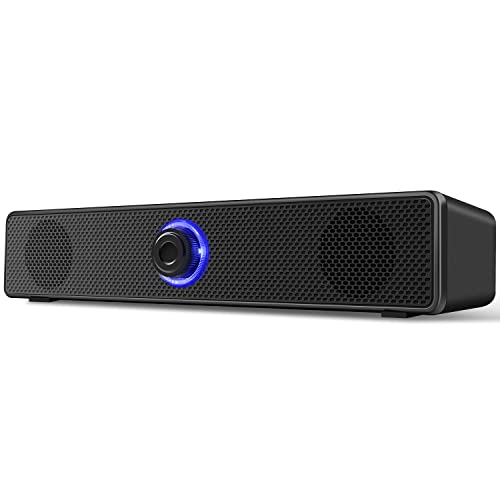
The TAOTOSUNE Computer Speakers are wired desktop audio solutions designed exclusively for PCs, laptops, and desktops with USB-A and 3.5mm ports. Perfect for home office setups or casual gamers wanting an affordable sound upgrade without complexity, these speakers skip Bluetooth for reliable wired performance.
In real-world use, they shine during long workdays streaming videos or listening to podcasts, providing steady stereo output that outperforms basic laptop speakers. Setup is effortless: just plug in both cables, and you're ready, with no software required. Adjust volumes on both PC and speakers above 85% for optimal loudness.
While bass won't rival subwoofer systems, the full-range drivers handle mids and highs cleanly for everyday tasks. The low-profile design tucks neatly under screens, enhancing desk aesthetics. Overall verdict: a solid budget pick for wired PC audio enthusiasts seeking simplicity and clarity.
Equipped with 6W full-range drivers, these speakers produce immersive stereo sound ideal for PC movies, music, and light gaming. Vocals come through with good clarity, and volume reaches desk-filling levels when both PC and speaker knobs are cranked up, though expect modest bass from the compact cavity design.
Wired connections ensure zero dropouts or latency, outperforming wireless options in stability for video calls or focused listening sessions. Noiseless playback keeps distractions minimal, making them great for productive home offices. Highs sparkle without harshness, delivering balanced audio for daily desktop use.
The classic unibody design measures 12.4 x 2.2 x 2.4 inches, with a sleek black finish that blends into any office desk under your monitor. The front volume knob offers intuitive control from mute to max, and the 49.6-inch USB cable provides ample reach without clutter.
Powered directly via USB-A, there's no battery to charge, meaning continuous operation as long as your PC is on. The persistent blue light indicates power but can't be turned off separately. Sturdy build suits stationary desk use, though not rugged for portability.
Complete Guide to Connecting PC Audio Through USB and Bluetooth
Connecting a Bluetooth speaker to a personal computer using a USB interface requires choosing between wireless adapter broadcasting or direct wired cable routing. Most desktop computers do not have factory-installed Bluetooth chips, meaning a USB Bluetooth adapter serves as the essential bridge to broadcast digital audio to wireless speakers. Alternatively, some speakers accept a direct USB cable to process sound through an internal digital-to-analog converter, while other desk units use USB exclusively for power. Understanding which connection mode your hardware actually supports prevents hours of troubleshooting silent audio streams and misconfigured drivers.
Adding Wireless Audio with a USB Bluetooth Adapter
A dedicated USB Bluetooth dongle provides the most straightforward method for connecting any wireless speaker to a desktop computer that lacks built-in wireless hardware. Modern adapters, such as the Avantree DG45 – USB Bluetooth Adapter for Windows, plug directly into an available USB-A port to add Bluetooth communication capabilities to Windows PCs. These compact adapters operate under modern operating systems, including Windows 11, Windows 10, Windows 8.1, and Windows 8. However, buyers should note that hardware like the DG45 does not support macOS, ChromeOS, Linux, Windows 7, car stereos, or televisions.
Installing a USB Bluetooth adapter usually takes advantage of automated plug-and-play driver installation within modern Windows environments. Once the adapter sits firmly in the USB port, Windows detects the chipset and installs standard wireless communication protocols automatically. You can confirm proper installation by checking Device Manager to verify that a Bluetooth radio node appears without exclamation marks. If your computer previously utilized an older disabled internal Bluetooth module, disabling that legacy controller ensures the new USB dongle manages all outgoing audio signals without hardware conflict.
Pairing your speaker through the newly installed USB adapter follows standard operating system pairing procedures. Open the Windows Settings menu, navigate to Devices or Bluetooth & Devices, and select the option to add a device. Place your Bluetooth speaker into pairing mode by pressing its dedicated pairing button until its status indicator light flashes rapidly. Select your speaker from the list of discovered devices on your computer monitor, and allow Windows to complete the handshake process until the status displays connected voice and music.
Multi-device communication represents another key capability of dedicated USB Bluetooth adapters that desktop users should understand. The Avantree DG45 supports pairing with up to seven Bluetooth devices simultaneously, allowing keyboards, mice, game controllers, and printers to operate beside your audio gear. However, the adapter architecture restricts active audio streaming to a single Bluetooth device at any given moment. This means you can keep your wireless mouse and keyboard running while streaming music, but you cannot broadcast separate audio streams to two different Bluetooth speakers at once through this specific dongle.
Connecting via Direct USB Cable: Audio Data Versus Battery Power
Many users attempt to connect their Bluetooth speaker directly to a PC using a standard USB-A to USB-C or micro-USB charging cable, only to find that no sound plays. This common point of confusion arises because most portable Bluetooth speakers utilize their USB ports strictly for recharging their internal batteries. Standard charging circuitry routes power directly to the battery management system while bypassing the internal digital audio processing components entirely. Unless the manufacturer explicitly specifies that the USB port supports USB digital audio input, the computer will treat the speaker solely as a power-drawing accessory.
Speakers equipped with an integrated USB digital-to-analog converter (DAC) handle direct cable connections in a completely different manner. When you attach a USB audio capable speaker to your computer, the PC recognizes the device as an external USB sound card. Windows assigns dedicated audio output endpoints to the connection, transferring pure digital audio bits across the cable to be decoded directly inside the speaker cabinet. This direct digital route eliminates wireless compression and prevents latency, making it ideal for desktop gaming and video editing workflows.
Verifying whether your speaker supports direct USB audio requires inspecting your operating system audio menus after plugging in the cable. If the speaker appears under Windows Sound Settings as a playback device with its specific brand name, the unit supports direct digital streaming. If Windows only plays a standard connection chime and the speaker merely illuminates its charging light without appearing in Device Manager, the port serves only for charging. In that scenario, transmitting audio requires either using a USB Bluetooth dongle or running an analog 3.5mm auxiliary audio cable from your computer sound card.
Utilizing USB-Powered Wired Desktop Speakers for Reliable Playback
When wireless pairing introduces battery management hassles or intermittent connectivity, dedicated USB-powered desktop units provide an efficient alternative. The TAOTOSUNE Computer Speakers illustrate how USB hardware can supply continuous power without relying on rechargeable batteries. This design features a low-profile unibody horizontal housing that tucks directly under your computer monitor, keeping desk space organized and clutter-free. A tactile rotary volume control on the front face provides instant sound adjustments without needing to navigate software sliders.
Operating this style of desktop speaker requires connecting two separate cables simultaneously to your computer tower. The integrated USB-A connector draws operating voltage from the computer motherboard to drive the internal six-watt full-range stereo drivers, while the 3.5mm plug delivers the actual analog audio signal. TAOTOSUNE explicitly designs this speaker without internal Bluetooth, microphones, or headphone jacks, focusing entirely on straightforward, noiseless desktop stereo playback. Because power flows continuously through the 49.6-inch USB cord, you never have to pause your media consumption to wait for a battery recharge.
Proper port selection on your PC tower plays an important role when setting up dual-cord USB audio equipment. Connecting both the USB-A power cable and the 3.5mm audio jack to the rear I/O panel of your desktop motherboard minimizes electrical noise and static hum. Front-panel computer ports often share grounding traces with internal storage drives and fans, which can introduce low-level buzzing into sensitive audio circuits. Plugging directly into the rear motherboard ports ensures clean DC power delivery and pristine analog signal transmission across supported operating systems like Windows, Linux, and Unix.
Configuring Windows Audio Settings and Playback Endpoints
Successful hardware pairing does not always mean Windows will automatically redirect your audio stream to the new speaker. Windows manages multiple audio endpoints, including monitor speakers, motherboard rear jacks, front headphone ports, and wireless devices. To ensure consistent playback, right-click the speaker icon in your Windows taskbar and open Sound Settings. Locate your connected Bluetooth speaker or USB audio device under the Output section, and click the option to set it as the default playback device.
Understanding the distinction between Bluetooth audio profiles represents a crucial troubleshooting step for Windows users. Bluetooth audio devices typically establish two profiles: Advanced Audio Distribution Profile (A2DP) for stereo music playback, and Hands-Free Profile (HFP) for two-way voice communication. If Windows selects the Hands-Free profile as your default output, audio quality degrades significantly into a hollow, narrow-bandwidth mono signal. For listening to media, always choose the Stereo output device, reserving the Hands-Free option solely for teleconferencing applications like Zoom or Microsoft Teams.
Volume staging between your computer software and the external speaker hardware also demands careful configuration. If you notice weak or muffled output from wired or wireless USB setups, verify that your Windows system volume and media player volume are set to at least 85 percent. Setting software volume high allows the external speaker amplifier to receive a strong input signal without amplifying background noise. You can then use the physical volume knob on speakers like the TAOTOSUNE unit, or the onboard buttons on your Bluetooth speaker, to dial in comfortable listening levels.
Managing Wireless Interference, Range, and Latency
Wireless audio transmission through USB Bluetooth adapters can encounter interference from common desk accessories and office electronics. Standard Bluetooth signals operate within the congested 2.4 GHz radio frequency spectrum, sharing airspace with home Wi-Fi routers and cordless appliances. Furthermore, USB Bluetooth adapters like the Avantree DG45 do not communicate with proprietary 2.4G wireless receivers used by third-party wireless mice and office keyboards. Connecting a USB Bluetooth dongle directly adjacent to a high-speed USB 3.0 data port can also generate electromagnetic radiation that diminishes wireless audio range.
Minimizing wireless latency is essential when you intend to watch movies, stream video content, or participate in voice calls. Latency refers to the slight delay between the moment an audio signal leaves your PC and when sound emerges from the speaker drivers. Standard Bluetooth codecs can introduce delays exceeding one hundred milliseconds, causing visible lip-sync mismatch in spoken dialogue. If your audio goals include dynamic media and gaming, pairing your setup with Bluetooth speakers with deep bass and optimized latency response ensures that cinematic low frequencies arrive in sync with on-screen action.
Physical placement of your USB adapter can dramatically improve signal stability and eliminate annoying audio dropouts. If your desktop tower rests under a heavy wooden desk or inside a metal cabinet, plug the USB Bluetooth dongle into a front-panel port or a short USB extension cable. Elevating the adapter into direct line of sight with your speaker removes physical obstacles that absorb radio waves. This simple placement adjustment preserves full transmission range across the room while eliminating the stuttering audio artifacts caused by weak reception.
Troubleshooting Common Connection and Audio Output Failures
When a PC fails to connect to a Bluetooth speaker via USB, systematically isolating each link in the signal chain reveals the cause. A frequent problem occurs when the speaker remains connected to a previously paired smartphone or tablet located in the same room. Bluetooth speakers automatically latch onto familiar host devices, preventing your PC adapter from completing a new pairing handshake. Disabling Bluetooth on nearby mobile phones or clearing the pairing memory on the speaker allows the PC USB adapter to discover the speaker without contention.
Driver conflicts represent another common hurdle when establishing audio connections on modern Windows PCs. If an adapter fails to appear in Windows Settings, open Device Manager to verify that the USB port is functioning correctly. Outdated sound card drivers or corrupted USB bus controllers can prevent Windows from routing audio streams to external hardware. Running Windows Update or reinstalling manufacturer-provided chipset drivers often resolves stubborn recognition errors, restoring seamless communication between the operating system and your audio gear.
Power management settings inside Windows can also cause external USB audio connections to shut down unexpectedly during quiet passages. By default, Windows aggressive power saving features may put inactive USB root hubs into sleep mode to conserve energy. To prevent abrupt audio disconnects, navigate to Device Manager, expand the Universal Serial Bus controllers category, and access the Properties for your USB Root Hub. Unchecking the box that allows the computer to turn off the device to save power ensures constant electrical operation and stable audio playback.
Hardware Selection for Desktop Workstations and Portable Use
Selecting the ideal combination of USB adapters and external speakers depends on how you balance mobility with desktop convenience. Users who rely on portable Bluetooth speakers for travel often prefer a compact USB dongle like the Avantree DG45 because it lets them reuse their existing speaker at their workstation. This approach eliminates the cost of buying dedicated computer soundbars while keeping desk surfaces adaptable. However, keeping portable speakers plugged continuously into USB charging ports at a desk can expose internal lithium cells to elevated resting temperatures over prolonged periods.
For dedicated workstations and permanent office desks, purpose-built wired speakers powered by USB deliver dependable daily performance without battery aging concerns. A continuous-power unit like the TAOTOSUNE computer speaker stays powered as long as your PC runs, removing battery depletion from your daily routine entirely. Listeners outfitting spacious offices or living areas that require higher volume output might also consider high-output portable speakers to ensure robust sound reproduction across larger floor plans. Balancing your personal portability requirements against daily listening habits ensures your USB audio investment provides lasting utility.
Verifying system specifications before purchasing hardware components prevents frustrating connection mismatches. Ensure your PC operating system matches the adapter requirements, paying special attention to system exclusions like Linux or legacy Windows versions when selecting dongles. Confirm that your computer motherboard provides accessible USB-A ports alongside 3.5mm analog audio jacks if you select dual-cable desktop speakers. By aligning your operating system capabilities, port configuration, and speaker design, you can establish an effortless, high-fidelity audio connection tailored specifically to your computing environment.




Write Your Review
No reviews yet. Be the first to share your experience!