


Setting up an Amazon Echo Show often highlights the convenience of hands-free voice controls and touchscreen playback, but the built-in speaker might not provide the room-filling volume you want. Learning how to connect bluetooth speaker to echo show allows you to bypass the compact internal drivers and send your audio to a dedicated sound system with superior clarity and volume. Pairings can be handled either directly through on-screen menus or via voice commands, giving you immediate access to your favorite music streams, podcasts, and video audio. Adding an external speaker can significantly enhance your everyday listening experience, especially when paired with Bluetooth speakers with deep bass for rich acoustic output.
Hardware reliability plays an essential role throughout the wireless pairing process, as a stable power connection prevents sudden restarts or dropped connections while streaming. An essential accessory like a dependable 21W Power Cord Replacement for Echo Show keeps your smart display running consistently during setup and long listening sessions. Taking a few moments to understand pairing modes, menu pathways, and audio output behaviors will prevent common playback hiccups. With the right configuration, your smart display quickly transforms into an intuitive, central hub for all your home audio.

Complete Walkthrough for Connecting and Managing Bluetooth Speakers on Echo Show
Connecting a Bluetooth speaker to an Echo Show requires placing the external speaker into pairing mode and selecting it within the Bluetooth menu on the Echo Show screen. You can access this menu by swiping down from the top of the display, tapping Settings, and choosing the Bluetooth options list. Alternatively, speaking the phrase “Alexa, connect speaker” prompts the system to scan for active nearby audio receivers automatically. Once selected from the list of discovered devices, the Echo Show routes all streaming media, notifications, and voice responses through the external speaker.
Step-by-Step On-Screen Pairing Through the Echo Show Interface
Navigating the on-screen settings on your smart display offers the most visual and controlled way to manage external audio connections. Begin by swiping down from the very top edge of your Echo Show screen to reveal the quick-action menu tray. Tap the gear icon labeled Settings, then scroll down until you locate the Bluetooth menu option. Entering this screen prompts the Echo Show operating system to scan the immediate local area for broadcasting Bluetooth devices.
Before initiating the on-screen scan, verify that your external speaker is actively broadcasting its discovery beacon. When the name of your speaker appears on the Echo Show display under the list of available devices, tap the device name to begin pairing. A short progress indicator will appear on the screen while the two pieces of hardware establish security handshakes and exchange connection profiles. Once the process completes successfully, your speaker will appear under the Paired Devices list with a status showing it is connected.
If your speaker does not appear immediately during the initial scan, tap the screen to refresh the discovery search. Most Bluetooth speakers stop broadcasting discovery signals after thirty to sixty seconds to preserve battery power. Resetting the pairing button on the external audio device will prompt the Echo Show to detect the broadcast. Once paired, the smart display remembers the peripheral profile for future automatic handshakes.
Pairing External Audio Devices Using Alexa Voice Commands
Voice navigation delivers a hands-free method to initiate audio pairing when you are away from the touchscreen display. To start, ensure your Bluetooth speaker sits within clear radio range and has its discovery mode toggled on. Say clearly, “Alexa, open Bluetooth settings” or “Alexa, connect Bluetooth,” to instruct the assistant to look for available peripherals. The Echo Show will respond audibly and present matching devices directly onto the screen.
Alexa voice recognition works best when ambient room noise remains low during the command sequence. If multiple paired hardware profiles exist in the system memory, you can say, “Alexa, connect to my speaker,” using the exact label assigned to that device. The voice assistant confirms the link by announcing the connection aloud through both the internal display and external hardware. If an error occurs, the voice prompt advises you to check whether the target speaker is powered on and within range.
Disconnecting an active wireless audio link using voice commands operates with equal simplicity. Speaking the command “Alexa, disconnect Bluetooth” instantly reverts all media and voice responses back to the Echo Show internal speakers. This command severs the active radio frequency link while leaving the pairing record completely intact in the system memory. You can re-establish the connection later simply by asking Alexa to connect to that specific peripheral name.
Bluetooth Speaker Discovery Modes and Hardware Preparation
External speakers require specific button presses to broadcast the necessary pairing profiles to an Echo Show. Many portable units use a dedicated Bluetooth symbol button that requires a three-second continuous press until an indicator LED flashes rapidly. Other models integrate discovery initiation into the main power toggle, requiring a long press from an off state. Consulting your speaker hardware documentation helps clarify the exact sequence required to enter discovery mode.
Prior connections to nearby smartphones, tablets, or computers represent the most common reason a speaker fails to appear on the Echo Show screen. Bluetooth hardware typically binds automatically to the last connected host device as soon as power turns on. If your speaker immediately locks onto an existing phone connection, it will refuse to transmit discovery beacons to the smart display. Disabling Bluetooth temporarily on nearby phones clears the path for the Echo Show to establish its link.
Maintaining a clear physical line of sight during initial pairing prevents packet loss and handshake timeouts. Position the external speaker within three to five feet of the Echo Show while configuring the initial setup. Once the mutual profile exchange finishes, you can relocate the speaker to its permanent spot within standard wireless operating distance. Keeping the speaker battery adequately charged also ensures that the internal radio transmitter broadcasts at full operational strength.
Reconnection Behavior and Audio Routing Protocols
Understanding how the Echo Show manages audio routing prevents confusion when cycling power on external equipment. When a paired Bluetooth speaker powers down, the smart display detects the dropped signal and immediately routes all playback back to its internal transducers. You will not lose track of timers, alarms, or streaming music because the transition occurs automatically in the background. Once the external speaker powers back on, the smart display attempts to restore the link if automatic reconnect is supported.
If the connection fails to restore automatically, entering the on-screen Bluetooth menu allows you to tap the saved device profile manually. The system sends an immediate connection query to the peripheral without requiring you to repeat the initial discovery procedure. You can also deploy this manual selection screen if you alternate between a compact bedside unit and a Bluetooth speaker for large spaces throughout the home. Selecting the target profile from the list switches audio output without clearing existing stored pairings.
System alarms, timer chimes, and Alexa responses default to routing through the external speaker while the link remains active. Certain software updates allow you to customize whether notifications play exclusively through the Echo Show display or across both devices simultaneously. Inspecting the Sounds section under device settings gives you granular control over chime volumes and notification behaviors. Keeping these volume parameters balanced ensures you never miss critical reminders while playing loud media.
Power Stability and Hardware Accessories for Uninterrupted Streaming
Reliable power delivery forms the foundation of stable wireless audio transmission on smart display devices. The Echo Show relies on steady electrical current to maintain high-definition display output, process microphone inputs, and broadcast continuous Bluetooth data packets. Power interruptions or voltage drops can cause the smart display to reboot abruptly, dropping active wireless links in the middle of playback. Using an appropriate power supply prevents erratic performance during sustained audio streaming sessions.
A specialized adapter such as the 21W Power Cord Replacement for Echo Show by AZJCKEW provides the exact voltage and current specifications needed for steady operation. This replacement cord is listed as compatible with Alexa Show 5 third-generation units featuring USB-C ports, as well as first-generation Echo Show displays and related Echo hardware. It incorporates a 6.6-foot DC barrel tip cable and internal circuitry designed for over-voltage, over-current, and thermal protection. Ensuring your Echo Show receives clean, rated power avoids unexpected brownouts that sever external wireless audio streams.
Placing your power adapter securely into an outlet away from high-draw inductive appliances also minimizes electromagnetic interference. Loose wall connections or damaged cords can induce subtle ground loops or power spikes that degrade internal radio transmission. Inspecting the physical cable run for bends, crimps, or connector wear ensures longevity for both the display and attached peripherals. A well-powered hub delivers consistent audio performance day after day.
Resolving Common Connection Dropouts, Stuttering, and Latency
Wireless audio dropouts and stuttering typically stem from physical obstructions or congested 2.4 GHz radio frequencies. Wi-Fi routers, microwave ovens, baby monitors, and thick masonry walls can weaken the Bluetooth signal passing between your Echo Show and external speakers. Moving the external audio unit within ten to fifteen feet of the display often resolves intermittent audio stutter immediately. If interference persists, switching your household Wi-Fi router to broadcast primarily over the 5 GHz band frees up essential spectrum.
Audio latency or lip-sync mismatch represents another common concern when streaming video on the Echo Show while routing sound via Bluetooth. The Echo Show relies on standard Bluetooth audio profiles such as SBC or AAC, which naturally introduce minor processing delays during encoding and decoding. While this latency goes unnoticed during music streaming or podcast listening, it can cause visible dialogue sync delays during video playback. Choosing an external speaker with low transmission latency helps reduce this desynchronization noticeably.
If persistent connection failures occur despite clear radio channels, clearing cached device profiles offers an effective software reset. Navigate into the Echo Show Bluetooth settings, select the problematic speaker, and choose the option to forget or unpair the device. Power cycle both the smart display and the external speaker to clear temporary buffer data before attempting the connection again. Re-pairing from a clean slate resolves corrupted handshake parameters and restores smooth playback.
Multi-Room Music and Grouping Restrictions with External Speakers
Amazon Alexa features robust multi-room music capabilities, but pairing external Bluetooth hardware introduces specific operating constraints. The Alexa Multi-Room Music system utilizes proprietary Wi-Fi synchronization to keep audio aligned across multiple Echo units in separate rooms. However, when an Echo Show connects to an external Bluetooth speaker, software protocols prevent that combined setup from participating in Multi-Room Music groups. The latency introduced by Bluetooth transmission makes it technically impossible to synchronize perfectly with Wi-Fi audio streams.
If you command Alexa to play audio across an “Everywhere” group, the Echo Show will automatically disconnect its Bluetooth output and route sound to its internal speakers. Users frequently confuse this design limitation with a hardware defect, but it is an intentional software boundary built into the Alexa ecosystem. To preserve multi-speaker coverage across rooms, you must rely on native Echo hardware or third-party speakers with certified Alexa built-in software. Understanding this behavior prevents unnecessary troubleshooting when working with audio groups.
Direct auxiliary audio connections do not circumvent this limitation on modern compact Echo Show models, as newer generations omit the physical 3.5 mm output jack entirely. Early Echo Show models included line-out ports, but recent iterations rely strictly on wireless Bluetooth connectivity for external sound expansion. If your listening goals require unified whole-home playback, keep the Echo Show dedicated to local single-room duties. Local audio streaming will continue to deliver excellent volume through your external speaker without conflicting with household groups.
Selecting External Speaker Hardware for Echo Show Environments
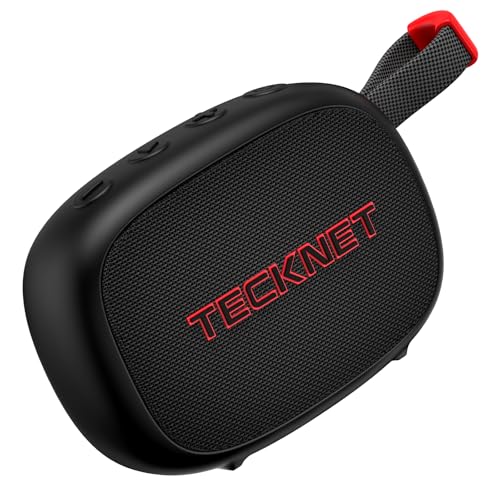
Choosing an appropriate external speaker depends largely on the physical environment surrounding your Echo Show setup. A small kitchen counter or desktop workstation benefits from a compact speaker that delivers clear midrange frequencies for spoken dialogue and podcasts. In contrast, larger living spaces, patios, or open-concept kitchens demand a higher-output Bluetooth speaker capable of projecting audio without distorting at elevated listening volumes. Matching the speaker acoustic output to room volume ensures you achieve balanced sound.
Power management features on external speakers deserve careful inspection before making a final hardware selection. Many battery-powered Bluetooth speakers incorporate aggressive auto-sleep timers that shut down the unit after ten minutes of audio silence. When the speaker shuts down, the Echo Show loses its connection, forcing you to turn the speaker back on manually before each listening session. Selecting a speaker with an optional auto-sleep disable feature or choosing a permanently wall-powered desktop monitor eliminates this inconvenience entirely.
Form factor and enclosure materials also influence how well the speaker holds up in common Echo Show locations. Kitchen setups require speakers that can withstand occasional moisture, grease, and cleaning wipes, making sealed enclosures with appropriate environmental ratings a wise choice. Desktop installations, on the other hand, benefit from compact footprints and forward-facing acoustic drivers that direct sound toward the listener. Evaluating these environmental factors guarantees that your audio hardware remains practical and durable over years of daily service.
Verifying Audio Settings and Managing Multiple Saved Devices
Managing multiple saved Bluetooth profiles on an Echo Show requires maintaining an orderly device registry. Over time, family members may pair various portable speakers, headphones, or secondary audio receivers to the smart display. The Echo Show maintains records of these profiles, which can occasionally lead to accidental connections if several known devices power on simultaneously. Periodically opening the Bluetooth menu to forget unused hardware profiles streamlines daily operation and prevents routing confusion.
Equalizer settings on the Echo Show provide valuable acoustic tuning once an external speaker is successfully linked. Swiping down into Settings and navigating to the Sounds menu gives you direct access to bass, midrange, and treble sliders. Modifying these software sliders allows you to compensate for speaker placement near walls or corners, preventing boomy low-end frequencies or harsh high-end tones. Testing spoken speech alongside complex music tracks helps establish a balanced equalizer profile for all media types.
Regular maintenance of both hardware components ensures consistent, reliable wireless performance throughout the lifespan of your audio system. Wiping dust from the Echo Show microphone array and speaker grilles keeps voice recognition sharp and audio output clear. Checking that power connections remain firmly seated ensures the display never suffers unexpected power cycles during critical tasks. Taking these simple steps guarantees that learning how to connect bluetooth speaker to echo show provides a dependable, high-quality audio experience every day.




Write Your Review
No reviews yet. Be the first to share your experience!