


Setting up a modern desktop workspace often leads to immediate questions about sound routing, especially when unboxing an affordable gaming display. Many users connect an HDMI cable and wonder does gawfolk monitor have speakers when their favorite games and streaming media remain completely silent. Standard display cables carry both video and audio signals, but budget monitors frequently omit internal acoustic hardware to keep manufacturing focused on visual panel speed. Understanding how your monitor handles incoming sound signals helps you avoid unnecessary troubleshooting and choose the right audio configuration.
Display manufacturers commonly provide an audio pass-through port rather than onboard drivers, requiring users to connect external headphones or powered desktop speakers to hear anything. Unlike dedicated home music speakers designed for rich acoustic fidelity, monitor sound hardware is usually either nonexistent or limited to bare-minimum utility playback. Identifying your screen’s exact audio capabilities ensures you can configure your operating system output correctly and establish a dependable sound environment.
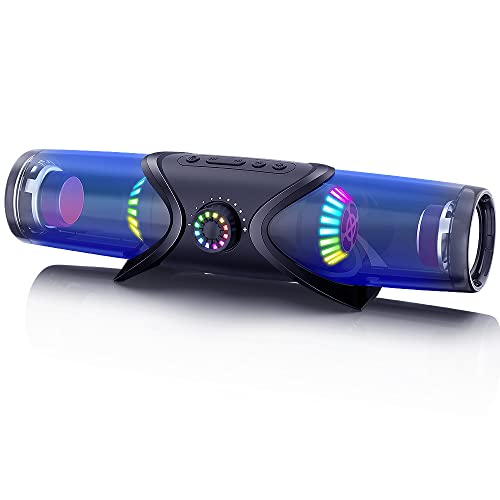
Pros
- Compact 13-inch profile fits effortlessly beneath most desktop monitors and laptops
- Flexible connection options with both Bluetooth 5.0 and standard 3.5mm auxiliary jacks
- Vibrant multi-mode RGB lighting effects that can stay on independently of audio
- Convenient physical rotary knob makes volume adjustments fast and precise
Cons
- Lacks an internal battery and must remain connected to a USB power source
- Sub-bass extension is limited due to the compact cabinet size and small drivers
- Does not feature a dedicated companion software app for custom EQ tuning
The WolfLawS Computer Soundbar enters the desktop audio space as an all-in-one compact solution tailored specifically for PC gamers, remote workers, and students who want to upgrade from weak built-in monitor speakers without breaking the bank. Designed with an under-monitor form factor, this soundbar integrates multi-mode RGB illumination with dual audio input capabilities, blending functional desktop acoustics with ambient gaming aesthetics.
In everyday use, the WolfLawS speaker delivers a dependable plug-and-play experience. Connecting via USB for power and 3.5mm auxiliary for audio ensures instant compatibility with desktops, laptops, and gaming consoles. For mobile devices, the onboard Bluetooth 5.0 chip maintains a stable, low-latency wireless connection across the room, allowing you to stream podcasts or background music effortlessly while stepping away from your desk.
The tactile layout is another strong point for desktop ergonomics. Instead of relying solely on digital push buttons, the soundbar sports a dedicated physical volume dial that allows for quick adjustments mid-game or during video calls. The RGB lighting effects can be toggled through various patterns to suit your mood, or turned on purely as ambient desk lighting even when audio is paused.
Ultimately, the WolfLawS soundbar is a practical, visually engaging desktop accessory. While it does not replace a multi-driver studio monitor setup or an expansive surround sound system, it offers a dramatic audio improvement over standard laptop and monitor speakers, making it an excellent budget-friendly pick for casual entertainment and gaming stations.
Acoustically, the WolfLawS soundbar relies on an integrated digital signal processor (DSP) designed to optimize clarity across everyday multimedia frequencies. Midrange reproduction is tuned forward, ensuring spoken dialogue in movies, voice chat in games, and vocals in music come through with crisp definition. High frequencies remain smooth and fatigue-free, avoiding harsh sibilance even during prolonged gaming sessions.
Given its compact desktop cabinet, the speaker utilizes dual micro-drivers paired with internal passive chambers to generate punchy low-end punch. While it naturally cannot replicate the sub-30Hz rumble of a dedicated floor subwoofer, it produces enough lower-mid warmth to give gaming explosions and action movies decent body and presence without noticeable cabinet vibration.
Soundstage dispersion is tuned for nearfield listening. Placed directly in front of you under a monitor, it creates a coherent stereo field with distinct left and right channel separation. Volume output is more than sufficient to fill a small bedroom, home office, or dorm room cleanly without heavy harmonic distortion at mid-to-high listening levels.
Crafted with a sleek, horizontal profile measuring 12.99 by 4.33 by 4.33 inches, the WolfLawS soundbar features a lightweight yet solid ABS chassis that resists desktop scuffs. The front fascia integrates translucent diffuser rings that disperse RGB lighting across your desk mat, giving the unit an artistic, contemporary gamer silhouette that pairs well with modern monitors.
Connectivity is straightforward and versatile. The unit is wired with a standard 3.5mm stereo auxiliary jack for instant zero-latency computer audio alongside a modern Bluetooth 5.0 receiver that allows wireless pairing with smartphones, tablets, and smart TVs. An integrated tactile dial provides smooth analog volume sweeps, flanked by responsive multi-function buttons for quick track navigation and lighting mode toggling.
Power delivery is handled via a hardwired 5V USB connection. Because it draws power straight from your computer tower, USB hub, or a standard 5V wall adapter, there is no need for heavy power bricks or constant recharging. This continuous power design keeps your desk wiring neat and ensures the speaker is always primed for action whenever your PC boots up.

Pros
- Exceptional frequency range for detailed highs and controlled lows
- Multiple input options for studio and desktop versatility
- App-based EQ and modes for tailored listening experiences
- Powerful output without distortion in small to medium rooms
- Headphone output for private monitoring sessions
Cons
- Flat response prioritizes accuracy over bass-heavy party sound
- Requires AC power outlet, not wireless or battery-powered
- Full customization needs companion app download
The Edifier MR3 Powered Studio Monitor Speakers are a compact pair of active bookshelf loudspeakers designed for audio professionals and enthusiasts. Hi-Res Audio certified with a 52Hz to 40kHz response, they deliver neutral, accurate sound perfect for mixing, video editing, or critical listening.
Ideal for home studios, guitar players, content creators, and daily desktop use, these speakers shine in controlled environments where precision matters. Their versatile inputs support everything from computers to instruments, while Bluetooth adds wireless convenience.
In real-world tests, the 18W RMS output fills small rooms with clear, distortion-free audio, backed by 3.5-inch mid-low drivers and 1-inch tweeters. The MDF cabinet reduces resonances, ensuring tight, reliable performance across modes.
Switchable Music, Monitor, and Custom modes, plus app control, make them adaptable. Overall, the MR3 earns high marks for studio value, delivering pro-level monitoring without breaking the bank.
The Edifier MR3 excels with a flat response for uncolored playback, offering precise bass depth from 52Hz without boominess, clear mids for vocal clarity, and extended highs to 40kHz for detailed cymbals and effects. This makes it spot-on for mixing and mastering.
At 18W RMS and 92.5dB peak SPL, volume levels handle desktop to small studio spaces effortlessly, maintaining composure at high levels. Bluetooth 5.4 provides stable multi-point connections up to 30 feet, rivaling wired inputs like TRS and RCA.
Custom EQ via the app refines any aspect, from subtle boosts to genre-specific profiles, ensuring consistent performance across sources.
Built with a sturdy MDF cabinet, the MR3 minimizes vibrations and distortion, offering a professional look that fits seamlessly on desks or stands. Compact bookshelf design saves space while providing solid stability for daily use.
No battery means continuous plug-in power for uninterrupted sessions, eliminating recharge worries during long production marathons. Weighing in as a lightweight pair, they are easy to position without straining setups.
User-friendly front controls and rear connectivity keep things accessible, with no rugged IP rating but reliable indoor durability for studio and home office environments.
Practical Audio Guide for Gawfolk Monitors and Desktop Sound
Navigating desktop audio can quickly become confusing when a newly connected screen produces no sound at all. Computer monitors share many physical similarities with modern televisions, but computer displays prioritize visual refresh rates and panel response over integrated sound systems. Examining whether your specific monitor includes internal drivers or simply routes signals to an external port will save you hours of unnecessary troubleshooting. The following guide outlines how Gawfolk handles audio hardware, how to identify your screen’s physical capabilities, and the most effective ways to establish clear sound at your desk.
Determining Whether Gawfolk Monitors Have Built-In Speakers
The vast majority of Gawfolk gaming and productivity monitors do not feature built-in speakers. Gawfolk specializes primarily in budget-friendly gaming displays, curved productivity screens, and high-refresh panels where manufacturing resources are directed toward panel speed and contrast. In this category of computer hardware, integrated speakers are typically the first feature omitted to keep prices accessible. While a handful of specific office-oriented models may occasionally list basic integrated sound, the standard expectation for the brand’s gaming lineup is that internal speakers are absent.
Even on the rare budget monitors that do contain internal drivers, the resulting acoustic performance is usually minimal. Built-in display speakers are notoriously small, often rated between two and three watts, and lack physical acoustic chambers to produce meaningful bass or clear dialogue. Manufacturers understand that gamers, video editors, and music listeners almost universally prefer dedicated audio equipment. Leaving speakers out of the chassis allows Gawfolk to focus on slim bezels, high refresh rates, and ergonomic curved designs without adding unnecessary cost.
How to Check if Your Specific Gawfolk Display Has Audio Hardware
Verifying whether your particular Gawfolk monitor has speakers takes only a few minutes of physical inspection. Start by examining the bottom edge and rear enclosure of the monitor housing for visible speaker grilles or perforation patterns. Cooling vents are common across the top and center of the chassis, but genuine speaker openings are typically located along the lower bezel or facing downward toward your desk. If the plastic casing is entirely solid along the lower perimeter, the screen does not house internal acoustic drivers.
Another reliable diagnostic method involves navigating the monitor’s on-screen display menu using the directional joystick or buttons located behind the panel. If the monitor features functional built-in speakers, the on-screen menu will usually include an adjustable volume slider that directly affects output levels. If the volume menu is grayed out, missing, or labeled strictly as audio out, the monitor is merely adjusting the output level of its external headphone jack. You can also check the rear input panel to see whether the three-and-a-half millimeter port is labeled with a headphone icon.
A common point of confusion occurs when your computer’s operating system detects the monitor as an active audio device. When you connect a PC to a Gawfolk monitor via an HDMI or DisplayPort cable, Windows and macOS automatically recognize the display name in the sound output list. This operating system handshake occurs because modern digital video cables carry uncompressed digital audio streams regardless of whether the display has physical drivers. Seeing your Gawfolk monitor listed in Windows Sound Settings simply confirms that the monitor can receive digital audio and pass it to its external headphone jack.
How Audio Passthrough Works Over HDMI and DisplayPort
Modern graphics cards and game consoles transmit video and multichannel audio through a single digital connection. When your computer sends an audiovisual signal down an HDMI or DisplayPort cable, the Gawfolk monitor intercepts the data stream. The monitor splits the visual data to illuminate the display panel while routing the digital audio packets to an internal digital-to-analog converter. That internal converter processes the digital sound and directs the analog signal straight to the three-and-a-half millimeter auxiliary jack on the back of the monitor.
This passthrough design provides a convenient access point for wired headphones or compact desktop speakers. Instead of running a long audio cable to the back of your desktop computer tower, you can plug your headphones directly into the monitor. This setup is particularly helpful for users who frequently swap between a desktop PC and a gaming console like a PlayStation or Xbox. Because both video and audio travel through the active HDMI cable, switching input channels on the monitor automatically redirects the sound to whatever speaker is connected to the monitor jack.
Audio passthrough does have inherent technical limitations that listeners should keep in mind. The digital-to-analog converters installed in budget computer monitors are engineered for basic utility rather than high-fidelity performance. These small internal circuits can introduce a subtle background hiss, reduced dynamic range, or minor signal degradation when compared to dedicated audio interfaces. For everyday video calls or casual gaming, this passthrough port works reliably, but discerning listeners may notice the difference during critical music playback.
Connecting Directly to Your PC Versus Using Monitor Passthrough
Choosing between plugging speakers into your Gawfolk monitor or directly into your computer motherboard depends on your primary listening goals. Connecting desktop speakers directly to your computer’s green motherboard audio jack or an external USB port generally delivers cleaner sound quality. Motherboard audio chipsets usually feature superior shielding, dedicated audio capacitors, and higher quality digital converters than the secondary circuits inside a budget display. Bypassing the monitor eliminates potential electrical interference generated by the monitor’s internal power supply and LED backlight drivers.
Direct PC connections also unlock advanced software features that monitor passthrough ports cannot support. Motherboard audio drivers frequently offer specialized equalizer software, surround sound virtualization, and customizable microphone controls. When you route sound through a monitor’s auxiliary port, your operating system treats the connection as a generic digital display device. This generic classification often locks out manufacturer-specific sound enhancements, microphone inputs, and custom equalization profiles provided by your computer’s sound card utility.
Monitor passthrough remains advantageous if you use multiple video sources on the same screen. If you have both a work laptop and a gaming console sharing your Gawfolk display, connecting external speakers to the monitor’s headphone jack prevents you from having to unplug cables every time you change inputs. In this multi-device environment, the monitor acts as an audio switchbox. You gain convenience across multiple platforms, even if you sacrifice a minor amount of signal purity in the process.
Choosing the Right External Speakers for Your Gawfolk Setup
Because most Gawfolk displays lack internal sound hardware, adding external desktop speakers is the most practical way to complete your workstation. If you value accurate acoustic monitoring, detailed music playback, and robust stereo imaging, powered studio monitor speakers represent an exceptional upgrade. The Edifier MR3 Powered Studio Monitor Speakers provide an active two-point-zero bookshelf configuration that delivers rich, full-range audio. Built with medium-density fiberboard cabinets to dampen acoustic resonance, these active monitors feature thirty-six watts RMS total power output alongside balanced TRS, RCA, and AUX inputs.
Active bookshelf speakers like the Edifier model also incorporate Bluetooth five-point-four with multi-point support, allowing you to stream music from your smartphone while keeping your PC wired. If your desktop space is limited or you prefer an integrated under-monitor design, a compact soundbar offers an appealing alternative. The WolfLawS Computer Speakers,Bluetooth unit slips neatly beneath a curved or flat Gawfolk display. This USB-powered desktop soundbar features customizable RGB lighting, dual-control knobs, and stable Bluetooth five-point-zero connectivity for versatile everyday gaming.
Exploring diverse Bluetooth speaker options allows you to tailor your desktop footprint to your exact gaming and workspace requirements. Compact soundbars keep cables organized by drawing power directly from a USB port on your PC or wall adapter. In contrast, larger powered bookshelf speakers require a dedicated wall outlet but reward the listener with wider frequency response and superior stereo separation. Balancing your physical desk real estate against your audio performance expectations makes it simple to pick the right companion for your display.
Configuring Operating System Audio Settings for Gawfolk Monitors
Setting up your operating system correctly ensures sound travels to the exact device you intend to use. In Windows eleven, click the speaker icon on the taskbar and select the sound output selector next to the volume slider. If you have connected external speakers to the Gawfolk monitor’s headphone jack, choose your Gawfolk display from the list of playback devices. If you instead plugged your speakers directly into your computer tower, select Realtek Audio, High Definition Audio Device, or your specific USB soundbar name instead.
Users who experience silent playback often discover that Windows has routed sound to an unintended digital endpoint. To prevent this annoyance, open the Windows Sound Settings menu and navigate to More Sound Settings to view the legacy sound control panel. Right-click any devices you do not intend to use, such as disconnected monitor audio endpoints, and choose Disable. Setting your preferred desktop speakers as the Default Device and Default Communication Device prevents automated switching when your monitor wakes from sleep mode.
For macOS users, audio management is handled inside System Settings under the Sound section. When a Gawfolk monitor is connected via a USB-C to DisplayPort or HDMI cable, macOS lists the display as an active output. Select the monitor in the list if you are using its rear auxiliary port, or choose your external USB speaker if connected directly. Note that macOS natively disables keyboard volume controls over digital HDMI connections, meaning you must adjust playback volume using the monitor’s physical buttons or the external speaker volume knob.
Troubleshooting Audio Issues and Signal Problems
If you have plugged headphones or speakers into your Gawfolk monitor and hear nothing, begin by checking the monitor’s internal volume level. Even though the screen lacks internal speakers, its on-screen display menu contains an output volume setting that regulates the headphone jack. If this setting is muted or set to zero, no audio will pass through to your external speakers. Use the monitor’s rear control joystick to navigate to the audio settings and verify that the volume is set above seventy percent.
Another common culprit is an improperly seated three-and-a-half millimeter audio cable. The auxiliary jack on the back of budget monitors can be stiff, and an auxiliary plug that is only partially inserted will cause silent audio, missing vocal channels, or persistent buzzing. Firmly push the audio connector into the jack until it clicks securely into position. If sound remains absent, test the speaker using a different auxiliary cable or plug your headphones into your mobile phone to verify that the audio hardware itself functions normally.
Ground loop hum and electrical buzzing can sometimes occur when both your monitor and your powered speakers share an ungrounded power strip. If you hear an irritating low-frequency hum whenever the monitor displays bright imagery, your audio cable is likely picking up electrical noise. Separating your speaker power plug from the monitor power adapter or using a ground loop isolator can clean up the signal. You can also evaluate overall sound balance and verify clean channel separation by playing dedicated songs to demo speakers across various musical genres.
Desktop Ergonomics and Acoustic Positioning
Positioning your external speakers properly around a curved or widescreen Gawfolk display significantly enhances your daily listening experience. Curved gaming monitors feature wide physical profiles that can easily block sound waves if speakers are placed directly behind the screen edges. To create an immersive stereo stage, place your speakers to the left and right of the monitor, angled slightly inward toward your ears. This equilateral triangle arrangement ensures that both high frequencies and stereo imaging arrive at your listening position without acoustic interference.
Desk vibration can also degrade audio clarity if desktop speakers rest directly on a hollow or resonant wooden surface. Powered bookshelf speakers with robust low-frequency output can vibrate your desk, creating muddiness in the midrange. Placing foam isolation pads or compact desktop stands beneath your speakers decouples them from the desk surface and elevates the tweeters to ear level. This simple positioning tweak tightens bass response and makes dialogue much easier to understand during gaming sessions and streaming playback.
For compact soundbar users, placing the speaker centered directly beneath the Gawfolk monitor provides a clean visual aesthetic while maintaining centered dialogue. Ensure that the soundbar does not obstruct the monitor’s bottom bezel or cover the infrared remote receiver if your screen uses one. Cable management also plays an acoustic role; keep analog three-and-a-half millimeter audio cables separated from high-voltage display power bricks to prevent magnetic induction hum. Taking the time to route cables neatly preserves audio clarity and keeps your desktop workspace organized.
Practical Verification and Summary
Confirming whether your Gawfolk monitor includes speakers comes down to understanding that budget displays prioritize fast visuals over internal sound hardware. While your screen almost certainly lacks internal speakers, its rear auxiliary audio jack offers a straightforward bridge for routing digital sound to external gear. Whether you choose compact USB soundbars for simple desktop convenience or powered bookshelf monitors for high-fidelity stereo playback, external audio solutions provide a massive acoustic upgrade over any built-in monitor speaker. Verify your connections, adjust your operating system playback device, and enjoy clean, immersive sound tailored to your desktop setup.


Write Your Review
No reviews yet. Be the first to share your experience!