

Apple desktop computers provide reliable everyday performance, but built-in audio on small form-factor machines often leaves desktop listeners wanting clearer dialogue and fuller volume. Many computer users wondering can i use dell speakers on mac mini hardware already own an affordable peripheral like a Dell soundbar from an existing office workstation. Pairing peripherals across different manufacturers can raise questions about driver availability, operating system audio routing, and physical cable connections. Standard USB audio protocols allow these compact accessories to function reliably on modern macOS computers without proprietary software installations. While desktop listeners building high-fidelity listening spaces might invest in dedicated home music speakers, a compact soundbar remains an appealing choice for daily productivity, casual video watching, and office calls.
Achieving a clean audio configuration requires understanding how macOS interacts with USB-powered sound devices and recognizing physical mounting constraints. Dell audio accessories, including popular USB soundbar models like the AC511 and AC511M, draw digital audio and power through a single cable connection. Understanding how the hardware mounts, how USB ports interface with your Mac Mini model, and how macOS manages peripheral volume will help you establish an efficient desktop environment. This walkthrough details the exact connection methods, configuration settings, and practical physical considerations needed to get reliable playback from your setup.
Pros
- Eliminates desktop cable clutter via direct monitor mounting and USB bus power
- Crisp, clear midrange performance optimized for conference calls and casual video streaming
- Instant plug-and-play installation requiring no drivers or external power outlets
- Built-in volume knob and headphone passthrough port provide convenient controls
Cons
- Limited low-frequency bass output makes it unsuitable for bass-heavy music genres
- Physical mounting brackets only fit select Dell monitor models with matching T-hook slots
- Total 2.5-watt stereo output is intended for personal desktop listening rather than filling large rooms
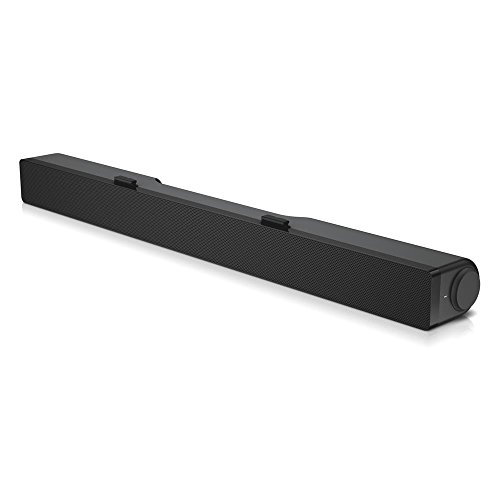
The Dell AC511 USB Wired Soundbar is engineered specifically for workstation users seeking to eliminate desktop clutter without sacrificing vocal clarity. Designed to snap directly onto the underside of compatible Dell E-Series, P-Series, and UltraSharp monitors, this compact audio bar delivers an integrated appearance that mimics built-in display speakers. By drawing both power and digital audio signals through a single USB connection, it effectively banishes bulky AC wall adapters and messy signal cables from your desk.
While this soundbar is not built to shake walls, it excels in real-world productivity scenarios. Dialogue during conference calls comes through with crisp articulation, ensuring you never miss a word during Zoom or Microsoft Teams meetings. Casual background music, training videos, and podcast listening are handled smoothly, providing an immediate upgrade over tinny integrated laptop speakers.
Usability is central to the AC511 design. A smooth volume wheel on the side allows for immediate level changes without diving into Windows audio settings, while the inclusion of dedicated headphone and aux-in ports lets you quickly switch to private listening. For office workers, students, and home professionals seeking an understated audio upgrade for their compatible Dell monitor, the AC511 remains a practical, cost-effective solution.
Acoustic performance on the Dell AC511 is tuned purposefully for the midrange frequencies where human speech lives. Featuring two discrete stereo drivers delivering 1.25 watts RMS per channel, it produces a clear, centered soundstage that keeps voices upfront and easily intelligible. Treble frequencies are reasonably crisp without turning harsh or sibilant at standard listening distances.
Given its slim profile and modest power draw, low-end bass response is naturally constrained. Sub-bass frequencies and deep cinematic rumbles roll off early, meaning electronic tracks and action movies will lack heavy impact. However, the acoustic tuning avoids low-end distortion and unwanted resonance, ensuring that speech and light acoustic playback remain clean and articulate throughout typical working volumes.
Measuring approximately 16.5 inches wide and under two inches deep, the AC511 boasts a minimalist matte-black plastic chassis that integrates seamlessly with Dell professional displays. The top of the unit features integrated T-hook mounts that slide and lock into the mounting slots found on compatible Dell enterprise monitors. Even if your display lacks the mounting slots, the soundbar can rest flat beneath your screen on rubberized feet.
Hardware connectivity keeps things simple with a hardwired USB Type-A cable that transfers both power and digital audio directly from your PC or monitor USB hub. On the side, a tactile rotary knob controls volume, accompanied by a 3.5mm headphone output and a 3.5mm auxiliary input for connecting external audio devices. Because it operates entirely on standard 5V USB bus power, no external power supplies or batteries are required.

Pros
- Simple one-cable USB setup eliminates bulky AC power adapters.
- Direct monitor mounting frees up valuable desk space.
- Clear, intelligible voice reproduction for conference calls and webinars.
- Integrated volume knob and headphone pass-through for quick control.
Cons
- Lacks deep bass response required for heavy music or cinematic movies.
- No wireless Bluetooth support; strictly a wired USB connection.
- Mounting bracket is primarily engineered for compatible Dell monitor stands.
The Dell AC511M Stereo USB Soundbar offers an efficient, low-profile audio upgrade for desktop computer setups. Engineered to clip onto compatible monitor stands or sit neatly beneath your display, this speaker solves the common problem of bulky desktop audio gear consuming valuable workspace. Powered directly through your computer's USB port, it eliminates power brick clutter and simplifies your desktop aesthetic.
This speaker is tailored for remote professionals, office workers, and students who spend hours on video conferences, webinars, and virtual classes. In real-world desktop testing, spoken dialogue comes through cleanly with distinct separation from background audio. The physical volume dial on the side allows quick adjustments during unexpected volume shifts, while an integrated 3.5mm headphone port offers seamless switching to private audio.
While music enthusiasts will notice a lack of sub-bass punch, everyday media tasks such as YouTube videos, casual music listening, and calls sound well-balanced. For anyone seeking a tidy, plug-and-play solution that elevates desktop audio without complex software or tangled cables, this unit delivers solid daily utility and clean functionality.
Equipped with precision-tuned stereo drivers, the Dell AC511M prioritizes midrange clarity and upper-frequency detail. Voices sound articulate and lifelike, preventing the muffled tone common in entry-level computer speakers. While low-end frequencies are modest due to the compact enclosure, acoustic instruments and dialogue remain distinct without audible distortion at standard office listening levels.
Digital audio flows directly over the wired USB connection, avoiding latency, compression artifacts, and wireless interference. This stable connection guarantees that spoken dialogue remains in sync with on-screen video during meetings and streaming media. The speaker achieves sufficient volume to comfortably fill a small home office or personal cubicle without pushing the hardware into harsh clipping.
Measuring just under 16 inches wide and weighing under one pound, this sleek black soundbar is built for minimalist efficiency. The chassis features clean lines and a durable matte plastic finish that resists fingerprints. It includes an integrated bracket designed to snap onto compatible Dell monitor stands, keeping your desk surface completely free of clutter.
Unlike portable units, this speaker operates on standard USB bus power and does not contain an internal battery. Drawing power directly through the connected computer ensures you never have to worry about recharging or battery degradation over time. The single USB cable delivers uninterrupted continuous playback for all-day reliability throughout work shifts.

Pros
- Effortless USB setup with no drivers or power adapters
- Space-saving monitor mount keeps desk clutter-free
- Clear stereo sound boosts office productivity and entertainment
- Durable build for daily desk use
Cons
- Requires constant USB connection, no standalone battery
- Lacks wireless Bluetooth for cable-free freedom
- Basic features without app controls or EQ customization
The Dell AC511M is a compact USB-powered stereo soundbar designed for computer monitors and laptops, perfect for American home office workers tired of tinny built-in speakers. It attaches easily to your monitor, freeing up desk space while pumping out clear stereo audio for Zoom calls, streaming, or casual gaming.
In real-world use, it shines in quiet office environments, providing enough volume for personal listening without disturbing others. Setup takes seconds: just plug into a USB port, and you're ready. No batteries or extra power means it's always on when your PC is.
Targeted at budget-conscious professionals, this soundbar offers surprising value for its simplicity. While not a powerhouse for parties, it transforms lackluster laptop sound into something enjoyable for daily tasks. Verdict: a smart pick for streamlined home office audio upgrades.
The AC511M delivers balanced stereo sound with decent vocal clarity, making it great for crystal-clear conference calls and dialogue-heavy videos. Mids are forward for natural speech, though bass is light, suiting close-range desk listening over room-filling blasts.
Volume reaches adequate levels for personal use, staying distortion-free at max without overwhelming a home office. USB connection ensures stable, low-latency audio with no dropouts, outperforming flaky Bluetooth in wired reliability.
Ideal for focused work sessions, it handles podcasts, music, and movies well, prioritizing clarity over thumping lows.
Sleek and unobtrusive, the AC511M soundbar measures slim for easy monitor attachment via included mount, blending into any modern desk setup. Its lightweight plastic build withstands daily handling but lacks rugged IP ratings for outdoor or spill-prone areas.
No built-in battery means continuous USB power draw, perfect for plugged-in laptops or always-on monitors with zero recharge worries. It sips power efficiently, running indefinitely as long as your device supplies it.
Portability shines for office hops: detach, plug into another USB, and go, keeping your workflow cable-minimal and desk tidy.
Understanding Compatibility, Setup, and Practical Use of Dell Speakers on Mac Mini
Connecting Dell audio peripherals to an Apple desktop is entirely feasible because basic USB audio relies on universal industry standards rather than manufacturer-locked operating system drivers. Users asking can i use dell speakers on mac mini can rest assured that core digital playback functions seamlessly across modern macOS versions. The primary hurdles are physical mounting, port adapter requirements on specific Mac Mini generations, and understanding macOS volume handling quirks. Evaluating these elements step by step ensures your desktop audio works properly without unnecessary troubleshooting or equipment returns.
USB Audio Class Compliance and Driverless macOS Operation
Modern desktop operating systems communicate with external sound cards and speakers through standardized protocols known as USB Audio Class specifications. Dell USB soundbars, including models like the AC511 and AC511M, implement USB Audio Class 1.0 drivers that function universally across macOS, Windows, and Linux. Because Apple incorporates native support for these audio standards directly into macOS kernel extensions, your Mac Mini recognizes the soundbar instantly as a digital-to-analog converter upon connection. You do not need to search for specialized Dell software or install background utility applications that might clutter your system storage.
Driverless functionality ensures that basic system sounds, media streaming, web conference audio, and application notifications route directly through the soundbar. The internal sound chip inside the Dell speaker receives a clean digital audio stream directly over the USB bus, bypassing the Mac Mini internal speaker entirely. This digital transfer prevents ground loop noise that occasionally plagues standard analog connections when audio cables run near external power supplies. As a result, you achieve clean stereo sound with zero initial driver configuration required on the Mac Mini.
Connecting to Different Mac Mini Port Configurations
Physical connectivity between your speaker and computer depends on the hardware generation of your Mac Mini and the attached display. Dell soundbars generally come equipped with an integrated USB Type-A cable that supplies both digital audio signals and low-voltage bus power. Mac Mini models from recent generations, such as M1, M2, and Intel configurations, typically include two standard USB-A ports alongside their high-speed Thunderbolt or USB-C interfaces. If your Mac Mini has an open USB-A port, you can plug the Dell speaker cable directly into the rear panel without purchasing extra hardware.
Situations arise where rear USB-A ports are already occupied by external storage drives, keyboards, or drawing tablets. In these scenarios, a standard passive USB-A to USB-C adapter allows you to connect the speaker directly to an open Thunderbolt port on the computer. Alternatively, connecting the speaker to a powered USB hub or through the downstream USB ports of a connected desktop monitor works reliably. Verifying that the hub provides continuous power ensures the soundbar maintains steady amplification without sudden drops in volume during dynamic audio passages.
Mounting Options for Non-Dell Displays and Desk Placement
Physical mounting presents the most noticeable practical difference when using Dell soundbars outside of a traditional Dell office ecosystem. Many Dell soundbar units utilize proprietary T-hook tabs designed to latch onto specific slots located on the bottom bezel of compatible Dell monitors. When paired with a non-Dell display, an Apple Studio Display, or a third-party monitor, those integrated T-hook mounting points will not find matching attachment slots. This mechanical limitation does not affect audio signal flow, but it dictates where the soundbar rests on your workstation.
Certain revisions, such as the AC511M, include a mechanical mounting bracket adapter designed to clamp onto monitor stands rather than clipping into the bezel directly. If your display stand has a compatible round or rectangular neck, this clamp bracket keeps the speaker elevated above the desk surface. If your stand is too wide or you use an articulating monitor arm, the soundbar can simply rest flat on the desk directly beneath the display. Small rubber adhesive feet placed under the soundbar chassis can prevent desk vibrations and keep the unit firmly positioned during daily use.
Configuring macOS Sound Output and Device Selection
Plugging the USB soundbar into your computer usually switches the default output device automatically, but verifying your sound settings avoids silent playback surprises. To confirm system routing, click the Apple menu in the top left corner of your screen and open System Settings. Navigate to the Sound section and click on the Output tab to display all audio hardware currently recognized by macOS. You should see an entry listed as Dell USB Soundbar or a generic USB Audio Device description representing the speaker hardware.
Selecting the soundbar as your primary output device directs all application audio, system alerts, and web browser media directly to the external speaker. If you use communication tools like Zoom, Microsoft Teams, or FaceTime, remember that input devices remain independent of output paths. Dell soundbars operate strictly as output speakers and do not contain integrated microphones. You will need to keep the Mac Mini internal microphone active, connect an external USB microphone, or use a webcam input for voice calls.
Volume Management and Hardware Control Differences
Controlling volume on a Mac Mini connected to a USB soundbar can occasionally behave differently than using built-in laptop speakers. Standard macOS behavior frequently locks the system software volume slider and keyboard volume keys when communicating with external USB DAC peripherals. When this occurs, macOS displays a grayed-out volume indicator on screen, indicating that the connected device expects direct hardware volume adjustment. Dell soundbars resolve this challenge effectively because they feature an integrated analog rotary volume knob on the side of the housing.
Turning the physical knob provides immediate, tactile control over your listening levels without needing to click on software menus. If you prefer utilizing your Apple keyboard volume keys for daily adjustments, third-party menu bar utilities designed for macOS audio routing can restore software-level attenuation. Setting the macOS master output to maximum and adjusting the physical rotary knob on the soundbar offers clean amplification with minimal harmonic distortion. Keeping the physical knob accessible on your desk makes quick volume changes seamless during busy workdays.
Headphone Pass-Through and Auxiliary Input Capabilities
Dell soundbars often provide added convenience through secondary analog connection ports located on the side of the speaker casing. The integrated headphone output jack allows you to plug wired headphones or earbuds directly into the soundbar on your desk. Connecting headphones to this port routes audio through the soundbar internal DAC while muting the main speaker drivers for private listening. This feature eliminates the need to reach behind the Mac Mini to reach its rear-mounted analog headphone port whenever you need privacy.
Some Dell soundbar models also feature an auxiliary audio input jack alongside the primary USB connection. This auxiliary input allows you to route audio from an external source, such as a secondary computer, portable music player, or tablet, through the same speaker enclosure. The speaker requires its USB cable to remain plugged into a live power source, such as the Mac Mini or a USB wall charger, to power the internal amplifier during auxiliary playback. Having these dual ports provides flexible routing options for complex multi-device desktop environments.
Audio Latency and Performance During Video Playback
Audio synchronization is a vital factor when evaluating computer speakers for streaming media, video editing, or video conferencing. Bluetooth speakers occasionally introduce perceptible transmission delays that cause speech to appear out of sync with actors on screen. Because Dell soundbars utilize a direct wired USB connection, audio latency is virtually non-existent during typical desktop use. Speech dialogue matches mouth movements precisely in video calls, online lectures, and movie streaming without requiring manual audio delay adjustments.
The low-latency nature of USB Audio Class devices also benefits interactive computing tasks like casual gaming or timeline scrubbing in media editors. System sound effects, alert chimes, and typing feedback register instantly without the noticeable lag common to wireless protocols. For home office professionals who spend hours in meetings, immediate audio feedback prevents conversational interruptions and awkward conversational pauses. This responsiveness makes a wired USB speaker a practical desktop choice for time-sensitive computing tasks.
Managing Mac Mini Sleep States and USB Power Delivery
Power management on modern Apple Silicon and Intel Mac Mini computers operates aggressively to conserve energy when the machine is idle. When the Mac Mini enters system sleep, power delivery to certain rear USB ports may drop to standby levels. In most cases, the Dell soundbar simply powers down quietly alongside the computer and reactivates as soon as you wake the system with a mouse click. Some users, however, may occasionally hear a brief faint pop or click through the speaker drivers when the computer cuts power to the USB bus.
If your soundbar fails to wake up automatically after prolonged sleep periods, checking your macOS energy saver settings can help maintain steady port communication. Connecting the soundbar through a self-powered USB hub that maintains steady auxiliary power prevents sleep-related disconnection glitches entirely. Alternatively, simply disconnecting and reconnecting the USB connector re-establishes the digital audio handshake within seconds. These minor sleep state behaviors are common across many USB-powered desktop peripherals and rarely indicate any hardware defect.
Diagnosing Audio Cutouts, Hum, and Distortion
Troubleshooting unwanted audio artifacts on a USB soundbar starts by identifying whether the issue stems from software settings or electrical interference. If you hear a faint buzzing or hum, verify that the USB cable is firmly seated in the Mac Mini port without physical tension. Ground loops are rare with pure USB audio, but sharing an unpowered USB hub with heavy electrical loads like charging phones can introduce electrical noise. Plugging the speaker directly into a dedicated port on the back of the Mac Mini typically eliminates line hum immediately.
Audio stuttering or crackling during high CPU activity can indicate buffer under-runs within the operating system sound pipeline. Opening the macOS Audio MIDI Setup utility, located in the Utilities folder, allows you to inspect the active sampling rate for the Dell speaker. Setting the output format to 44,100 Hz or 48,000 Hz at 16-bit or 24-bit stereo ensures smooth processing that matches standard web media streams. Ensuring that your media software volume is not set past one hundred percent will also prevent artificial digital clipping and harsh acoustic distortion.
Sound Profile Expectations and Long-Term Upgrade Paths
Evaluating the audio capabilities of a compact USB soundbar helps set realistic expectations for your desktop sound environment. Dell soundbars utilize small full-range drivers tuned primarily for speech clarity, video playback, and casual background music. Because the unit relies entirely on standard USB bus power without a bulky external transformer, output power remains modest at around 2.5 watts total stereo playback. Listeners seeking deep bass resonance or room-filling home theater dynamics may eventually look toward compact stereo speakers with dedicated subwoofers for more expansive frequency coverage.
For everyday computer tasks, office productivity, and video conferencing, a Dell soundbar remains an exceptionally practical and tidy solution. The single-cable design eliminates desktop clutter while delivering clearer dialogue than the tiny integrated speaker inside the Mac Mini chassis. If you frequently travel with your computer or prefer wireless freedom across multiple devices, investigating portable Bluetooth speaker options can also provide flexible audio without tethering cables to your workstation. Pairing a Dell soundbar with your Mac Mini ultimately delivers dependable audio functionality at minimal cost, proving that cross-brand computer setups can work seamlessly with the right setup knowledge.
Practical Step-by-Step Setup Summary
Setting up your Dell soundbar on a Mac Mini requires only a few orderly steps from physical placement to software verification. Position the speaker flat on your desk beneath your display or attach it to your monitor stand if you possess the compatible mounting clamp. Connect the integrated USB cable directly to an open USB-A port on the back of your Mac Mini, or attach a reliable USB-C adapter if your ports require it. Open your macOS System Settings, select Sound, and confirm that the Dell audio device is highlighted as your active output destination.
Play a short audio track or video to test your connection and adjust the physical rotary dial on the side of the soundbar to a comfortable listening volume. If you plan to attend conference calls, ensure your preferred microphone is selected separately in your communication application settings. Taking these quick configuration steps ensures a stable, hassle-free listening experience that maximizes the utility of your existing computer hardware.


Write Your Review
No reviews yet. Be the first to share your experience!