

Setting up a desktop workstation often brings unexpected audio surprises, especially when you plug in a tower and expect sound to play immediately through the chassis. If you are wondering are there internal speakers on the dell inspiron 660s, the short answer is that this compact slim tower does not feature a built-in multimedia speaker for listening to music, streaming shows, or participating in calls. While the motherboard may emit brief diagnostic beeps during boot startup, regular operational sound requires dedicated external hardware. Connecting external audio gear like Bluetooth PC speakers or traditional wired desktop sound systems ensures you can hear system alerts and media clearly.
Many users encounter confusion because some modern all-in-one desktop computers and monitors carry integrated drivers, leading people to assume traditional slim-tower desktops share the same design. The Dell Inspiron 660s relies entirely on its analog audio ports, HDMI connection, and USB ports to output full-range audio. Understanding how these connections work prevents unnecessary troubleshooting and helps you choose the right listening equipment for your desk. Whether you need a simple pair of desktop speakers, a headset, or a dedicated soundbar, setting up the right audio connection will get your system sounding proper in no time.
Pros
- Full duplex audio with AI noise cancellation for natural conference conversations
- MS Teams certified for quick, reliable integration with business tools
- Intuitive LED controls and simple USB setup for hassle-free use
- Compact and stylish design that blends into office setups
Cons
- Limited 2 x 1.8W power best for calls, not high-volume music playback
- Wired USB connection lacks wireless freedom for mobile use
- No waterproofing, so keep it away from spills in desk environments
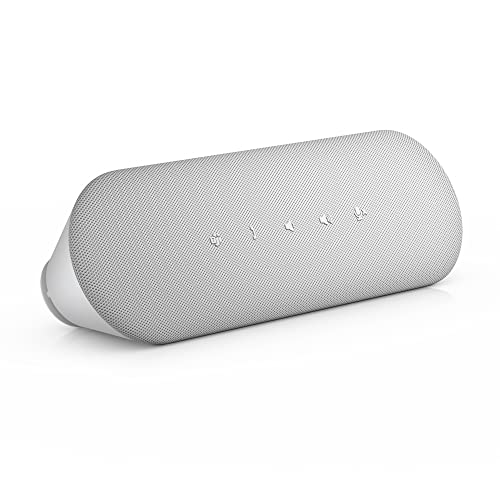
The Dell SP3022 is a compact USB computer speaker designed as a mini soundbar speakerphone, perfect for business professionals in home offices or conference setups. It connects effortlessly via USB-A or USB-C to laptops, PCs, or monitors, delivering focused audio for Microsoft Teams meetings with its certified button for quick access.
Real-world performance shines in professional calls, where full duplex audio allows multiple participants to speak naturally, backed by AI noise and echo cancellation that keeps voices clear amid typical office distractions like keyboard clacks or fans. The 2 x 1.8W drivers prioritize vocal clarity over booming bass, making it ideal for virtual meetings rather than casual listening.
LED indicators provide at-a-glance status for calls, volume, and mute, enhancing usability during long workdays. While not suited for parties, its elegant platinum silver design and desk-friendly size make it a subtle upgrade for productivity-focused users.
Verdict: A solid choice for Teams-heavy workflows, offering reliable call quality in a low-profile package that boosts home office efficiency without overwhelming your space.
Sound performance centers on vocal clarity with full duplex technology and AI noise cancellation, ensuring everyone in business conferences is heard distinctly even when speaking over each other. The 2 x 1.8W output provides adequate volume for desk use, focusing on intelligible mids rather than deep bass or highs.
Volume levels suit professional calls without distortion, though it won't fill large rooms. Connectivity is rock-solid via USB, offering stable, low-latency audio far superior to Bluetooth for critical meetings, with no dropouts during extended sessions.
Overall, it excels in echo-free, noise-reduced communication, making it a go-to for clear, professional interactions in virtual teams.
The SP3022 boasts an elegant, compact aesthetic in platinum silver, designed to sit discreetly on a monitor base or next to a laptop, minimizing desk clutter. Its mini soundbar form factor is lightweight and stable, with intuitive touch controls illuminated by helpful LED lights for volume, mute, and call status.
Not rugged or waterproof, it prioritizes a sleek office look over outdoor durability, best kept in controlled desk environments. USB-powered operation means no battery to manage, drawing continuous power directly from your device for all-day use without recharges.
Setup is straightforward with USB-A or USB-C, eliminating battery life concerns and ensuring reliable performance during back-to-back meetings.
Dell Inspiron 660s Audio Hardware and Connection Guide
The Dell Inspiron 660s remains a dependable slim-tower computer for everyday browsing, office tasks, and light media playback. Getting reliable sound from this compact desktop requires understanding its internal hardware and audio output architecture. Because the tower does not produce everyday sound on its own, adding the right listening accessories is the first step toward building a functional workspace.
Internal Audio Architecture of the Dell Inspiron 660s
The Dell Inspiron 660s does not feature built-in internal multimedia speakers. Inside the compact chassis, you will find a miniature system beeper attached to the motherboard, but this component serves a very narrow technical purpose. It exists exclusively to emit diagnostic beep codes during the power-on self-test routine if the system detects hardware errors such as memory faults or motherboard issues. This tiny buzzer cannot process standard operating system audio streams, music, video dialogue, or system alert sounds.
Omitting internal stereo speakers is standard engineering practice for slim-tower desktop computers. Desktop towers house power supplies, spinning hard drives, and cooling fans that generate mechanical vibration and electrical noise. Fitting full-range audio drivers inside a cramped metal enclosure would result in muffled, tinny sound quality while increasing internal heat buildup. Dell designed the system under the assumption that users would connect external speakers or headphones tailored to their individual workspace needs.
If you power on your Inspiron 660s and hear complete silence when loading websites or playing audio files, your computer is operating as intended. The lack of sound does not indicate a defective sound card or a broken internal speaker. It simply means the computer is waiting for an external audio playback device to receive the analog or digital signal.
Onboard Audio Ports and Output Options on the 660s
The back panel of the Inspiron 660s provides three distinct 3.5mm analog audio jacks driven by the integrated Realtek high-definition audio chipset. The green jack functions as the primary stereo line-out port, which sends standard line-level audio signals to powered desktop speakers, soundbars, or headphones. Next to it, the pink jack accepts analog microphone input, while the blue line-in jack allows you to route audio from external playback sources into the computer. Through audio driver software, these rear jacks can also be configured to support multi-channel surround sound configurations.
For quick and convenient connections, the front panel of the slim chassis includes a dedicated headphone jack alongside a microphone port. These front ports allow you to plug in wired earbuds or gaming headsets without reaching behind the computer desk. Connecting headphones to the front panel typically prompts the system software to mute the rear audio output automatically. This convenient auto-switching behavior lets you transition between private listening and room-filling sound effortlessly.
Beyond traditional 3.5mm analog jacks, the Inspiron 660s features an integrated HDMI port on its rear input-output shield. This connection transmits uncompressed digital video alongside multi-channel digital audio over a single cable. If you connect your desktop to a modern computer monitor with built-in speakers or an HDTV, the display can handle sound playback directly without extra audio cables. This HDMI audio pathway provides a clean, clutter-free setup for desks where space is limited.
Selecting External Speakers for the Inspiron 660s
Choosing the right sound gear depends on whether you prioritize compact desk placement, vocal clarity for meetings, or deep bass for entertainment. Compact USB soundbars represent one of the most convenient upgrades for this slim desktop tower. For instance, the Dell SP3022 USB Computer Speaker for PC, Laptop connects via a standard USB-A or USB-C port, providing an all-in-one soundbar and speakerphone solution. Its compact form factor rests comfortably beneath a monitor stand, minimizing desktop clutter while delivering integrated call controls and AI noise cancellation.
If your priority is rich music playback and movie watching, a dedicated analog stereo pair or a multimedia 2.1 speaker system offers superior acoustic separation. Traditional desktop speakers plug directly into the green 3.5mm line-out jack and draw electrical power from a standard wall outlet. Dedicated desktop speakers generally feature larger acoustic enclosures than USB-powered bars, allowing them to reproduce broader frequency ranges and fuller lower-midrange tones. This makes analog stereo speakers particularly satisfying for listeners who spend hours streaming media or gaming at their desk.
Wireless audio is another viable route for users who dislike routing cables across their workspace. While the Inspiron 660s may not include native Bluetooth audio support depending on its specific factory card configuration, adding an inexpensive USB Bluetooth dongle unlocks wireless capability. Once paired, you can transmit audio to portable wireless speakers or wireless headphones located anywhere in the room. This wireless flexibility keeps your desk surface completely free of tangled audio wires.
Connecting and Setting Up Your Speakers Correctly
Connecting analog 3.5mm speakers to the Inspiron 660s requires just a few straightforward physical steps. First, plug the 3.5mm audio jack firmly into the light-green port located on the back panel of the tower. Next, connect the power cable of the speakers to an electrical wall outlet or a surge protector. Finally, rotate the volume dial on the speaker housing to a moderate level before playing any test tracks from your computer.
Setting up a USB speaker like the Dell SP3022 involves an even simpler installation process. Insert the USB connector into an available USB 2.0 or USB 3.0 port on the desktop tower. Modern versions of Windows will automatically detect the audio hardware and install the appropriate universal USB audio drivers within seconds. The onboard LED indicators on the speaker will illuminate to confirm power and active device status, signaling that the hardware is ready to handle calls or media.
When using an HDMI connection to route sound through a monitor, verify that your display actually contains internal speaker drivers. Some computer monitors include an HDMI input and physical volume buttons but lack internal speakers, offering only an audio pass-through jack for headphones. Checking your monitor model specifications beforehand ensures you do not waste time diagnosing an absent audio component.
Configuring Windows Sound Settings for Clear Output
Plugging in external hardware does not always switch the audio path automatically if Windows retains a previous default device. To verify your settings, right-click the speaker icon in the Windows taskbar and open the Sound settings window. In the playback device list, locate your connected output device, whether it appears as Realtek High Definition Audio, a USB audio device, or your HDMI monitor name. Click on the desired device and select the option to set it as the default playback device.
After establishing the default playback device, open the device properties menu to configure channel balance and sample rates. Most desktop stereo pairs operate optimally when configured for 24-bit audio at 48000 Hz, commonly referred to as studio quality. Avoid enabling artificial spatial sound enhancements or heavy equalizer presets initially, as these processing filters can introduce unwanted distortion into basic desktop speakers. Starting with a clean, flat sound profile ensures your audio sounds natural and accurate across all applications.
Communication software like Zoom, Microsoft Teams, or Skype frequently maintains independent audio output preferences. If you use a certified conference speaker like the Dell SP3022, verify that your meeting software selects the speakerphone for both microphone input and speaker output. Dedicated conference hardware often features integrated buttons that sync directly with meeting apps to handle muting and volume adjustments seamlessly. Verifying application-level audio routing prevents embarrassing communication mishaps during important business calls.
Audio Driver Considerations and Realtek Software on the 660s
The Dell Inspiron 660s relies on an integrated Realtek audio chipset to process sound across all analog ports. While modern operating systems like Windows 10 install a generic Microsoft High Definition Audio Device driver automatically, installing the dedicated Realtek driver provides finer control. The dedicated driver enables the Realtek HD Audio Manager control panel, which allows you to customize jack assignments and audio equalizer settings. Running the proper driver also ensures that your computer recognizes when a cable is inserted into the front or rear audio ports.
If you upgrade your operating system, you may find that the legacy Dell audio driver requires compatibility adjustments. Windows Update occasionally replaces functional audio drivers with generic packages that lack multi-channel jack retasking capabilities. If your connected speakers suddenly lose volume or sound distorted after an operating system update, rolling back the driver or reinstalling the Realtek package directly from Dell can restore proper function. Keeping a verified installer file on hand saves considerable time if driver conflicts emerge.
The Realtek software interface also allows you to configure jack sensing notifications that alert you whenever an audio plug is connected. If this setting is disabled, inserting a new cable might not trigger the system to switch audio paths promptly. Opening the advanced device settings within the Realtek control panel lets you separate front and rear output streams into independent playback devices if desired. This configuration enables advanced users to route communication audio through front-panel headphones while directing background media through rear-panel desktop speakers.
Headset Compatibility and 3.5mm Jack Splitters
Many modern headsets and mobile earbuds feature a single 3.5mm TRRS audio plug that carries both stereo audio and microphone signals. The Inspiron 660s, however, was designed with traditional dual TRS 3.5mm jacks on both the front and rear panels. If you plug a single-plug combination headset directly into the front headphone port, you will hear audio playback, but the integrated microphone will not function. The internal wiring of a single four-pole connector does not align with the contacts inside a standard three-pole headphone jack.
To use a single-plug gaming headset or mobile earbuds with full microphone capabilities on the 660s, you will need an inexpensive 3.5mm audio Y-splitter adapter. This simple passive accessory splits the single TRRS female connector into two separate male TRS plugs, typically color-coded green for audio and pink for microphone. Plugging these two connectors into the corresponding front panel jacks allows your computer to transmit sound and receive voice input simultaneously. This straightforward adapter prevents you from needing to purchase a brand-new headset just for your desktop tower.
Alternatively, selecting a USB audio headset or USB desktop speaker like the Dell SP3022 eliminates the need for analog splitters altogether. USB audio devices bypass the motherboard analog jacks and deliver digital audio processing through a single standardized connection. The operating system treats the USB device as a standalone sound card, handling both playback and recording streams through one cable. This streamlined connectivity makes USB audio accessories particularly practical for older desktop towers with separate analog ports.
Troubleshooting Common Audio Problems on the 660s
The most frequent issue Inspiron 660s owners encounter is complete silence after plugging in an external audio cable. Start troubleshooting by inspecting the physical connection to confirm the 3.5mm plug is inserted into the green line-out port rather than the pink microphone or blue line-in jack. It is remarkably easy to misalign cables when reaching behind a slim computer chassis tucked inside a desk compartment. If the cable is seated properly, test the speakers with a smartphone or tablet to confirm the speaker hardware itself is operating normally.
Another common frustration occurs when connecting the 660s to a monitor via HDMI, causing the desktop to route audio to the monitor rather than your preferred external speakers. Windows frequently prioritizes HDMI digital audio streams automatically whenever a display cable is reconnected. You can resolve this issue quickly by reopening the Windows Sound Control Panel and reassigning your external speakers as the default playback device. Disabling the monitor audio entry entirely inside the playback menu prevents Windows from reverting to the display speakers in the future.
Unwanted static, humming, or ground loop buzzing can sometimes develop through the 3.5mm analog audio pathway. This electrical interference often originates from unshielded front-panel audio cables running past internal computer components, or from sharing a power strip with heavy appliances. If you notice a low-frequency hum, try switching your speaker connection to the rear green line-out port, which connects directly to the motherboard. Switching to a digital USB audio connection also bypasses analog motherboard noise completely, delivering cleaner, noise-free sound.
Optimizing Desktop Speaker Placement and Sound Quality
Physical placement plays a significant role in how well your external speakers perform in a home or office listening environment. Upgrading your workspace with better sounding speakers makes little difference if the drivers are blocked by paper stacks, computer towers, or thick monitor bezels. Aim to position your desktop stereo speakers equidistant from your primary seating position, angling the drivers slightly inward toward your ears. This symmetrical arrangement establishes a clear stereo soundstage, allowing vocal tracks and background instruments to separate cleanly.
Hard desk surfaces can reflect sound waves and create harsh midrange resonances or muddy bass tones. Placing small foam isolation pads or rubber feet beneath desktop speaker enclosures reduces direct vibration transfer to the desk surface. If you are using a compact USB soundbar positioned beneath your display, ensure the speaker grille points upward toward your listening height rather than directly into the desk. Small adjustments in elevation and tilt dramatically enhance vocal clarity during video calls and everyday listening.
Organizing your audio and power cabling also preserves sound clarity over extended periods of desktop use. Route analog 3.5mm speaker wires away from thick alternating-current power cords and computer power supply cables. Parallel cable runs between unshielded audio wires and high-voltage power lines can induce electromagnetic hum into your audio feed. Simple cable management clips keep your workspace tidy while protecting audio signal integrity across your desktop setup.
Key Steps for a Smooth Inspiron 660s Audio Experience
Resolving audio needs on the Dell Inspiron 660s comes down to pairing the slim tower with the right external listening device. Because the chassis does not include built-in multimedia drivers, investing in a reliable external speaker or USB soundbar is essential for everyday computing. Evaluating your primary usage between conference calls, casual web browsing, and immersive entertainment will guide you toward the most practical audio format. A few quick adjustments in your operating system sound settings will complete the setup and ensure dependable, hassle-free performance.


Write Your Review
No reviews yet. Be the first to share your experience!