
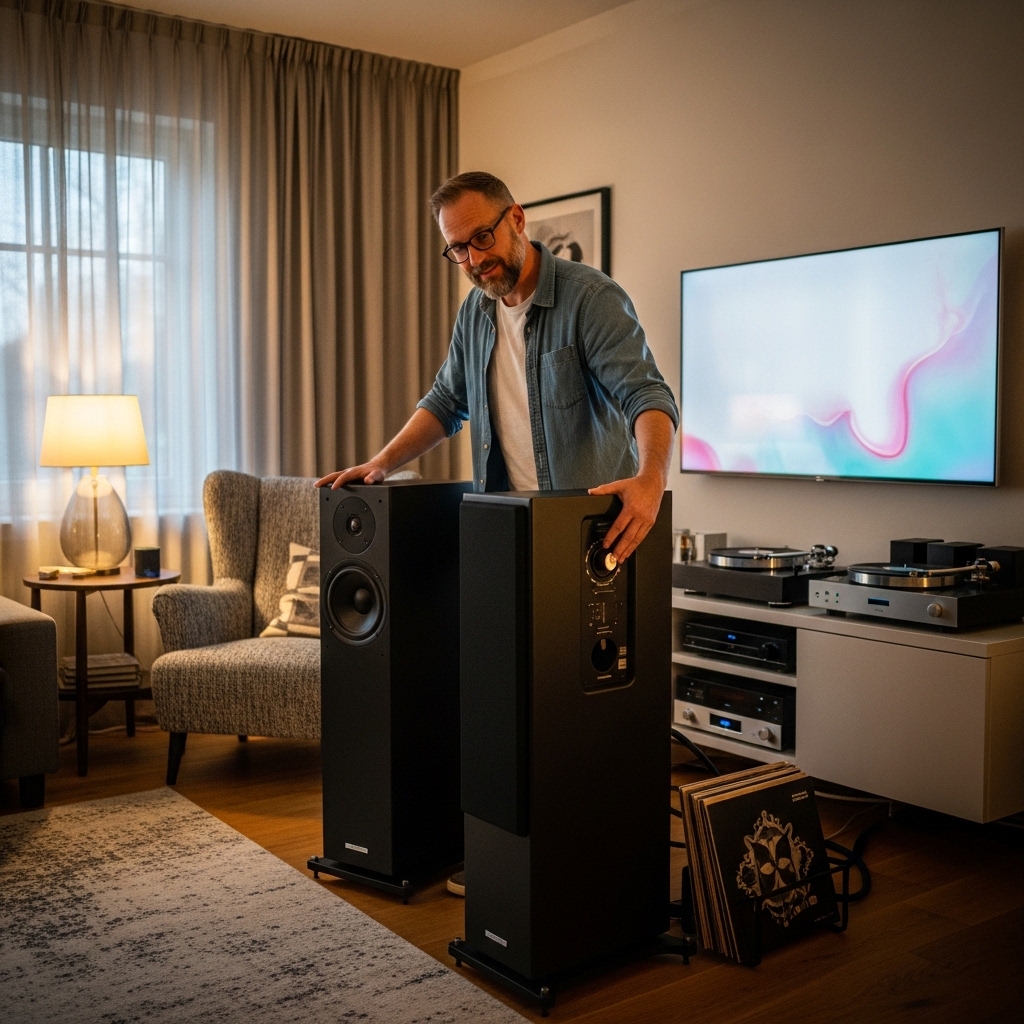

Wireless streaming should feel effortless, yet routing high-bitrate tracks to an external speaker can occasionally stall due to pairing confusion or source-device settings. Figuring out how to connect amazon music to bluetooth speaker requires understanding both your device connection menu and the audio output settings inside the streaming app itself. Whether your goal is playing playlists on a portable sound system or relaxing with an ambient desk speaker, establishing a clean handshake between your hardware and the Amazon Music catalog ensures uninterrupted playback without compressed audio artifacts.
Different speakers handle wireless audio through distinct connection protocols. Some setups rely on direct pairing protocols like Bluetooth 5.3, while larger outdoor models like a heavy-duty portable unit or dedicated outdoor Bluetooth speaker with subwoofer system use high-wattage amplification to project music across wide spaces. Learning the proper steps to link your smartphone, tablet, or computer to your speaker lets you bypass frustrating disconnections, manage playback controls easily, and maximize battery performance during extended listening sessions.


Linking Amazon Music to Wireless Bluetooth Speakers
Connecting your Amazon Music app to a Bluetooth speaker requires an active wireless connection between your host playback device and the speaker receiver. Once your smartphone, tablet, or computer establishes a Bluetooth link, all system audio from the Amazon Music application routes directly to the external speaker hardware. Following this sequence prevents the common mistake of searching for non-networked Bluetooth hardware inside the cloud-casting menu of the Amazon Music app.
While the process is straightforward, connection variations exist between mobile operating systems, desktop platforms, and smart streaming devices. Distinguishing between system-level Bluetooth pairing and Wi-Fi streaming features is the most reliable way to maintain steady music streaming. Taking a few moments to verify output routing saves time whenever you introduce new portable audio gear to your listening space.
Core Pairing Steps for Android and iOS Devices
Android and iOS devices manage wireless audio through their core operating system settings rather than inside third-party music applications. To begin, turn on your Bluetooth speaker and activate its pairing mode, which is usually indicated by a flashing LED status light or an audible chime. Open the settings menu on your mobile phone, navigate to the Bluetooth section, and verify that the wireless radio switch is turned on. Once the speaker appears in the list of available nearby devices, tap its name to complete the pairing sequence.
After the mobile operating system confirms that the speaker is connected for media audio, launch the Amazon Music app. Select any track, playlist, or station from your library and press play. The audio signal automatically routes through the Bluetooth connection directly to the external drivers. If sound continues to emerge from your smartphone speakers, swipe into your control center to confirm that media output is assigned to the connected external speaker.
Managing playback controls can take place directly within the Amazon Music app interface or via the physical buttons on your speaker cabinet. Most modern Bluetooth speakers allow you to pause tracks, adjust master volume, and skip songs using onboard controls. Keeping your source device within clear visual line of sight minimizes packet loss and keeps track information synchronized between the mobile screen and the audio accessory.
Connecting Amazon Music from Windows PCs and Mac Computers
Desktop computers and laptops offer a dependable listening hub for Amazon Music, whether you stream through a desktop application or an internet browser. Start by putting your speaker into pairing mode and opening the system settings on your computer. Windows users should select Settings, click on Bluetooth and Devices, and choose Add Device to begin scanning for available wireless audio hardware. Mac users should navigate to System Settings, click Bluetooth, and find the speaker under the nearby device registry.
Once the computer pairs with the speaker, check that the operating system assigns audio output to the newly connected hardware. Windows frequently maintains multiple playback outputs, requiring you to click the speaker icon in the taskbar to select your Bluetooth device as the primary output. Apple macOS users can hold the Option key while clicking the menu bar volume icon to verify the active output destination. Verifying these audio pathways prevents situations where the Amazon Music player runs without producing audible sound.
Web-based Amazon Music streaming behaves identically to the standalone desktop client once output routing is established. If you switch between wired headphones and external wireless audio, refresh the browser tab or restart the Amazon Music app to ensure the audio buffer updates properly. Some desktop configurations may introduce slight buffer delays, but maintaining an updated operating system keeps wireless audio synchronization stable.
Direct Bluetooth Playback versus Alexa Casting Protocols
Many listeners confuse direct Bluetooth transmission with Alexa Cast or smart speaker network streaming. Direct Bluetooth audio forms a local point-to-point wireless bridge between your source device and the speaker, requiring no local Wi-Fi network connection. In contrast, casting protocols stream music directly from cloud servers over Wi-Fi when using network-capable gear like a Sonos Play: 3 – Mid-Sized Wireless Smart Home speaker. Understanding this distinction clarifies why standard Bluetooth speakers never show up in cloud casting menus until traditional pairing occurs.
If you use an Alexa-enabled smart speaker alongside standard Bluetooth units, you can also link them together to bridge voice control with portable hardware. Through the Amazon Alexa app, users can route Echo audio output to an external Bluetooth receiver for louder volume or wider sound dispersion. This hybrid approach lets you request tracks verbally while enjoying the acoustic output of dedicated outdoor or desktop audio components. Listeners interested in multi-speaker arrangements can also consult our dual speaker setup guide to explore how dual channels operate across different environments.
When using Wi-Fi based smart speakers, Amazon Music can stream high-resolution audio files with minimal compression over home networks. Standard Bluetooth connections, while universally compatible, rely on digital codecs that re-encode audio streams into compressed wireless packets. Knowing whether your speaker utilizes local Bluetooth or Wi-Fi casting helps set realistic expectations for latency, range, and acoustic transparency.
Hardware Configurations: High-Power Outdoor Cabinets versus Desktop Audio
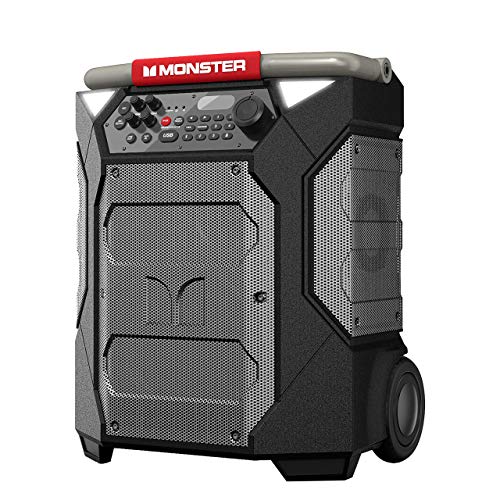
The type of Bluetooth speaker you choose directly shapes how you manage Amazon Music playback in daily life. High-output units like the Monster Rockin’ Roller 270 Portable Indoor/Outdoor speaker deliver 200 Watts of power and feature weather resistance rated at IPX4. Cabinets designed for outdoor spaces also benefit from extended battery runtimes, with manufacturer specifications listing up to 100 hours of continuous playtime. Features such as True Wireless Stereo pairing let you link two compatible speakers wirelessly to cover expansive open areas.
Compact decorative speakers prioritize atmospheric lighting and desktop convenience over raw acoustic loudness. The COLORLIFE Cool Electric Jellyfish Lamp integrates a 5W speaker with Bluetooth 5.3 alongside ambient sensory lighting. This smaller profile provides wireless connectivity within a 33-foot radius, making it well-suited for bedrooms, quiet offices, or sensory relaxation spaces. When streaming soothing Amazon Music playlists, compact drivers supply sufficient clarity without demanding large amplifier power or complex transport handles.
Matching your audio hardware to the surrounding room prevents amplifier distortion and preserves battery reserves. If you need clean acoustic output across medium-sized indoor spaces, pairing a clear 40-watt Bluetooth speaker can deliver articulate vocals without occupying significant shelf space. Evaluating amplifier wattage, driver configuration, and physical enclosure materials ensures that your Amazon Music library sounds balanced across any listening environment.
Managing App Audio Quality, Bitrates, and Device Codecs
The Amazon Music streaming application provides adjustable audio settings that alter file bitrates and data consumption. Navigating to the settings menu inside the application reveals streaming quality options ranging from standard compression to HD and Ultra HD formats. When streaming over Bluetooth, the host device and the speaker negotiate a wireless audio codec, most commonly the Subband Codec or Advanced Audio Coding. Because standard Bluetooth connections compress incoming audio streams, selecting higher bitrates in the app ensures the cleanest possible source file is provided to the encoder.
Setting the app to stream in maximum quality requires adequate cellular or Wi-Fi data bandwidth to avoid track buffering. If your network speed drops while listening outdoors, playback can stall or pause unexpectedly regardless of speaker proximity. Setting the app audio quality to automatic allows the platform to downscale resolution dynamically when network congestion arises. This balance maintains smooth audio delivery so your Bluetooth speaker avoids abrupt playback stops during casual listening.
Host devices and portable speakers rarely support uncompressed lossless audio over standard Bluetooth connections due to bandwidth limitations. Audiophiles streaming Ultra HD tracks through Amazon Music will experience digital compression down to the bandwidth supported by the active Bluetooth codec. Recognizing this technical ceiling prevents unnecessary troubleshooting when seeking high-fidelity acoustic reproduction on battery-powered portable hardware.
Troubleshooting Audio Stutter, Dropouts, and Failed Connections
Audio stuttering and momentary dropouts typically stem from radio interference or operating near the maximum range of your Bluetooth transmitter. Most standard Bluetooth transceivers maintain a stable line of sight connection up to roughly 30 to 33 feet. Dense obstacles like concrete walls, large metal appliances, or active microwave ovens can disrupt the 2.4 GHz radio frequency band used by Bluetooth equipment. Moving the playback phone closer to the speaker cabinet immediately eliminates the vast majority of physical interference issues.
Software glitches inside the host device can also interrupt continuous streaming from Amazon Music. Clearing the cache within the Amazon Music mobile application removes corrupted temporary files that cause track playback to hang. If your phone refuses to discover the speaker entirely, toggle Bluetooth off and on, or choose to forget the speaker in your phone settings before re-pairing from scratch. A fresh pairing handshake re-establishes digital security keys and cleans out stale connection profiles.
Multiple paired devices competing for speaker control represents another frequent failure point in modern households. If a tablet, laptop, or family member phone connects automatically to the speaker, your current device will be locked out from streaming. Disconnect previous host devices from their respective Bluetooth menus or press the dedicated Bluetooth reset button on your speaker to ensure only one audio stream transmits at a time.
Battery Optimization, Power Management, and Sustained Playback
Mobile operating systems incorporate aggressive battery-saving features that can terminate background applications during prolonged listening. If Amazon Music stops playing whenever your phone screen locks, your phone may be putting the music player to sleep. Opening your mobile application settings and setting battery usage for Amazon Music to unrestricted prevents premature playback shutdowns. This minor configuration ensures continuous music playback even when your smartphone rests in a pocket or across the room.
Speaker battery reserves also dictate sustained performance, particularly when operating at elevated volume levels. Heavy bass reproduction and maximum volume draw significantly higher current from internal lithium-ion battery cells than low-level acoustic listening. Keeping your speaker charged and closing unused background apps on your phone helps conserve energy across both devices. Some portable speakers, such as the Monster Rockin’ Roller, even integrate wireless Qi charging pads to keep your phone energized while streaming music outdoors.
Storing your wireless speakers away from direct sunlight and extreme temperatures safeguards internal battery chemistry over time. Regular recharging using manufacturer-recommended charging cables prevents deep battery discharge states that can shorten operational life. Maintaining healthy hardware ensures that whenever you sit down to stream your favorite Amazon Music albums, your audio system connects seamlessly and performs reliably.
Managing Latency and Audio Drift During Streamed Playback
Streaming music videos, live concert recordings, or lyric animations from Amazon Music can occasionally expose wireless latency between audio and visual elements. Standard Bluetooth transmission introduces an inherent transmission delay as the host device encodes audio packets, broadcasts them over 2.4 GHz frequencies, and the speaker decodes them. While music-only streaming renders this microsecond delay imperceptible, real-time lyric scrolling on your mobile display can reveal slight timing offsets. High-tier mobile platforms actively calculate audio latency to adjust on-screen lyric tracking automatically.
Hardware capabilities on both ends dictate how effectively audio synchronization is handled. Speakers operating on modern Bluetooth revisions like version 5.3 feature faster packet exchange rates and improved frequency hopping to minimize packet buffering. If latency becomes noticeable during lyric tracking, toggling the Bluetooth connection off and on resets the buffer clock between the devices. Closing background applications that consume processor overhead on your phone also frees up memory for smooth audio encoding.
Environmental interference can compound latency by forcing the wireless radio to retransmit dropped data packets. Maintaining clear line of sight between your mobile phone and your speaker enclosure keeps latency minimal and prevents buffer underruns. Keeping your playback software updated ensures you receive the latest optimizations developed for wireless media routing.
Establishing a dependable connection between Amazon Music and your Bluetooth speaker comes down to following the right operating system steps and keeping radio paths clear. Once your device pairs at the system level, streaming playlists, podcasts, and radio stations requires only a quick tap inside the app. By matching your speaker choice to your acoustic environment and adjusting power settings appropriately, you can enjoy stable, high-fidelity wireless listening anywhere you choose to go.



Write Your Review
No reviews yet. Be the first to share your experience!