
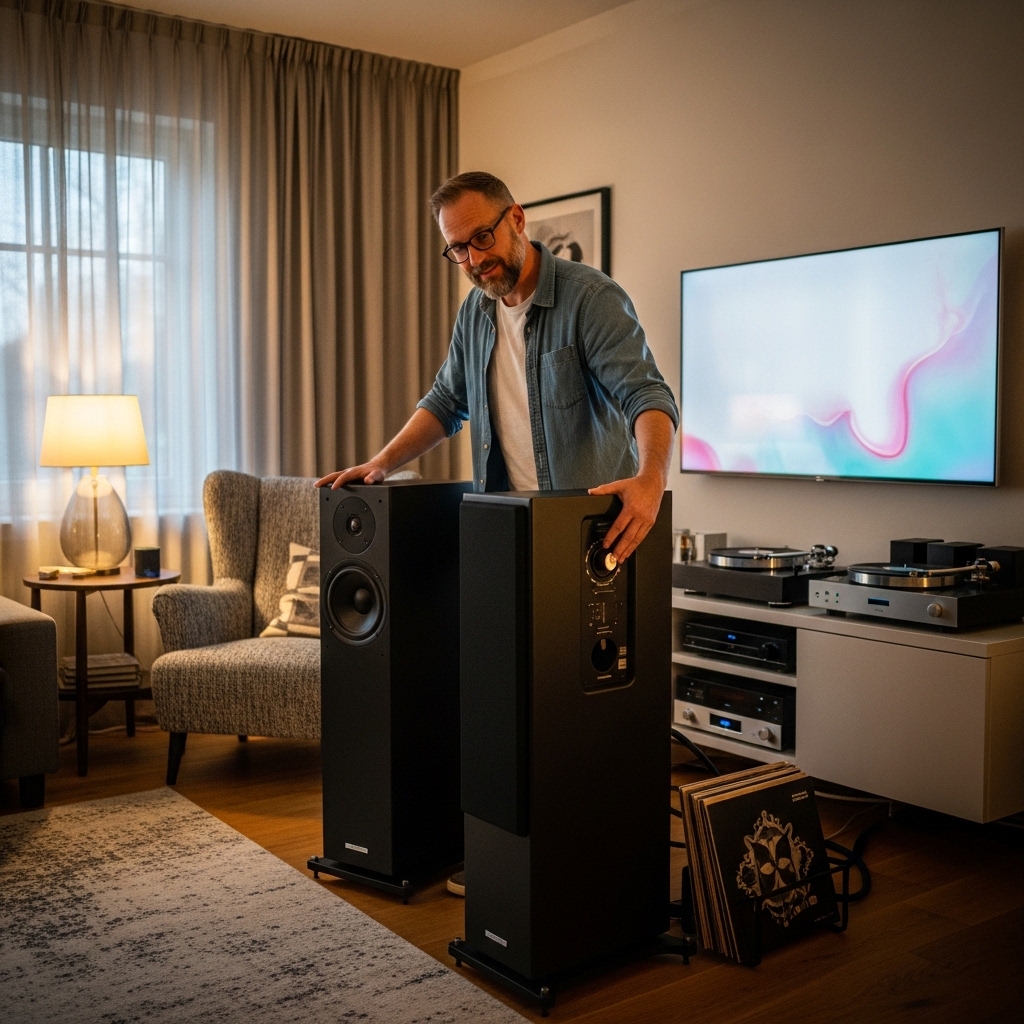

Modern flat-screen televisions feature remarkably thin profiles, leaving minimal physical space inside their chassis for capable audio drivers. Because built-in television speakers typically fire downward or backward, dialogue often sounds muffled and dramatic sound effects lack depth. Many viewers wonder, can i use pc speakers with my smart tv to improve dialogue clarity without purchasing an expensive surround-sound receiver. Connecting computer speakers to your television is entirely possible, practical, and often delivers an immediate boost in clarity for everyday viewing.
Computer audio monitors are almost always powered speakers, meaning they contain internal amplifiers capable of handling line-level audio signals directly. Pairing these active monitors with a modern smart television provides focused stereo separation that can rival basic dedicated home music speakers in compact rooms. Understanding your television’s available output jacks and configuring your audio settings properly ensures you achieve clean, distortion-free sound without annoying delays.


Connecting Computer Speakers to a Smart TV: Compatibility, Connections, and Setup
Using desktop computer speakers with a modern television display is one of the most practical ways to upgrade your daily listening experience. Smart displays produce detailed high-definition pictures, but their integrated audio drivers struggle to fill a room with balanced frequencies. You can bypass those weak internal drivers by routing the audio signal into a capable set of powered desktop speakers. Achieving the best results requires matching the right output ports, selecting proper cables, and adjusting digital sound menus.
Active Versus Passive Speakers: Why Desktop Speakers Work Directly
The primary reason computer speakers integrate easily with televisions is their powered active architecture. Unlike traditional passive home theater speakers that rely on a standalone audio-video receiver for amplification, computer speakers feature built-in power amplifiers inside the speaker cabinet. This internal amplification allows them to accept standard line-level audio signals directly from source devices.
Smart televisions do not supply amplified speaker-level power through their audio ports. Connecting a passive speaker directly to an optical or headphone output yields silence because there is no amplifier to drive the physical cones. Desktop speakers solve this challenge because they plug directly into a wall outlet for power, leaving the television responsible only for sending the raw stereo audio signal. This design keeps your entertainment setup tidy and eliminates the need for bulky external electronics.
Identifying Audio Output Ports on Modern Smart Displays
Before purchasing cables or adapters, you must inspect the rear or side connection panel of your smart television. Most displays manufactured over the past decade feature a variety of digital and analog audio output options. Identifying the exact labels on these ports determines the simplest connection path for your audio gear.
Older smart televisions commonly include a standard 3.5mm analog headphone jack or dual RCA stereo audio outputs marked with red and white circular jacks. Newer ultra-thin panels often eliminate analog ports completely, providing only an optical digital audio output, an HDMI port labeled ARC or eARC, and wireless Bluetooth transmission. Inspecting these physical ports saves time and prevents you from purchasing incompatible wiring or unneeded accessories. Taking a quick photo of your television port panel with a phone helps clarify which connections are available before you begin.
Examining the Connection Jacks on Computer Speakers
Computer audio monitors are designed primarily for desktop use, which influences their physical input layout. The most universal connection found on basic desktop speakers is an attached 3.5mm auxiliary cable or an auxiliary input jack. Premium desktop models and powered bookshelf speakers frequently add dual RCA analog jacks, an optical digital port, and Bluetooth pairing capabilities.
Some compact computer speakers receive both power and digital audio through a single USB cable connected to a computer motherboard. A television USB port is generally designed as a media input for thumb drives or a low-voltage power supply rather than a digital audio output host. If your desktop speakers rely exclusively on a USB connection for both audio signal and power, they will rarely function when plugged directly into a smart television USB port. In that scenario, using speakers with dedicated 3.5mm or optical audio inputs remains the better alternative.
Direct Analog Connections: 3.5mm Aux and Stereo RCA Cables
If your smart television includes a 3.5mm headphone output, connecting your computer speakers is exceptionally simple. You simply insert a standard 3.5mm male-to-male auxiliary cable between the television headphone jack and the speaker input jack. This analog connection transfers an uncompressed stereo audio signal instantly without requiring external signal conversion hardware.
When your speakers feature stereo RCA inputs instead of an auxiliary jack, you can utilize an inexpensive 3.5mm-to-RCA adapter cable. The 3.5mm end plugs into the television headphone port, while the red and white RCA plugs attach to the corresponding input channels on the master speaker cabinet. Analog connections like this remain popular because they allow you to control speaker volume directly using your television remote control. This creates a smooth listening experience without juggling multiple remotes around the room.
Using an Optical Toslink Connection with an External DAC
Many modern smart televisions feature an optical digital audio output, commonly labeled as Toslink or Optical Out. Optical cables transmit audio information as pulses of light through a fiber-optic core, which isolates the audio path from electromagnetic interference. If your computer speakers include a dedicated optical input, you can run a single optical cable directly from the television into the speakers.
When your speakers possess only analog 3.5mm or RCA inputs, you can introduce a compact Digital-to-Analog Converter, commonly abbreviated as a DAC. You run an optical cable from the television into the DAC input, and then run standard analog RCA or 3.5mm cables from the DAC output into your speakers. This conversion setup works exceptionally well for standalone stereo pairs and powered 2.1 speaker systems that rely on analog input feeds. The converter stays powered continuously in the background, drawing power from an included wall adapter or a spare USB port.
Connecting Computer Speakers via HDMI ARC Audio Extractors
Smart televisions equipped with an HDMI ARC or eARC port can send audio downstream to external sound systems through an HDMI cable. While dedicated soundbars plug directly into these ports, standard computer speakers do not possess HDMI inputs. You can overcome this limitation by installing an HDMI ARC audio extractor between the display and your desktop speakers.
An HDMI ARC extractor draws audio from the television port and outputs standard analog audio through stereo RCA or 3.5mm jacks. Because ARC supports HDMI Consumer Electronics Control protocols, some extractors allow the television remote to adjust analog output levels seamlessly. An extractor requires its own power source, but it provides a clean audio feed when optical or headphone ports are unavailable. This setup allows older desktop speakers to interface seamlessly with modern displays that omit traditional analog jacks.
Pairing PC Speakers over Bluetooth and Managing Latency
Modern smart televisions often feature integrated Bluetooth transmitters designed to stream audio to wireless headphones and speakers. If your computer speakers support Bluetooth pairing, you can establish a wireless connection without running long audio cables across your room. Navigating to the television sound settings menu allows you to search for nearby Bluetooth devices and pair the units quickly.
Wireless connections offer superior placement flexibility, but they introduce potential audio latency challenges. Standard Bluetooth audio codecs like SBC often create a slight transmission delay between the visual image on screen and the vocal sound from the speakers. If lip-sync errors become noticeable while watching dialogue-heavy programming, switching to a physical wired connection remains the most reliable remedy. Many televisions include an audio delay adjustment slider in their audio menus, which helps sync the audio track with the video frame.
Critical Smart TV Sound Settings: Switching to PCM Stereo
The most common problem encountered when connecting computer speakers through optical or digital ports is the complete absence of sound or severe digital static. This issue occurs because smart televisions frequently broadcast digital audio in multi-channel formats such as Dolby Digital or DTS. Standard desktop speakers and entry-level optical DAC units cannot decode multi-channel bitstream data.
You can resolve this incompatibility by adjusting the audio output format inside your television sound menu. Navigate to the sound settings, locate the digital audio output setting, and switch the format from Auto or Bitstream to PCM (Pulse Code Modulation). Selecting PCM forces the television to decode multi-channel soundtracks internally and transmit a clean, two-channel uncompressed stereo feed that your desktop speakers understand perfectly. Making this quick adjustment prevents frightening buzzing bursts and guarantees clear sound across every television app.
Managing Volume Control and Remote Convenience
Routing television audio through external computer speakers alters how you control overall listening volume. When connecting through a 3.5mm headphone jack, the television internal volume circuit usually regulates the output, enabling you to use your regular television remote. Optical digital outputs, however, operate at a fixed line-level voltage that bypasses the television volume buttons entirely.
When using an optical connection or a basic DAC, you must adjust audio levels using the physical volume dial on the computer speaker or an included speaker remote control. Setting the speaker volume knob to roughly seventy percent capacity provides a balanced dynamic range without introducing amplifier hiss. For permanent living room setups, choosing computer speakers that include their own wireless remote provides the smoothest day-to-day viewing experience. This avoids the frustration of walking across the room to adjust volume during loud movie passages.
Resolving Ground Loop Noise, Hiss, and Static
Users who connect computer speakers to televisions occasionally encounter a low-frequency hum or buzzing sound through the drivers. This unwanted noise is usually caused by a ground loop, which occurs when multiple connected electronic components share differing electrical potentials through ground paths. Ground loops are particularly common when speakers plug into a separate wall outlet across the room from the television.
Powering your television, streaming box, and speakers from the same surge protector reduces electrical potential variance and frequently eliminates background hum. If your speakers draw power through a USB connection, avoid plugging that USB cable directly into the television service port, as television power rails are notoriously noisy. Installing an inexpensive 3.5mm ground loop isolator between the audio cable and speaker input immediately filters out electrical buzzing without muffling dialogue. This small cylinder contains internal isolation transformers that break the physical ground connection while passing audio unimpeded.
Speaker Placement, Acoustic Coverage, and Room Layout
Computer speakers are engineered primarily as near-field listening monitors intended to sit roughly two to three feet from the user on an office desk. In a living room or home theater environment, listeners typically sit six to ten feet away from the display panel. Positioning your speakers properly helps them project clear sound across that expanded listening distance without distorting.
Place your left and right speakers on either side of the television, ensuring the high-frequency tweeters align roughly with seated ear level. Keep rear-ported speaker enclosures at least a few inches away from the back wall to prevent boomy, muddy bass reflections from drowning out speech. While desktop speakers work well on entertainment stands, listeners with limited surface space can also explore wall hanging speaker alternatives to keep floors and consoles uncluttered. Angling both enclosures slightly inward toward the primary seating area creates a wider sweet spot for movie nights.
Evaluating Powered Bookshelf Monitors like Sanyun SW205 for Television Audio
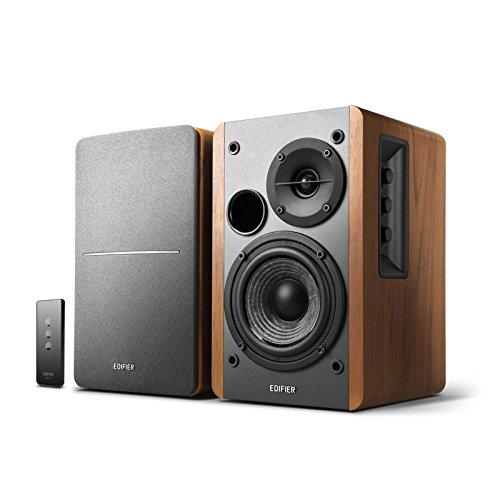
Compact powered bookshelf monitors, such as the Sanyun SW205 4-inch 2-way speakers, serve as an outstanding bridge between desktop computer audio and home entertainment. These speakers combine a dedicated four-inch mid-bass driver with a separate high-frequency tweeter, offering significantly broader acoustic range than tiny down-firing television drivers. This two-way driver configuration produces articulate vocal clarity that makes movie dialogue much easier to understand at lower overall volumes.
These powered bookshelf designs also provide flexible connectivity, including standard wired auxiliary inputs alongside wireless Bluetooth reception. You can maintain a permanent wired connection to your television while retaining the freedom to switch inputs and stream music directly from your smartphone or tablet. The compact footprint fits neatly on standard media consoles, providing full stereo separation without the clutter of a bulky audio receiver. Solid wooden construction also helps minimize cabinet resonance, yielding cleaner overall sound during dynamic action scenes.
Practical Verification and Long-Term Operation Tips
Once you connect your computer speakers and configure the audio settings, running a quick verification check confirms that everything operates smoothly. Begin by launching a streaming application with known dialogue clarity, such as a news broadcast or documentary, and listen carefully for vocal sharpness. Check that both the left and right channels output audio equally and confirm that no background hissing occurs during quiet scenes.
Test multiple media sources, including broadcast channels, gaming consoles, and streaming services, to verify that the PCM stereo setting holds across all inputs. Occasionally, switching streaming applications can cause an audio dropout if a specific app attempts to force an unsupported surround format. Setting your television master audio output permanently to two-channel stereo ensures reliable, continuous performance across every form of entertainment you enjoy. Taking these simple verification steps guarantees you extract the best possible audio performance from your compact speakers every day.




Write Your Review
No reviews yet. Be the first to share your experience!