

Built-in laptop speakers often struggle to deliver full, clear audio during movies, video meetings, and everyday music playback. If you are asking whether can windows 10 laptop connect to speakers, the answer is a definitive yes. Modern laptops running Windows 10 feature multiple audio output pathways, ranging from traditional analog jacks to digital USB connections and wireless links. Integrating dedicated hardware or 2.1 speaker systems can dramatically upgrade your listening environment without requiring complicated technical skills.
Depending on your current desk space and portable audio needs, you can connect compact monitor soundbars, traditional desktop stereo pairs, or standalone Bluetooth audio options. Windows 10 manages these external audio endpoints automatically through its integrated sound architecture, giving users quick control over volume levels and output routing. Understanding the physical connection ports on your machine and how audio drivers communicate with external hardware ensures that you enjoy reliable, static-free playback whenever you sit down to work or relax.

Pros
- Zero desk clutter thanks to the versatile clip-on monitor design
- True plug-and-play simplicity with single-cable audio and power transmission
- Dedicated physical mute and volume buttons on top of the chassis
- Includes USB-C converter for broad laptop and Mac compatibility
Cons
- Lacks deep low-end sub-bass for cinematic tracks or heavy gaming
- Spring clip is limited to displays measuring 1 inch or thinner
- No Bluetooth wireless connectivity or traditional 3.5mm analog input
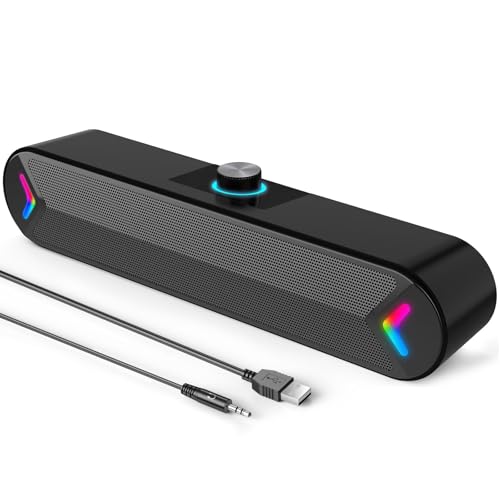
The INGA USB Monitor Speaker Bar is an ultra-compact audio upgrade crafted for users fighting for desktop space. If built-in laptop speakers sound muffled and desktop monitors lack integrated sound, this sleek mini soundbar provides an immediate, fuss-free upgrade. Designed primarily for productivity setups, study nooks, and compact workstations, it balances affordability with effective acoustic clarity.
In everyday use, what sets this soundbar apart is its versatile mounting mechanism. The spring-loaded clamp easily mounts atop or beneath any monitor bezel under an inch thick, elevating audio directly toward your ears without consuming an inch of mousepad space. For setups with curved or oversized displays, the flat base also lets it sit neatly beneath your screen like a standard micro soundbar.
Operating the speaker is seamless. A single USB cable handles both digital audio streaming and bus power, eliminating the need for dedicated AC wall bricks or separate 3.5mm auxiliary cords. The included USB-A to USB-C adapter ensures instant plug-and-play compatibility across Windows PCs, Chromebooks, and modern MacBooks without driver downloads.
While bass enthusiasts will note the physical limitations of its ultra-slim profile, this monitor speaker shines brightly where it matters most: pristine dialogue intelligibility and clear everyday audio. For professionals, educators, and casual media consumers seeking to streamline their workstation, the INGA soundbar represents a practical and budget-friendly win.
Acoustic performance is driven by two compact dynamic drivers bolstered by a central passive radiator, combining to output 10 watts of peak power. The internal tuning prioritizes upper-midrange and treble clarity, making spoken dialogue, podcast voices, and acoustic instruments stand out cleanly against background noise. Speech intelligibility during Zoom calls and remote meetings is significantly elevated compared to typical built-in monitor speakers.
While low-frequency response is physically constrained by the compact enclosure, the integrated passive radiator adds enough lower-mid warmth to prevent vocals from sounding hollow. Maximum volume levels easily fill a modest bedroom or home office without severe harmonic distortion at typical listening levels. Because the soundbar fires directly toward the listener from monitor height, it creates a focused, immediate stereo field tailored for near-field listening.
Measuring just 1.2 by 7.8 by 2.6 inches and weighing under 12 ounces, the INGA speaker is exceptionally compact and travel-friendly. The chassis is finished in an understated matte Onyx black that blends smoothly into professional office displays. Built-in silicone padding lines the interior of the heavy-duty spring clamp, ensuring a firm grip that will not scratch delicate monitor bezels or screen surfaces up to 1 inch thick.
Hardware controls are thoughtfully situated directly along the top panel, providing three distinct buttons for volume up, volume down, and an instant mute function. Power is entirely USB bus-driven via standard 5V computer ports, drawing minimal energy and operating completely battery-free for uninterrupted all-day use.

Pros
- Clean, reliable stereo wireless transmission with minimal background noise
- Ultra-small nano USB design leaves adjacent computer ports accessible
- Supports pairing with up to 7 Bluetooth peripherals at the same time
- Effortless plug-and-play installation on Windows 10 and Windows 11
Cons
- Strictly limited to Windows PCs; incompatible with Mac, Linux, gaming consoles, and car stereos
- Only one Bluetooth audio device can stream sound or take calls at any given time
- Does not connect to proprietary 2.4GHz wireless accessories or Wi-Fi network devices
The Avantree DG45 is a compact USB Bluetooth adapter engineered to bring modern wireless audio streaming and peripheral connectivity to Windows desktop towers and laptops. For listeners wanting to break free from tethered aux cables and experience clean sound on Bluetooth bookshelf speakers or wireless headphones, this miniature transmitter provides an immediate hardware solution. It turns any compatible Windows machine into a capable wireless audio hub without requiring costly internal sound card upgrades.
In real-world use, the DG45 delivers a straightforward, dependable experience. Setting it up on modern Windows installations requires practically zero effort, syncing quickly with your preferred wireless speakers or headsets. Everyday playback is smooth and consistent, allowing you to enjoy your favorite playlists or stream video content while keeping essential productivity tools like a Bluetooth keyboard and mouse connected in parallel without bandwidth choking.
Beyond passive music enjoyment, the DG45 handles voice communication with ease. Headset microphones are recognized cleanly across standard teleconferencing platforms like Zoom, Teams, and Discord, making it just as valuable for remote work as it is for leisure. While audio output is intentionally limited to one active speaker or headset at a time, transitioning between devices is quick and pain-free.
Overall, the Avantree DG45 is an exceptionally practical audio bridge for desktop audio enthusiasts and PC gamers. It provides clean sound transmission, expansive peripheral flexibility, and dependable day-to-day stability in an unobtrusive nano form factor.
As a dedicated digital audio pipeline, the Avantree DG45 focuses on delivering clean, uncolored stereo sound across the entire audible frequency range. When paired with quality Bluetooth monitors or powered bookshelf speakers, it preserves tight bass impact, articulate midrange vocals, and crisp treble definition. The connection remains remarkably clean, avoiding the faint hiss or background hum that often plagues inferior wireless transmitters.
Signal stability is critical for an enjoyable listening session, and the DG45 maintains an uninterrupted link across standard desktop and home office distances. Audio synchronization remains steady during high-bitrate music playback, video streaming, and casual gaming, ensuring that movie dialogue and sound effects stay matched to the action on screen.
When transitioning from high-fidelity music streaming to interactive voice calls, the adapter balances two-way communication smoothly. Voice output through wireless headphone microphones sounds natural and intelligible, providing crisp speech clarity during meetings and voice chats without degrading overall signal strength.
Measuring less than an inch in length and weighing virtually nothing, the DG45 features a sleek nano USB enclosure. Once slotted into a front or rear USB port, the adapter sits nearly flush against the chassis. This minimal footprint ensures it will not block neighboring USB inputs and prevents accidental bending or breakage when transporting a laptop in a backpack.
Hardware functionality is powered directly via the host computer's USB bus, drawing minimal power while managing up to seven connected Bluetooth devices simultaneously. The adapter is specifically engineered for genuine Bluetooth protocols, meaning it operates independently from proprietary 2.4GHz wireless dongles and standard Wi-Fi network cards.
Compatibility is tailored strictly for modern Windows operating systems, natively supporting Windows 11, 10, 8.1, and 8. It is important to remember that this hardware is not compatible with macOS, Linux, ChromeOS, gaming consoles, or vehicle audio systems, making it a specialized upgrade for Windows desktop setups.

Pros
- True plug-and-play simplicity with a single USB connection handling both audio and power.
- Completely clears desktop clutter by clamping securely to the top, side, or bottom of your screen.
- Noticeably louder and clearer than tinny internal laptop speakers, especially for voice and dialogue.
- Comes with a USB-C adapter in the box for modern laptops without standard USB-A ports.
Cons
- Compact footprint produces modest sub-bass output, limiting deep rumble on cinematic soundtracks.
- Clamp mechanism cannot fit thicker screens or curved monitor chassis exceeding 1.18 inches.
- Strictly a wired USB speaker with no Bluetooth wireless or 3.5mm analog input options.
The Inwa Computer Speaker Bar addresses one of the most common frustrations in modern home offices: tinny, muffled built-in laptop audio paired with crowded desk space. By combining a mini soundbar profile with an integrated spring-loaded clamp, this speaker offers an immediate audio upgrade for remote professionals, students, and casual desktop users. It completely bypasses the need for large dual-speaker desktop setups while aiming audio directly toward the user.
In everyday tasks, the Inwa speaker proves especially capable during virtual meetings, podcasts, and casual video streaming. Dialogue comes through crisp and intelligible on video conferencing platforms like Zoom and Teams, eliminating the listening fatigue associated with strained laptop speakers. The single-cable USB architecture ensures trouble-free setup across both Windows and macOS systems without the need to install third-party drivers or software.
While this compact unit will not replace high-end audiophile studio monitors or full-sized entertainment soundbars, it succeeds at providing clean, focused sound right where you need it. For anyone looking to declutter their workstation and enjoy clear audio for calls, background music, and videos, this clip-on speaker is a dependable and practical solution.
Acoustic performance on the Inwa speaker is powered by two internal full-range drivers working in tandem with a central passive radiator, delivering up to 10 watts of stereo output. Because the speaker sits elevated on your monitor, the sound projects forward cleanly toward ear level rather than firing downward onto a desk. This positioning yields a surprisingly expansive stereo soundstage for a chassis under six inches wide.
Midrange and treble reproduction are tuned for maximum intelligibility, ensuring spoken vocals and acoustic instruments sound natural and articulate. The integrated passive radiator reinforces the lower midrange to give video game effects and movie dialogue respectable body. While deep sub-bass frequencies below 80 Hz are modest due to physical enclosure limits, overall output remains clean and distortion-free at standard desktop listening volumes.
Measuring just 5.9 inches wide and less than 2 inches deep, the Inwa speaker features a durable black enclosure designed to sit inconspicuously alongside modern monitor frames. The spring-loaded bottom clamp expands to fit display bezels up to 1.18 inches thick. Soft silicone contact pads line the inner jaws of the clamp, protecting delicate monitor casings from scratches while securing the speaker in place, even during frequent screen adjustments.
The physical interface includes three top-mounted buttons for volume up, volume down, and an instant mute function, allowing rapid audio control without digging into computer software menus. Connectivity and bus power are provided through a single integrated USB cable. With the bundled USB-A to USB-C converter, users can connect immediately to the latest slim laptops, MacBooks, or traditional desktop towers without buying extra adapters.
Complete Guide to Connecting External Speakers to a Windows 10 Laptop
Windows 10 laptops support an extensive variety of external speaker configurations, making audio upgrades straightforward for any workspace or entertainment area. Whether your machine features modern digital connectors or older analog ports, the operating system routes audio signals seamlessly once the correct output device is chosen. Understanding how these hardware connections interact with software controls ensures dependable playback and eliminates frustrating audio dropouts.
Physical Output Ports Available on Windows 10 Laptops
Most portable computers running Windows 10 provide at least one analog 3.5mm stereo jack. This port serves as a dual-purpose headphone and line-out jack, sending an unamplified analog signal directly to powered desktop speakers or headphones. Connecting an analog stereo cable to this port automatically disengages the internal laptop speakers in favor of the external drivers. Passive speakers cannot run directly from this connection because the laptop sound card lacks the electrical wattage required to move larger speaker cones.
Universal Serial Bus ports provide another popular method for transmitting sound from a portable computer. Standard USB-A and modern USB-C ports carry clean digital audio data directly from the operating system to an internal digital-to-analog converter housed inside the speaker itself. This digital transmission bypasses the laptop’s internal sound card, which often shields the audio signal from electronic noise generated by internal computer components. Many compact desktop soundbars utilize this single-cable approach to receive both electrical power and digital sound simultaneously.
Laptops equipped with HDMI or DisplayPort connections can also transmit multichannel audio to external soundbars, AV receivers, and computer monitors with integrated drivers. When you connect an external display through an HDMI cable, Windows 10 recognizes the monitor or receiver as a distinct audio endpoint. If your monitor features integrated speaker drivers or a 3.5mm passthrough jack, you can route audio through that video cable without plugging extra audio cords into the laptop body. This approach keeps desk setups tidy by consolidating video and sound into a single physical wire.
Direct USB Audio: Plug-and-Play Simplicity for Desktops and Laptops
Wired USB speakers deliver outstanding convenience because they do not require separate wall power adapters or auxiliary 3.5mm splitters. For example, the INGA Computer Speakers for Desktop PC utilize a single integrated USB cable to supply electrical operating current alongside clear stereo digital audio. Devices of this type feature internal audio processing chips that install generic USB audio class drivers the moment you insert the connector. Laptop users who frequently move between workstations appreciate avoiding bulky power bricks and tangled auxiliary cords.
Mounting options represent another practical advantage offered by modern USB soundbars designed for compact workstations. The Inwa Computer Speakers for Desktop PC features a dedicated spring clip with protective silicone pads, allowing it to clamp securely to the frame of an external monitor or laptop lid. This mounting strategy lifts the sound source up toward ear level while reclaiming valuable desktop real estate underneath the screen. Both the Inwa and INGA models incorporate dual speaker drivers with passive radiators to project stereo sound forward across the listening area.
Hardware controls on USB speakers simplify everyday volume adjustments without forcing you to click into software menus. Top-mounted physical push buttons for volume increase, volume decrease, and instant microphone or audio muting make conference calls and media streaming much easier to manage. Modern USB speaker packages also frequently bundle a USB-A to USB-C adapter, ensuring complete compatibility with ultrabooks that feature only slim USB-C ports. Once connected, Windows 10 recognizes the USB audio codec and routes primary system sounds through the external soundbar immediately.
Wireless Bluetooth Audio Pairing in Windows 10 Settings
Connecting speakers wirelessly via Bluetooth eliminates physical cables across your desk and allows you to position audio hardware anywhere in the room. Pairing a wireless speaker requires opening the Windows 10 Settings app, navigating to the Devices category, and selecting the Bluetooth & other devices tab. Make sure the Bluetooth toggle switch shows the active on state before attempting to discover nearby hardware. Placing your speaker into its dedicated pairing mode allows Windows 10 to detect its broadcasting beacon and list it on your screen.
Once you select your speaker from the list of discovered devices, Windows 10 negotiates the security handshake and installs the appropriate wireless audio profiles. The operating system typically configures the speaker as the default playback device as soon as pairing finishes successfully. If you enjoy moving around your home or office, linking your machine with versatile options like portable wireless speakers allows you to carry sound from room to room without interrupting playback. Battery-powered Bluetooth units can run for hours before requiring a recharge, offering exceptional mobility for laptop users.
Bluetooth connections occasionally suffer from environmental interference caused by competing wireless networks, physical walls, or internal laptop antenna limitations. Standard Bluetooth range typically extends up to thirty feet under open conditions, but concrete walls or metal desk components can reduce reliable signal distance. If the audio begins sputtering or dropping out, moving the speaker closer to the laptop usually restores a stable connection. Disconnecting other non-essential Bluetooth accessories can also free up wireless bandwidth for your audio stream.
Adding Bluetooth Capability with USB Adapters When Native Hardware Fails
Some older desktop-replacement laptops lack integrated Bluetooth radios, while other machines experience driver failures that leave native wireless hardware permanently disabled. In these situations, adding an external USB Bluetooth dongle provides an inexpensive and dependable hardware workaround. The Avantree DG45 – USB Bluetooth Adapter for Windows plugs directly into an open USB port to deliver instant Bluetooth communication for laptops running Windows 10, 8.1, or 8. This small dongle allows users to connect wireless headphones and speakers without opening the laptop chassis to install replacement internal cards.
USB Bluetooth adapters operate under specific wireless protocols that buyers should understand before purchasing. The Avantree DG45 is engineered strictly for Bluetooth-enabled devices such as wireless speakers, mice, keyboards, and mobile devices, rather than proprietary 2.4GHz wireless peripherals that rely on dedicated brand receivers. It does not interface with 2.4GHz gaming headsets or wireless network printers that depend on Wi-Fi communication protocols. Recognizing this distinction prevents unexpected compatibility hurdles when configuring external laptop accessories.
Multi-device pairing support allows quality USB Bluetooth adapters to manage up to seven connected wireless peripherals at once. You can maintain simultaneous connections with a wireless mouse and keyboard while streaming stereo audio to an external Bluetooth speaker. However, Windows 10 and the adapter architecture permit only one active Bluetooth audio stream at a time. If you switch from desktop speakers to wireless communication headsets, you can toggle the active output device through the Windows sound settings menu.
Configuring Default Sound Output Devices in Windows 10
Plugging in external hardware does not always prompt Windows 10 to reroute audio automatically, especially if multiple sound devices were previously registered. You can verify your active audio path by clicking the speaker icon in the bottom-right notification area of the taskbar. Clicking the small upward arrow above the master volume slider reveals a drop-down menu containing all detected audio endpoints. Selecting your preferred USB soundbar, analog output, or paired Bluetooth speaker directs immediate system playback to that specific device.
For advanced audio management, opening the legacy Sound Control Panel provides granular control over system behavior. You can access this window by right-clicking the taskbar speaker icon, selecting Sound settings, and clicking the Sound Control Panel link on the right. In the Playback tab, you can designate an external speaker pair as both the Default Device for music and games and the Default Communication Device for voice calls. This setup ensures that your dedicated home music speakers handle entertainment playback while voice chat routes cleanly to your preferred hardware.
Within device properties, you can also calibrate channel balance, sample rates, and bit depths to match your speaker capabilities. Setting the default format to 24-bit studio quality at 48000 Hz or 44100 Hz ensures clean conversion of high-resolution digital audio files. Disabling unnecessary spatial sound or third-party audio enhancement effects often eliminates unwanted artificial processing. Testing the left and right stereo channels using the built-in test chime confirms that your stereo image is oriented correctly across your listening area.
Troubleshooting Common Connection and Audio Output Issues
When an external speaker produces no sound after connection, simple configuration oversights are the most frequent culprit. Begin by confirming that both the physical speaker volume dial and the Windows master volume slider are set above zero. If you are using a USB speaker bar like the INGA or Inwa models, verify that the top hardware mute button is not engaged. Disconnecting and reconnecting the cable to an alternate USB port can also prompt Windows 10 to re-enumerate the hardware properly.
Driver glitches in Windows 10 can occasionally silence external audio hardware without showing an obvious warning prompt. You can inspect driver health by right-clicking the Start button and launching Device Manager. Expanding the Sound, video and game controllers tree reveals all recognized sound devices, where a yellow warning triangle indicates an installation error. Right-clicking the affected audio endpoint and choosing Update driver allows Windows to search for stable generic software, while selecting Uninstall device followed by a system reboot forces a clean driver reinstallation.
Software conflicts can also commandeer an audio endpoint and block other programs from producing sound. Media players and digital audio workstation software sometimes enable Exclusive Mode, locking the sound card to a single application. You can resolve this issue in the Sound Control Panel by opening your speaker’s Properties, clicking the Advanced tab, and unchecking the option that allows applications to take exclusive control of the device. This safe adjustment ensures that web browsers, video conferencing apps, and background music players share audio output harmoniously.
Managing Latency, Distortion, and Cable Clutter
Audio latency can cause dialogue in movies or video games to fall noticeably out of sync with on-screen action, particularly over wireless Bluetooth connections. Standard Bluetooth compression codecs introduce small processing delays that are negligible for music streaming but distracting during fast-paced video editing or gaming. Using a wired USB connection or an analog 3.5mm cable eliminates transmission latency almost entirely, providing instant sound synchronization. If you must use Bluetooth for video viewing, modern media player apps often offer manual audio track delay adjustments to compensate for wireless lag.
Distortion and electrical interference sometimes manifest as annoying buzzing or humming through analog speaker cables. This hum frequently stems from ground loops created when a laptop charger and powered speakers share the same electrical circuit. Switching to a digital USB audio connection bypasses dirty analog circuitry and eliminates ground loop hum effectively. Additionally, clip-on monitor speakers save desk space and keep cables elevated, preventing messy wire tangles from snagging on desktop items or suffering accidental damage.
Best Practices for Long-Term Sound Reliability on Windows 10
Routine Windows 10 feature updates can occasionally reset system sound preferences, switching your default playback endpoint back to built-in laptop speakers. When this occurs after an operating system restart, simply reopening the taskbar sound menu and re-selecting your external speaker restores preferred routing. Keeping your computer’s USB chipset drivers and audio controller software current prevents device detection errors during future updates. Maintaining clean physical connections by gently removing dust from 3.5mm and USB jacks ensures solid electrical contact over years of use.
Selecting the right connection method depends on whether you value portable wireless freedom or the rock-solid stability of plug-and-play wired audio. USB monitor soundbars provide clean stereo performance with effortless single-cord setup, while Bluetooth adapters open the door to cable-free listening across your room. By understanding how Windows 10 recognizes external hardware and managing sound endpoints thoughtfully, you can enjoy rich, immersive audio from your laptop whenever you work, study, or stream entertainment.






Write Your Review
No reviews yet. Be the first to share your experience!