
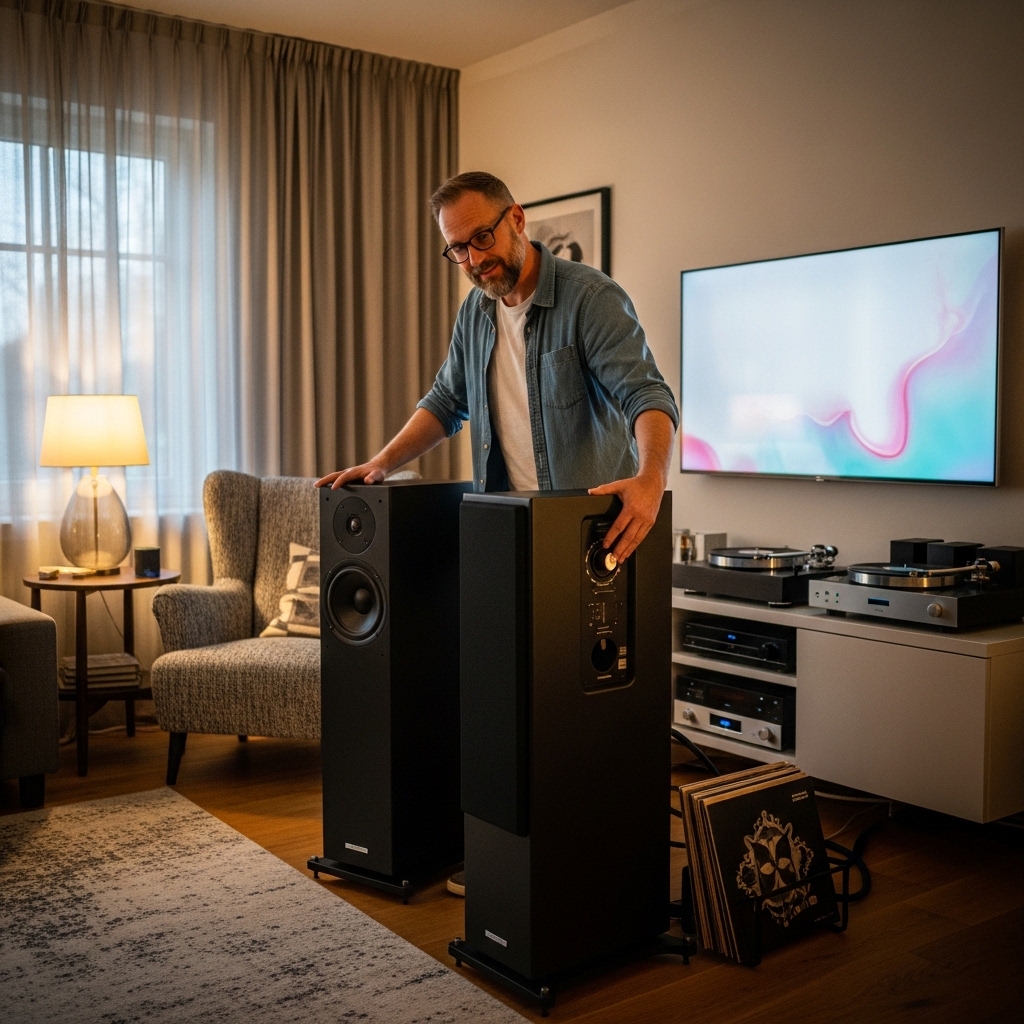

Streaming media from a tablet during an outdoor gathering, desktop work session, or presentation often feels underwhelming through small factory speakers. Learning how to connect ipad to wireless speaker provides immediate access to richer acoustic output, balanced stereo sound, and better volume projection. Modern audio units, including versatile desktop stands and portable Bluetooth speakers, utilize straightforward pairing handshakes that synchronize with tablet operating systems in just a few seconds. Establishing this link correctly prevents playback stutter and gives you full control over your media playback from across the room.
External tablet audio gear varies considerably between traditional Bluetooth streaming models and specialized physical interface options. Some compact accessories clip directly onto tablet frames with auxiliary audio jacks, while wireless units utilize modern wireless protocols or integrated device cradles. Choosing the correct connection method depends entirely on your specific hardware, listening environment, and whether you require fast wireless flexibility or zero-latency wired audio transmission. Mastering these basic steps eliminates confusion and guarantees smooth, uninterrupted sound reproduction for movies, games, and music playlists alike.

Pros
- Painless plug-and-play setup via standard 3.5 mm headphone jack
- Protective rubberized mount secures firmly without marring device edges
- Significantly boosts maximum volume and vocal clarity over tablet speakers
- Lightweight, pocket-friendly design with convenient included travel pouch
Cons
- Requires a 3.5 mm adapter for modern tablets lacking an integrated headphone port
- Lacks wireless Bluetooth capability for cable-free listening
- Low-end bass response is modest compared to larger standalone speakers
The Logitech Tablet Speaker is an ultra-compact clip-on audio solution designed to significantly enhance the media consumption experience on tablets and iPads. By clamping directly onto the bezel of your tablet, it transforms thin, tinny device audio into a broader stereo soundstage that makes watching movies, bingeing YouTube, or attending video calls far more enjoyable. It caters squarely to students, frequent flyers, and casual couch streamers who want an immediate volume and clarity upgrade without wrestling with heavy gear.
In everyday use, this speaker shines due to its fuss-free simplicity. Instead of navigating confusing wireless settings or pairing menus, you simply secure the rubberized clip and plug the integrated 3.5 mm cable directly into your device headphone jack. The speaker sits firmly along the top or side of your screen, projecting sound directly forward toward you rather than out of side-firing or rear-firing tablet grills.
For owners of tablets with traditional 3.5 mm ports, this portable unit delivers dependable utility and clean stereo separation. While newer tablet users will need a dongle adapter, the reliability of zero-latency wired audio makes it a dependable accessory for movie buffs and mobile workers alike.
When it comes to audio performance, the Logitech Tablet Speaker prioritizes midrange presence and vocal intelligibility. Dialogue in movies and podcasts comes through crisp, articulate, and well defined, making it far easier to catch quiet whispers and fast-paced commentary without cranking the volume to uncomfortable levels. Stereo separation is noticeably wider than what any bare tablet can produce on its own.
Bass response is tight and snappy for acoustic tracks and speech, though it naturally stops short of the deep, chest-thumping sub-bass found in heavier standalone desk speakers. High frequencies remain smooth and avoid harsh distortion even when pushed to higher output levels, ensuring that action movies and upbeat playlists sound clean and balanced across typical listening environments.
Because the speaker operates through a direct 3.5 mm analog connection rather than a wireless radio link, audio stability is virtually flawless. Users enjoy absolute zero audio-video sync delay when watching films or gaming, completely bypassing the frustrating latency issues and signal dropouts that can plague entry-level wireless accessories.
Built with portability at the forefront, the Logitech Tablet Speaker weighs in at just 0.66 pounds, making it effortless to slide into a backpack sleeve or carry-on bag. The standout design element is its spring-loaded, rubberized clip, which provides a gentle yet firm hold on tablet frames. The rubber padding prevents scratches on tablet glass and aluminum bodies, holding steady whether you rest the device on your lap or place it on a desk.
Powering the unit is an internal lithium-ion battery engineered to provide up to eight hours of continuous playback on a single charge. Real-world longevity holds close to this benchmark at moderate volume levels, comfortably covering a cross-country flight or an entire weekend of evening streaming before requiring a recharge.
Replenishing the battery is straightforward using the included USB charging cable. The compact form factor combined with the bundled travel pouch ensures the speaker stays protected from dust, bumps, and scratches while on the move, establishing it as an enduring, practical companion for mobile media consumption.
Practical Guide: How to Connect iPad to Wireless Speaker Systems
Directly connecting an iPad to an external wireless speaker requires matching the audio output settings on iPadOS with the active receiving channel on your sound hardware. While Bluetooth remains the universal protocol for cable-free streaming, specific speaker designs offer alternative methods like induction audio transfer or hardwired analog bypass lines. Resolving connectivity issues begins with understanding how tablet operating systems discover nearby accessories and route media playback. Taking control of these communication channels ensures immediate playback without annoying cutouts or garbled audio.
Standard Bluetooth Pairing: The Primary Wireless Connection Method
Initiating a standard Bluetooth link requires navigating to the iPad Settings application and opening the Bluetooth submenu. Ensure the primary Bluetooth slider is switched on, which prompts the tablet to scan for broadcasting audio peripherals. The iPad continuously polls local radio frequencies to detect discoverable Bluetooth accessories within line-of-sight range. Leaving this settings window open keeps the tablet in an active scanning state until your target speaker appears.
Powering on your external wireless speaker is the next crucial step, followed by placing the unit into pairing discovery mode. Most portable speakers use a dedicated Bluetooth button or require holding the power button until an audible chime sounds or an LED indicator flashes blue. If the speaker does not enter discovery mode, it cannot broadcast its unique identifier to nearby devices. Manufacturers design this momentary handshake sequence to prevent unauthorized devices from hijacking your audio feed.
Selecting the speaker name under the Other Devices section on your iPad initiates the digital handshake between both devices. Once the connection completes, the speaker name moves to the My Devices list and displays a status of Connected. A brief confirmation tone usually sounds through the speaker drivers to confirm successful synchronization. You can now route audio from streaming apps, video players, and local media files directly through the external speaker hardware.
Understanding Wireless Hardware Modes: Bluetooth Versus Induction Sensing
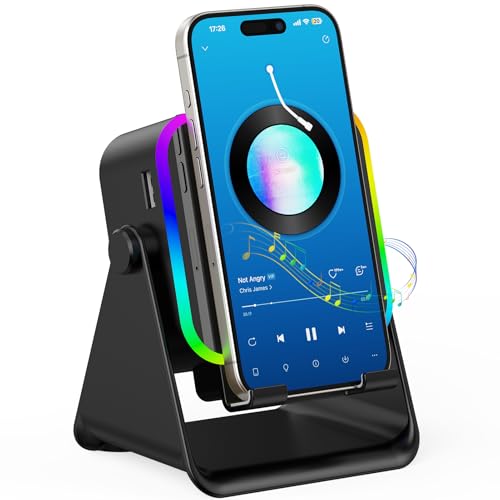
Multi-functional audio gadgets frequently offer distinct playback options to accommodate various consumer devices. For example, hardware like the TARKARI Wireless Induction Speaker integrates both wireless induction mode and modern Bluetooth 5.3 technology. Induction audio relies on internal magnetic sensors that capture acoustic vibrations directly from a smartphone chassis placed on the cradle. However, manufacturer specifications clarify that induction mode is designed specifically for smaller mobile phones and does not function with iPads or larger tablets.
Connecting an iPad to a hybrid induction speaker requires manually toggling the device into standard Bluetooth mode instead of relying on sensor cradles. The power button on multi-mode units typically switches between induction sensing and Bluetooth broadcast modes. Utilizing the Bluetooth 5.3 protocol ensures stable data transfer across distances reaching up to 33 feet. This extended range provides plenty of clearance to reposition your tablet on a desk or counter without encountering sudden audio dropouts.
Modern wireless standards provide reliable bandwidth for streaming high-resolution audio files while maintaining backward compatibility across older tablet models. If you are comparing versatile desktop setups with dedicated dual speaker audio configurations, having modern Bluetooth profiles simplifies multi-room management. High-efficiency protocols also minimize latency when synchronizing video dialogue with on-screen lip movements. Selecting the proper operating mode prevents confusion and guarantees that your iPad streams audio through the speaker drivers rather than its onboard tablet speakers.
Wired Auxiliary Integration: Low-Latency Physical Connections
Wireless streaming offers convenience, but physical cable connections remain an excellent option for zero-latency audio playback. Dedicated tablet accessories like the Logitech Tablet Speaker for iPad/Tablet utilize a direct 3.5 mm auxiliary connection rather than wireless RF broadcasting. Plugging the integrated 3.5 mm audio lead directly into the tablet headphone jack routes sound instantly without pairing menus, discovery timeouts, or digital sync lag. This hardwired connection proves especially beneficial during competitive mobile gaming or precise audio and video editing tasks.
Older iPad models feature a standard 3.5 mm stereo audio port, allowing direct plug-and-play functionality with clip-on speaker hardware. Modern iPad generations that lack an analog headphone port require an official USB-C or Lightning to 3.5 mm headphone jack adapter. These compact digital-to-analog dongles maintain full stereo channel separation and deliver clean line-level signals to external amplifiers. Connecting through an adapter does not compromise sound clarity and provides identical plug-and-play simplicity for analog speaker setups.
Battery-powered auxiliary speakers rely on internal power cells rather than drawing energy directly from the tablet battery port. The Logitech clip-on model includes an internal rechargeable battery rated for up to eight hours of continuous playback, depending on volume levels and environmental factors. Recharging the internal cell via a standard USB cable keeps your tablet port free while maintaining full stereo amplification. Hardwired speakers eliminate the wireless interference risks often encountered in crowded Wi-Fi environments.
Managing Device Standby, Multi-Device Memory, and Pairing Conflicts
Connection failures often occur when an external speaker automatically connects to a secondary device stored in its internal memory. Wireless speakers generally remember several previously paired host devices, including smartphones, laptops, and family tablets. If a previously linked phone is within radio range when the speaker powers on, the speaker may latch onto that phone before your iPad can connect. This common situation locks the audio channel and leaves the speaker invisible or unresponsive in your tablet Bluetooth list.
Resolving device conflicts requires disconnecting the active audio source or resetting the speaker pairing memory. Turning off Bluetooth temporarily on secondary phones or selecting Disconnect in their system menus frees up the receiver. Many modern audio units, including sophisticated bookshelf wireless speaker options, feature a pairing reset sequence that purges stored devices from memory. Forcing the speaker back into discovery mode allows your iPad to establish a fresh connection without competing for signal priority.
Managing the iPadOS device registry also prevents persistent synchronization errors. Tapping the information icon next to a problematic speaker in iPad Settings lets you choose Forget This Device. This action completely removes outdated security certificates and pairing handshake profiles stored on the tablet. Cycling your tablet Bluetooth radio off and on before re-pairing establishes a clean digital handshake that eliminates stubborn connection bugs.
Troubleshooting Audio Dropouts, Signal Stutter, and Latency
Audio stutter typically stems from physical obstructions or dense radio frequency interference between the tablet and the speaker enclosure. Wireless signals operating on the 2.4 GHz spectrum can suffer degradation when passing through thick plaster walls, metal desks, or large appliances. Crowded Wi-Fi networks and active microwave ovens can also disrupt data packet transmission. Maintaining an unobstructed line of sight within the manufacturer 33-foot wireless operating radius drastically reduces audio stutter and dropped audio packets.
iPadOS Control Center provides quick access to volume levels and AirPlay routing, but cycling Bluetooth from Control Center only disconnects active accessories temporarily. To perform a complete radio restart, open the main Settings application and toggle the master Bluetooth switch. This resets the internal tablet wireless hardware and clears temporary communication caches. Rebooting your iPad occasionally also resolves background software processes that might be interfering with steady audio transmission.
Volume calibration between the tablet and speaker hardware significantly influences acoustic clarity. When using wireless or wired audio accessories, setting the master volume on the iPad to at least 50% ensures a robust audio signal feeds into the external amplifier. You can then adjust the physical volume controls on the speaker chassis to reach comfortable listening levels without introducing harmonic distortion. Keeping source output too low forces the speaker amplifier to work harder, which can introduce audible background hiss.
Power Management, Emergency Charging, and Battery Preservation
Portable audio gear relies on efficient internal power management to support extended listening sessions away from electrical outlets. Many wireless speaker stands incorporate internal power banks capable of providing emergency device charging while playing music. This secondary charging function prevents your tablet from running out of battery during extended video conferences or media playback. Monitoring battery levels prevents unexpected shutdowns that can abruptly terminate your Bluetooth audio session.
Rechargeable lithium cells experience gradual capacity reduction over hundreds of charge cycles, making proper charging habits important for longevity. Using manufacturer-approved USB charging cables and appropriate voltage wall adapters ensures stable power delivery without overheating the internal battery circuits. Disconnecting charging cables once the battery indicator indicates a full charge protects the cell from unnecessary thermal stress. Operating portable audio equipment within moderate temperature ranges also preserves battery chemistry and runtime performance.
Automated power-saving features help conserve battery reserves when no audio signal is detected. Most wireless speakers enter a low-power standby state or shut off entirely after several minutes of inactivity. When your speaker powers down automatically, the iPadOS system immediately routes audio back to the internal tablet speakers. Powering the speaker back on and tapping its name in the iPad Bluetooth menu quickly restores external sound projection without repeating the entire pairing procedure.
Physical Ergonomics, Tablet Mounting, and Enclosure Protection
Physical stability plays a vital role when pairing external speakers with relatively heavy tablet screens. Specialized hardware like the Logitech Tablet Speaker utilizes rubberized mounting clips that attach securely to the tablet chassis without scratching metal or glass surfaces. These clips hold the speaker firmly in place whether you hold the tablet in your hands or rest it on a table. Ensuring a secure physical grip prevents accidental drops and maintains proper alignment with audio ports.
Multi-functional desktop stands offer adjustable viewing angles that complement audio playback during video calls or recipe viewing in the kitchen. Designs featuring 360-degree rotation and anti-slip silicone cushions protect tablets against sliding during touchscreen interaction. Silicone padding on the back and base absorbs minor vibrations from the speaker drivers, preventing rattling noises at elevated volumes. Sturdy hinges allow users to position screens for optimal visibility while drivers fire sound toward the listener.
Environmental protection is essential when using audio accessories in outdoor areas, workshops, or high-humidity spaces. While rugged outdoor systems feature sealed silicone port covers, compact indoor speaker stands should be kept away from splashing liquids and excessive dust. Wiping down rubberized clips and contact pads with a dry microfiber cloth maintains grip friction and prevents debris buildup. Proper equipment handling preserves both aesthetic appeal and hardware reliability across years of regular use.
Step-by-Step Audio Output Routing in iPadOS
Verifying that iPadOS routes media to the external speaker is simple once Bluetooth pairing is confirmed. Swiping down from the top-right corner of your iPad screen opens the Control Center, where the active media player card resides. Tapping the triangular AirPlay audio routing icon in the top-right corner of the player card reveals all currently available audio output destinations. Selecting your connected wireless speaker from this list directs all system audio, video dialogue, and music directly through the speaker.
Specific applications maintain independent audio output settings that can occasionally override general system preferences. Video conferencing software, audio recording apps, and specialized media players may offer custom output menus in their settings. If media plays silently while the speaker shows an active connection, check the in-app audio output selector to ensure the external speaker is designated as the primary playback device. Resolving application-specific routing mismatches restores normal volume immediately.
Regularly auditing paired accessories in your iPad Bluetooth settings maintains optimal wireless hygiene and prevents unexpected connection handoffs. Removing obsolete peripherals, resetting speaker discovery modes when switching tablets, and keeping iPadOS updated ensures dependable wireless performance. Whether using modern Bluetooth 5.3 stands or hardwired stereo clip-on units, following these structured procedures delivers reliable, high-quality audio whenever you need an upgrade from built-in tablet speakers.


Write Your Review
No reviews yet. Be the first to share your experience!