


Voice-controlled music playback should work seamlessly, yet smart assistants frequently stumble when routing audio to external hardware. When someone asks %why won’t alexa connect to my bluetooth speaker%, the issue usually traces back to pairing state conflicts, wireless interference, or device profile mismatches. Amazon Echo devices and smart speakers with integrated voice assistants rely on standardized Bluetooth profiles, but outdated firmware or lingering connections to previous smartphones can silently block a fresh handshake. If you are trying to route room-filling audio to Bluetooth speakers engineered for deep bass, dealing with failed connection prompts quickly disrupts your listening routine. Understanding how the Echo ecosystem negotiates external audio links helps you resolve these wireless handshakes without unnecessary resets.
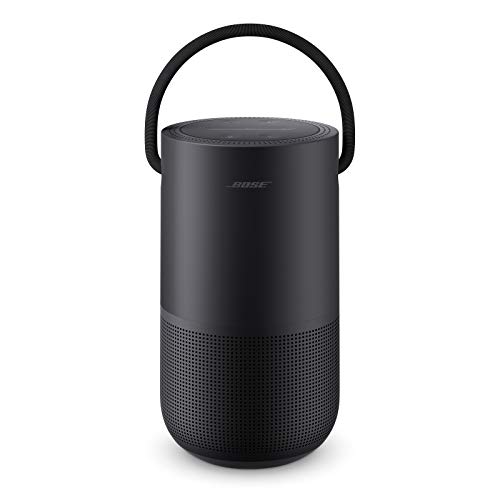
Most pairing failures do not indicate permanent hardware defects in either your Echo device or your wireless speaker. Instead, simple protocol limits such as single-device connection locks, Wi-Fi channel crowding, or cached pairing tokens in the Alexa companion app account for the vast majority of silent connection drops. High-end hardware like the Bose Portable Smart Speaker handles both standalone smart streaming and external Bluetooth playback, illustrating how dual-mode devices require distinct operating states to function smoothly. By systematically stepping through connection profiles, clearing old hardware caches, and adjusting physical speaker distance, you can restore stable playback in minutes.
Troubleshooting Alexa Bluetooth Speaker Connection Failures
Alexa fails to connect to an external Bluetooth speaker primarily because the target speaker is already occupied by another paired host or is not actively in discovery mode. Amazon Echo hardware searches strictly for devices broadcasting an open pairing beacon, meaning a powered-on speaker will remain completely invisible if its wireless chip is in passive standby. In other scenarios, an existing audio handshake with a phone, laptop, or tablet quietly locks the speaker, preventing Alexa from establishing a new audio stream. Resolving the breakdown requires determining whether the connection failure happens during initial discovery or during an automated reconnect request.
Bluetooth architecture operates on specific software profiles, predominantly the Advanced Audio Distribution Profile (A2DP) for audio output and Audio/Video Remote Control Profile (AVRCP) for playback commands. If your speaker attempts to negotiate a hands-free phone profile instead of a media streaming link, the Echo system will fail to negotiate the handshake. Firmware corruption within the Alexa application or on the speaker itself can also stall connection tokens, leaving both devices out of sync. Addressing these basic protocol friction points usually restores full functionality without requiring complex hardware interventions.
Bluetooth Pairing Mode Versus Reconnection Conflicts
A widespread point of confusion stems from the fundamental difference between powering a speaker on and placing it into active discovery mode. Most Bluetooth audio hardware automatically enters pairing mode only upon its first out-of-the-box startup. During daily listening, turning the speaker on merely triggers a targeted reconnect sweep aimed at its most recently paired device. Because Alexa will not discover a speaker during this automated reconnect sweep, you must manually press or hold the dedicated Bluetooth button until a flashing status light or audible chime confirms active pairing mode.
Timeout settings on modern portable speakers also contribute to sudden pairing dropouts. Many compact battery-powered units shut off their pairing beacon after sixty to ninety seconds of inactivity to conserve rechargeable battery reserves. If you open the Alexa app, navigate through account settings, and initiate the device scan too slowly, the speaker may drop out of discovery before the scan finishes. Synchronizing your actions by initiating the speaker search immediately after setting the speaker to pairing mode ensures Alexa catches the broadcast window.
Speaker design variations also dictate how discovery states are signaled to the user. Some units use slow-blinking blue LEDs for reconnection attempts and rapid double-blinking LEDs for true discovery mode. Misinterpreting a slow reconnect flash as an active pairing state leads users to search repeatedly for an invisible device. Checking your speaker documentation to confirm its precise discovery indicator saves significant troubleshooting effort.
Existing Connections and Multipoint Hardware Locking
Smartphones, tablets, and smart televisions possess aggressive reconnection routines that frequently intercept Bluetooth audio channels. When a speaker powers up within range of a paired smartphone, the phone often bonds with the speaker in fractions of a second. Once an exclusive Bluetooth channel is claimed by a smartphone, the speaker will reject secondary pairing requests from Alexa without providing any visual warning. Disabling Bluetooth temporarily on nearby phones, tablets, and computers eliminates this background competition and frees the connection channel for Alexa.
Multipoint pairing capabilities can also introduce subtle priority conflicts between connected hosts. Even when a speaker supports two concurrent Bluetooth links, Amazon Echo devices usually demand priority access to avoid synchronization lag during voice queries. If the non-Echo device actively transmits system sounds, notifications, or low-level background data, the speaker may refuse the Echo incoming A2DP stream. Manually disconnecting prior devices through their operating system menus provides the cleanest environment for a stable Alexa connection.
Certain modern operating systems maintain background audio connections even when media is paused. A desktop computer in sleep mode or a tablet running background social media apps can hold a persistent audio channel open. Powering down Bluetooth completely on auxiliary devices ensures your portable speaker remains unencumbered when negotiating with the Echo hub.
Clearing Corrupted Pairing Caches in the Alexa App
The Alexa mobile app and cloud ecosystem maintain cached profiles for previously paired Bluetooth accessories. When a speaker undergoes a firmware update or is paired with multiple third-party gadgets, the cryptographic handshake stored in the cloud profile can become obsolete. Attempting to connect through the voice command will then yield a generic refusal prompt stating that no compatible device is found. Removing the lingering profile from the Alexa companion app clears the broken software token.
To clear this record, open the Alexa app, select the specific Echo device under your device list, and navigate into the Bluetooth Connections sub-menu. Highlight the troublesome speaker, select the option to forget or disconnect the device, and confirm the removal. It is equally important to clear the Echo from the speaker internal memory if the speaker features a memory-clearing button sequence. Establishing a brand-new connection from an empty cache forces both ends to negotiate a clean security handshake.
Cloud synchronization delays can occasionally preserve forgotten devices across linked Amazon devices. Waiting two or three minutes after forgetting a device allows Amazon server networks to flush the stale Bluetooth profile across all registered Echo units. Once the profile disappears completely from the app interface, initiating a fresh scan will discover the speaker as an authentic new device.
Radio Frequency Crowding and Physical Placement Obstacles
Bluetooth operates within the unlicensed 2.4 GHz industrial, scientific, and medical radio band, sharing electromagnetic space with Wi-Fi routers, cordless handsets, and microwave appliances. When an Echo unit sits directly beside a Wi-Fi router broadcasting heavily on 2.4 GHz, RF noise can overwhelm low-power Bluetooth signals. This interference causes discovery packets to drop, prompting Alexa to announce that the pairing operation failed or timed out. Placing at least three to four feet of physical distance between your Echo device, your Wi-Fi access point, and the speaker minimizes mutual packet collision.
Physical barriers like dense masonry walls, large metal appliances, and water-filled containers also attenuate Bluetooth signals significantly. While the nominal range for consumer Bluetooth links is roughly thirty feet, physical obstructions and ambient electrical interference can cut that operational perimeter in half. When configuring larger spaces or considering Bluetooth speakers for large rooms, keeping line-of-sight between the Echo unit and the speaker maintains clean signal propagation. Ensuring the wireless path remains unobstructed minimizes packet loss and prevents connection drops during sustained playback.
Household construction materials absorb 2.4 GHz radio energy at different rates. Drywall causes minimal signal degradation, whereas reinforced concrete, metal framing, and wire-mesh plaster severely dampen RF transmissions. If your speaker sits inside an enclosed entertainment cabinet or behind a metallic TV chassis, relocating it to an open tabletop usually eliminates persistent transmission dropouts.
Dual-Mode Smart Speakers and Operational Role Mismatches
Modern hybrid speakers create unique diagnostic challenges because they can function as both Bluetooth targets and independent smart hubs. The Bose Portable Smart Speaker, for example, incorporates native Wi-Fi voice control with Alexa built-in while also offering standalone Bluetooth playback. When working with versatile equipment of this type, confusion often arises regarding whether the speaker is acting as the voice controller or the passive audio receiver. You cannot pair an Echo unit via Bluetooth to a speaker if that speaker is currently trying to act as an independent Alexa client on the same local network.
To use a hybrid smart speaker purely as an external audio sink for a separate Echo device, you must explicitly set the hybrid unit into its dedicated Bluetooth receiver mode. If the speaker remains bound to local Wi-Fi casting protocols or multi-room music groups, it may reject standard A2DP pairing requests. Consulting manufacturer documentation helps verify how your hybrid speaker separates its wireless streaming services from its direct Bluetooth receiver modes. Selecting the correct input channel ensures the speaker responds predictably to pairing commands.
Attempting to route voice assistant output through an external speaker while both devices actively run the Alexa voice engine can create infinite loop conflicts. The cloud backend may attempt to route speech playback to the same unit listening for commands, producing audio muting or dropped responses. Disabling the microphone or logging out of the voice service on the secondary speaker resolves this role confusion entirely.
Network Configuration and Dual-Band Wi-Fi Bleed
Many modern households utilize dual-band Wi-Fi routers that emit both 2.4 GHz and 5 GHz networks under a single unified network name. Echo hardware uses Wi-Fi for cloud processing and voice comprehension while simultaneously maintaining its internal Bluetooth radio. If your Echo unit connects to the 2.4 GHz band, its Wi-Fi antenna and Bluetooth transceiver must share physical radio time, creating internal hardware contention. Migrating your Echo device to a dedicated 5 GHz Wi-Fi network frees up the 2.4 GHz radio hardware solely for Bluetooth processing.
Adjusting router channel bandwidth from 40 MHz down to 20 MHz on the 2.4 GHz frequency can also reduce spectrum spillover. A wide 40 MHz channel consumes a significant portion of the 2.4 GHz band, leaving minimal clean frequency space for frequency-hopping Bluetooth broadcasts. A tighter 20 MHz Wi-Fi channel provides cleaner spectral boundaries, allowing Bluetooth signals to negotiate clear transmission channels. This adjustment reduces communication errors during initial pairing sequences.
Band steering features on mesh router systems can also forcibly shift devices between bands during high network traffic periods. If your Echo unit gets bounced between 2.4 GHz and 5 GHz while streaming audio, the transient network disruption often causes the Bluetooth audio buffer to collapse. Assigning the Echo unit a static connection on the 5 GHz band maintains steady system throughput.
Resolving Multi-Device Routing in Linked Audio Systems
Complex multi-speaker setups introduce additional routing variables that can disrupt Alexa straightforward Bluetooth pipeline. If you have deployed dual speaker setups that rely on true wireless stereo linking, the two speakers must first synchronize with each other before connecting to an external source. In these configurations, only the designated primary master speaker accepts incoming Bluetooth audio, while the secondary speaker receives its feed across a proprietary wireless link.
Attempting to pair Alexa directly to the secondary satellite speaker will invariably trigger connection failures because the secondary unit lacks an open audio sink. You must always confirm which speaker acts as the master host and route your Alexa pairing request exclusively to that specific device. Furthermore, Alexa does not support sending simultaneous Bluetooth audio streams to multiple independent Bluetooth speakers at the same time. If your listening goals require synchronized sound across multiple physical locations, utilizing Amazon proprietary Multi-Room Music feature over Wi-Fi is generally preferred over standard Bluetooth pairing.
True wireless stereo links also introduce slight transmission latency as audio buffers between the two speaker units. If the latency exceeds Alexa internal synchronization thresholds, the assistant may disconnect the audio link to prevent sync errors. Resetting the stereo link between both speakers before initiating pairing with the Echo establishes a synchronized baseline for stable playback.
Step-by-Step Alexa Pairing Protocol Sequence
Following an orderly, systematic pairing sequence prevents configuration errors and saves troubleshooting time. Begin by powering on your Bluetooth speaker and placing it within three feet of your Amazon Echo unit during the setup phase. Press the physical pairing button on the speaker and verify that its status light indicates active discovery mode. Ensure that no other nearby smartphone or audio source is actively connected to the speaker before proceeding to the digital setup.
Next, launch the Alexa app on your smartphone or simply speak aloud, “Alexa, pair.” If using voice commands, Alexa will respond by searching for open Bluetooth devices within range and announcing when a match is found. If you prefer using the mobile application, navigate to Devices, select your Echo unit, tap Bluetooth Devices, and choose Pair a New Device. When your speaker name appears on the list, tap it once and wait for Alexa verbal confirmation that your speaker is successfully connected.
Once the initial connection succeeds, test audio playback by commanding Alexa to play a short track or read a weather briefing. Verify that the output streams clearly through the external speaker rather than the Echo internal driver. If the audio sounds distorted or chops intermittently, reposition the speaker slightly farther from your Wi-Fi router to eliminate localized interference. Verifying the audio output immediately confirms that the A2DP profile negotiated cleanly on both ends.
Hardware Reset Procedures and Sustaining Long-Term Wireless Stability
When software adjustments fail to resolve connection errors, executing a full hardware power cycle on both units is the most effective corrective measure. Unplug your Echo device from electrical power, wait thirty seconds to allow the internal capacitors to drain completely, and reconnect the power adapter. While the Echo boots up, power off your Bluetooth speaker completely or perform its factory hardware reset if documented by the manufacturer. Power cycling flushes corrupted runtime states from internal microcontrollers, providing a clean slate for Bluetooth negotiation.
Maintaining long-term connection reliability also relies on keeping device firmware updated through regular software releases. Amazon Echo devices automatically download and install updates overnight when connected to active Wi-Fi, but third-party speakers often require manual updates via dedicated manufacturer apps. Periodically checking for speaker firmware updates ensures ongoing compatibility with evolving Bluetooth standards. Following these basic operational checks keeps your smart voice system running dependably day after day.
Rebooting your home router once every few months also cleans up dynamic frequency allocation tables. Clean spectrum management prevents frequency overlap across your smart home devices, allowing Bluetooth beacons and Wi-Fi data packets to pass without collision. Taking these preventative measures maintains a responsive wireless audio setup across your entire living space.




Write Your Review
No reviews yet. Be the first to share your experience!