

Handling voice conversations through a dedicated wireless audio setup can transform a routine chat into a hands-free desktop speakerphone experience. Many people struggle with learning how to connect whatsapp call to bluetooth speaker hardware because mobile operating systems treat internet calls differently than standard cellular connections or music playback. When an incoming WhatsApp voice or video call rings, audio often stays trapped in the phone earpiece or internal speaker rather than routing directly to your paired wireless speaker. Pairing your device properly and selecting the correct audio channel inside the communication app ensures that incoming voices remain crisp across your entire room.
Whether you are using an Android phone, an iPhone, or a desktop computer, routing application audio requires verifying Bluetooth profile permissions and audio output toggles. Home audio units like the Philips W6205 Wireless Home Speaker provide substantial acoustic presence with 40W output and multi-room options, but their voice-call performance depends on how your host device manages communication channels. Exploring a reliable high-output 40W speaker setup can give you clearer call dialogue, provided you configure the call output before answering. Understanding these wireless audio pathways prevents frustrating audio cutouts and keeps your hands-free calls running smoothly.
Pros
- Robust multi-room and surround sound expandability via DTS Play-Fi
- Broad streaming protocol support including AirPlay 2, Chromecast, and Spotify Connect
- Atmospheric built-in LED lighting integrates with Philips Ambilight TVs
- Full, punchy low-end response aided by dual passive radiators
Cons
- Requires a wired AC wall outlet with no built-in battery for portable use
- Initial DTS Play-Fi network setup can occasionally be finicky
- Lacks integrated microphones and requires an external smart speaker for voice commands
The Philips W6205 wireless home speaker is engineered to bridge the gap between standalone streaming convenience and modular home theater expansion. Serving as a centerpiece for multi-room listening, it pairs modern networking standards like Apple AirPlay 2 and Google Chromecast with the robust DTS Play-Fi ecosystem. Whether positioned on a living room credenza or a bedroom nightstand, it delivers a versatile audio foundation for contemporary smart homes.
Designed primarily for audio enthusiasts and smart home owners seeking flexible connectivity, this speaker eliminates the common constraints of standard Bluetooth devices. Through Wi-Fi streaming, users can broadcast uncompressed hi-res audio from platforms like Spotify Connect and Tidal Connect without interruption from phone calls or app alerts. It also integrates smoothly with Amazon Echo and Google Assistant ecosystems, enabling voice-guided playback through paired smart assistants.
In everyday use, the Philips W6205 shines in its modularity. While a single unit provides substantial room-filling output, the ability to pair two speakers for dedicated left-right stereo separation elevates the listening experience significantly. Furthermore, users owning compatible DTS Play-Fi soundbars can easily configure a pair of W6205 units as wireless rear surround channels, producing an immersive cinematic soundscape without running speaker wires across the floor.
Ultimately, the Philips W6205 represents a well-rounded audio solution that balances expansive connectivity, warm acoustic tuning, and stylish design. For consumers invested in whole-home audio or those looking to complement an existing Philips Ambilight setup, it stands out as an exceptionally capable wireless performer.
Acoustically, the Philips W6205 punches well above its footprint thanks to a carefully tuned 40W driver setup. Under the hood, an active woofer works in harmony with two opposing passive radiators to generate deep, tactile low frequencies that remain controlled and punchy. Bass-heavy tracks benefit from a rich foundation that avoids the muddy bloom typical of smaller single-driver wireless speakers.
The dedicated high-frequency tweeter handles the upper register with clarity and sparkle, keeping vocals distinct and acoustic instruments detailed. Midrange frequencies remain clear and intelligible, making the speaker equally adept at handling spoken-word podcasts, movie dialogue, and complex multi-instrumental tracks. Even as the volume climbs, dynamic range compression is kept in check, ensuring clear sound reproduction without harsh distortion.
The dispersion pattern is wide and welcoming, projecting sound evenly across mid-to-large-sized rooms. For listeners seeking a true audiophile presentation, connecting a second W6205 over a 5 GHz Wi-Fi network unlocks zero-latency stereo separation that expands the acoustic image, creating a defined center channel and wide spatial imaging.
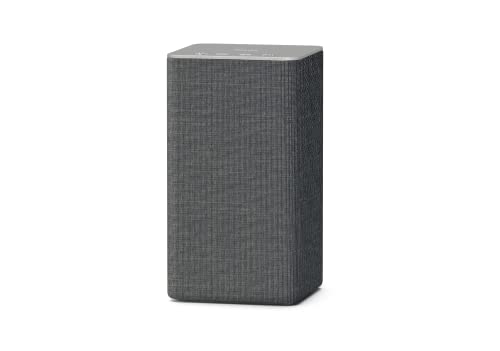
The Philips W6205 features an elegant, pillared silhouette finished in a neutral gray acoustic fabric that blends effortlessly into modern living room and office decors. Measuring approximately 12.5 inches in height and just under 7 inches in width and depth, its compact vertical footprint allows it to sit neatly on side tables, bookshelves, or media consoles without demanding excessive surface space.
A unique hardware highlight is the integrated LED mood lighting built into the speaker cabinet. When paired with a compatible Philips Ambilight television, the speaker extends the visual spectacle beyond the screen by synchronizing colors to match the on-screen action. For standalone listening, the LEDs can be set to pulse gently with your favorite tracks or configured to cast a warm ambient glow.
In terms of hardware architecture, the speaker relies on dedicated AC mains power to deliver sustained 40W amplification, prioritizing acoustic authority over battery portability. Connectivity is dominated by dual-band Wi-Fi and Bluetooth for universal mobile compatibility, while the Philips Entertainment app provides intuitive network configuration, source selection, and multi-room grouping across the DTS Play-Fi platform.
Audio Routing and System Configuration for WhatsApp Bluetooth Calls
Connecting a WhatsApp voice or video call to an external Bluetooth speaker requires establishing a paired connection first, followed by manually selecting the Bluetooth device as the active audio output on your mobile screen. Because WhatsApp uses voice-over-IP protocols rather than standard cellular bands, host phones often default to the internal receiver or hand-held speakerphone unless you actively route the stream. Once the speaker is paired in your operating system settings, answering or placing a WhatsApp call displays an audio output icon that must be switched directly to Bluetooth. Verifying that your phone grants call audio permissions to the connected speaker guarantees that both dialing tones and remote participant voices travel across the wireless link.
Understanding Bluetooth Audio Profiles: Media Audio Versus Call Audio
Bluetooth technology separates audio into distinct protocol profiles, which directly influences how voice over IP applications manage outbound and inbound sound. Music streaming applications utilize the Advanced Audio Distribution Profile, commonly known as A2DP, which prioritizes stereo bandwidth and high-fidelity music playback over latency. In contrast, voice calls rely on the Hands-Free Profile or Headset Profile, which reallocates signal resources to allow bi-directional voice transmission at a lower audio bandwidth. When you attempt how to connect whatsapp call to bluetooth speaker setups, your device must switch from high-fidelity media mode into communication mode. If a speaker only reports media playback support, your smartphone may refuse to send WhatsApp call audio to it.
Many modern wireless units are built primarily as standalone home speakers or entertainment sound systems rather than speakerphones. For instance, the Philips W6205 Wireless Home Speaker integrates a dedicated woofer, dual passive radiators, a tweeter, and Play-Fi compatibility designed for rich musical playback and TV synchronization. When connected to a phone over Bluetooth, such speakers provide outstanding volume and vocal clarity for the caller’s voice on your end. However, because they lack built-in speakerphone microphones, the phone operating system must intelligently split the audio feed, sending output to the speaker while gathering your voice through the handset microphone. Knowing whether your speaker includes two-way voice support helps explain why audio routes in specific ways during internet calls.
Step-by-Step WhatsApp Call Routing on Android Devices
Configuring an Android smartphone to play WhatsApp calls through a Bluetooth speaker involves checking permissions in the connection menu before launching the call. Start by turning on your Bluetooth speaker and placing it into pairing mode by holding the Bluetooth button until the indicator flashes. Open your Android device Settings, navigate to Connected Devices or Bluetooth, and select your speaker from the list of available devices to pair. Tap the gear icon next to your paired speaker name to inspect its active profile settings. Ensure that the toggle for Calls is enabled alongside Media Audio, which grants the speaker permission to receive telephone and VoIP voice traffic.
Once paired with call permissions enabled, launch WhatsApp and initiate or receive your desired voice or video call. During an active WhatsApp call, examine the icons displayed across the call screen, locating the audio output button that usually resembles a speaker or a small phone receiver. Tapping this audio button reveals a list containing Earpiece, Speaker, and your connected Bluetooth device name. Select your Bluetooth speaker name from the menu, which immediately redirects the conversation audio from your handset to the external driver. If sound does not transfer instantly, turning the Bluetooth toggle off and on again inside Android quick settings restores the stream without dropping the conversation.
Android manufacturers often implement proprietary battery-saving software that can unexpectedly cut audio streams during long voice conversations. To prevent your WhatsApp call from suddenly falling back to the phone earpiece, check battery optimization settings for both WhatsApp and Bluetooth system services. Set WhatsApp battery usage to Unrestricted within the App Info submenu on your smartphone. This prevents background power management from pausing wireless audio packets while you speak. Taking these preventative steps ensures that extended group calls or business chats remain firmly anchored to your external speaker.
Routing WhatsApp Calls Through Bluetooth on Apple iPhone
Apple iOS manages VoIP audio through its unified CallKit framework, requiring specific audio output selections when using an external speaker. First, navigate to iOS Settings and tap Bluetooth to verify that your wireless speaker displays as Connected. Once connected, open WhatsApp and begin your voice or video conversation with your contact. On the active call interface, you will see a round audio source icon situated among the in-call action buttons. Pressing this icon opens an AirPlay and Bluetooth device sheet listing iPhone, Speaker, and your paired Bluetooth speaker. Tap your Bluetooth speaker to route incoming voices through the external unit.
If your iPhone persistently routes WhatsApp calls to the internal earpiece by default, you can adjust the system accessibility settings to change this behavior permanently. Go to iOS Settings, select Accessibility, tap Touch, and scroll down to the Call Audio Routing menu option. By default, this parameter is configured to Automatic, but changing it to Bluetooth Headset instructs iOS to favor connected wireless speakers whenever an incoming call begins. This system override applies to WhatsApp voice calls as well as standard cellular phone conversations. When you step into range of your active speaker, incoming audio connects seamlessly without manual menu navigation.
Using an iPhone Control Center shortcut provides an alternative method for redirecting sound if the in-app WhatsApp interface becomes unresponsive. Swipe down from the top right corner of your screen to open Control Center during your call. Tap the small AirPlay triangle icon located in the upper right corner of the Now Playing media card. Select your Bluetooth speaker from the pop-up device list to force the active audio session to switch outputs. This fallback technique works reliably even if the WhatsApp application experiences a momentary visual glitch during call initialization.
Microphone Input and Talkback Considerations for Pure Home Speakers
A frequent source of confusion during wireless calls involves understanding where your outgoing voice is being picked up by the system. Many portable travel speakers feature integrated microphones for hands-free speakerphone calling, while dedicated home speakers often omit communication microphones. If you pair a speaker designed primarily for home audio, such as the Philips W6205, WhatsApp utilizes the speaker drivers for incoming audio while your phone continues listening through its internal microphone. If you place your phone in another room or tuck it deep inside a bag, the person on the other end will struggle to hear you speak. Keeping your smartphone within conversational distance on your desk guarantees that your microphone pick-up remains strong.
Echo cancellation is another technical factor that dictates call quality when using powerful external audio drivers. When a speaker generates loud vocal output, the smartphone microphone can capture that sound and send it back to the remote caller, creating a distracting echo loop. High-grade communication apps deploy software acoustic echo cancellation, but excessive speaker volume can overwhelm these software filters. Position your phone microphone slightly behind or to the side of the speaker grille to minimize direct sound reflection. Balancing your speaker playback volume at moderate levels prevents audio feedback and maintains comfortable, natural conversation.
For buyers who frequently handle conference calls in spacious living rooms, looking into Bluetooth speakers for large rooms can help project voice audio clearly across wider spaces. High-output acoustic designs fill substantial rooms without pushing drivers into harsh distortion, allowing everyone present to hear call participants effortlessly. However, pairing larger units still requires mindful phone placement so your spoken words reach the microphone without room reverberation. Setting up your device with clear line-of-sight to your seating area provides the best balance of vocal clarity and listening ease.
Configuring WhatsApp Desktop Calls on Windows and macOS
Connecting WhatsApp calls to a Bluetooth speaker via desktop or laptop computers requires managing operating system audio device priorities. On Windows, connect your speaker through the Bluetooth & devices menu in Windows Settings. Once paired, open the classic Sound Control Panel and locate the Playback tab to review your audio devices. You will often see two entries for your speaker: Stereo for media playback and Hands-Free AG Audio for voice communication. Set the Stereo device as your Default Device for music, but select the Hands-Free device as your Default Communication Device to handle WhatsApp calls correctly.
Within the WhatsApp Desktop application itself, you must verify that call settings reflect your preferred hardware. Open WhatsApp on your computer, click the Settings gear icon, and navigate to the Audio or Calls section. Ensure the Output dropdown menu lists your Bluetooth speaker rather than the integrated computer monitor speakers or laptop drivers. If your speaker does not possess an onboard microphone, designate your computer webcam or built-in laptop array as the Input device. Testing this audio configuration before jumping into an important call avoids the awkward silence of mismatched inputs and outputs.
On macOS computers, pairing and audio routing follow a straightforward path through System Settings. Open System Settings, select Bluetooth, and pair your external speaker. Once connected, open the Sound menu and verify that your Output tab highlights the Bluetooth speaker. Inside WhatsApp for Mac, initiate a test voice call and click the three-dot options menu to confirm that the output device points to your wireless unit. If the audio sounds muffled, macOS may have selected the speaker as both input and output, which collapses bandwidth into lower-quality mono mode. Switching the microphone input back to the internal Mac microphone instantly restores full audio fidelity for incoming voices.
Troubleshooting Audio Dropouts, Disconnections, and Call Latency
Unstable audio or sudden disconnections during a WhatsApp call usually point to wireless interference or multipoint connection conflicts. Bluetooth signals share the crowded 2.4 GHz radio frequency spectrum with Wi-Fi routers, microwave ovens, and wireless computer peripherals. If your speaker begins stuttering while you speak, moving your phone closer to the speaker often resolves packet loss immediately. Furthermore, if your speaker supports multipoint pairing with multiple devices, another paired tablet or laptop might hijack the connection when a notification sounds. Temporarily turning off Bluetooth on secondary devices guarantees an exclusive connection for your voice call.
Latency represents another common hurdle when streaming conversational voice over Bluetooth connections. Standard Bluetooth compression algorithms introduce slight processing delays, which can make real-time conversations feel out of sync. While video calls may reveal minor lipsync delays, voice calls generally tolerate moderate latency without compromising intelligibility. Disabling heavy audio enhancements, virtual surround modes, or dynamic equalizer processing on your speaker helps reduce latency. Keeping processing burdens light ensures that spoken words travel from your phone to the speaker with minimal delay.
If your WhatsApp call drops back to the phone speaker unexpectedly, clearing the application cache can resolve corrupt profile data. On Android, open Settings, select Apps, find WhatsApp, and tap Clear Cache to remove temporary system data without losing your chat logs. On iOS, restarting your device flushes temporary audio buffers and resets the core audio daemon. Additionally, check for pending WhatsApp updates inside the Google Play Store or Apple App Store, as developers frequently release patches that improve VoIP audio routing compatibility. Running up-to-date software minimizes connection bugs across all your wireless devices.
Optimizing Speaker Placement and Physical Environment for Group Calls
Acoustic setup and speaker positioning play an enormous role in how comfortably you and other room occupants experience a hands-free conversation. Placing a speaker against a flat wall or in an open corner can naturally reinforce mid-bass frequencies, giving voice calls a warmer, fuller vocal presence. However, placing the speaker directly on a hollow wooden desk might cause unwanted vibrations that muddle speech intelligibility. Elevating the unit slightly or placing it on a dense, stable tabletop keeps dialogue crisp and natural. This physical optimization lets everyone in the room participate without straining to understand fast speech.
For family gatherings or outdoor patio calls, using robust setups like outdoor Bluetooth speaker setups can ensure that dialogue projects clearly over ambient environmental noise. Wind, traffic, and background chatter can easily swallow telephone audio on small handheld devices. A well-placed external speaker with capable drivers provides the necessary sound dispersion to cover open spaces without breaking up into distortion. Remember that outdoor environments also expose phone microphones to wind noise, so shielding your phone while it captures your voice is essential. Proper physical placement bridges the gap between hardware output and communication clarity.
Maintaining clean physical connections and keeping battery levels adequately charged also protects communication stability. When battery levels drop below twenty percent, some Bluetooth speakers engage power-saving states that throttle amplifier output or weaken wireless reception. Connecting your speaker to its charging adapter during long calls prevents abrupt shutdowns mid-sentence. Regularly inspecting speaker grilles and keeping control buttons free from dust ensures smooth daily operation. A stable power supply and clean hardware lay the groundwork for dependable hands-free calling anytime you pick up a call.
Verifying Your Setup and Final Hands-Free Audio Checks
Testing your audio routing before joining important business conferences or family calls saves time and avoids awkward setup delays. Make a quick test call to a friend or use a secondary device to verify that audio routes cleanly to your speaker drivers upon connection. Check that the in-call volume slider on your phone operates in tandem with the physical volume buttons on your speaker enclosure. If adjusting one does not affect the other, disabling Absolute Volume inside your phone developer options can restore unified level control. Confirming these settings ahead of time guarantees an intuitive, hassle-free conversation every time you answer.
Mastering how you route communication audio gives you total control over how you engage with contacts throughout your daily routine. Understanding the differences between media streaming and call audio profiles demystifies why mobile phones behave the way they do during internet calls. With the correct in-app toggles selected and sensible phone placement for microphone capture, external speakers deliver unmatched voice presence and listening comfort. Taking a minute to configure permissions and test your hardware transforms ordinary WhatsApp calls into rich, effortless hands-free audio experiences.




Write Your Review
No reviews yet. Be the first to share your experience!