


Connecting your phone to your vehicle should produce clear, balanced sound immediately, but audio routing snags often prevent navigation prompts and music from reaching the vehicle speakers. Many drivers struggle with how to get carplay to play through car speakers when an iPhone stays routed to its internal speaker or gets stuck in a silent Bluetooth loop. Whether your dashboard features a factory touchscreen, a wireless conversion dongle, or an aftermarket screen, understanding signal paths resolves these frustrating playback failures. Upgrading to aftermarket vehicle speakers can enhance playback quality, yet proper source configuration remains the fundamental step for any functional dashboard sound.
Physical port issues, software permission barriers, and conflicting wireless handshakes frequently disrupt normal audio transmission between the handset and your dashboard. Modern vehicle infotainment units rely on distinct channels for voice prompts, phone calls, and high-fidelity media, which can cause one audio stream to sound muted while another works fine. Taking control of your car audio playback settings requires checking both the physical connection and the operating system output choices. This guide outlines practical diagnostic steps, hardware connection techniques, and settings adjustments to ensure steady audio delivery across every ride.


Routing CarPlay Audio Directly Through Your Car Speakers
Directing multimedia and navigation audio from your phone through your vehicle sound system requires understanding how your dashboard interfaces with mobile operating systems. Modern infotainment platforms receive distinct digital streams for media playback, telephone calls, and turn-by-turn spoken guidance. When settings fall out of alignment or cables fail, audio streams can drop out or divert to the phone handset instead of reaching the cabin speakers. Addressing these playback issues begins by examining how your stereo hardware decodes and amplifies digital signals.
Understanding How CarPlay Sends Audio to Vehicle Sound Systems
Apple CarPlay manages audio differently from basic Bluetooth hands-free profiles by establishing multiple virtual sound pipelines simultaneously. When your mobile device communicates with the infotainment computer, it generates separate audio streams for musical entertainment, telephone speech, and turn-by-turn directions. The vehicle receiver decodes these signals through internal sound processors and applies independent volume registers to each distinct channel. Because these data paths function independently, an incorrect volume offset or silent navigation setting can mute your spoken directions while music continues playing through your car speakers.
Wired configurations transmit these digital streams across a high-speed USB data bus, avoiding the lossy compression common in older automotive Bluetooth connections. Wireless setups rely on an initial Bluetooth handshake to authenticate device security before switching to a local Wi-Fi connection that carries high-capacity audio data. This Wi-Fi link provides the necessary bandwidth to deliver uncompressed stereo audio alongside interactive map rendering. Recognizing this dual-stage communication helps drivers determine whether audio loss stems from an interrupted Wi-Fi link, a faulty physical cable, or an internal stereo source mismatch.
Direct USB Cable Setup and Port Identification
Using a direct USB cable remains the most reliable method for streaming smartphone audio through factory car speakers. Most vehicles equipped with factory CarPlay designate one specific USB port for high-speed data transmission, typically marked with a smartphone outline or a dedicated multimedia symbol. Connecting your phone to a standard charging-only USB port or a 12-volt accessory plug will charge your battery, but it will never transfer audio data to the dashboard amplifier. Checking that your cable plugs directly into the designated media port is the essential starting point for routed audio playback.
Physical cable quality plays a critical role in maintaining consistent audio transmission across road bumps and cabin vibrations. Worn Lightning or USB-C cords with frayed jackets or oxidized pins often provide steady charging power while failing to transmit digital audio packets reliably. Substandard third-party cables lacking proper data-channel wiring frequently create audio stutter, digital dropouts, or an outright refusal by the car stereo to recognize the phone. Using a sturdy, fully certified data cable guarantees clean digital handshakes and steady sound through your vehicle audio system.
After inserting a certified cable into the active media port, the vehicle display screen should switch automatically or display an active CarPlay tile. If the screen fails to switch, navigate through the factory dashboard menu to confirm that the active input is set to the smartphone interface rather than terrestrial radio. In certain vehicle stereos, manually selecting the smartphone tile on the primary screen engages the audio playback codec and shifts the amplifier input away from satellite radio or local FM broadcasts.
Connecting via Wireless CarPlay Conversion Adapters
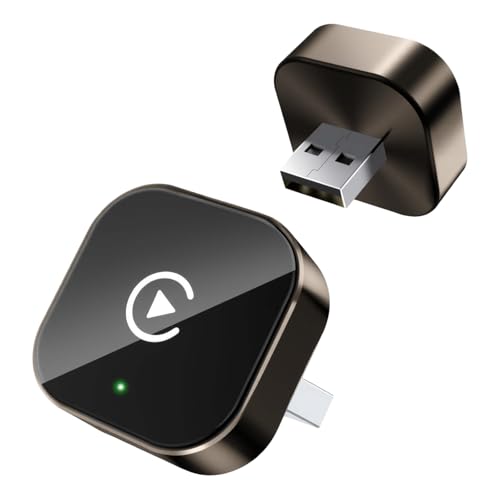
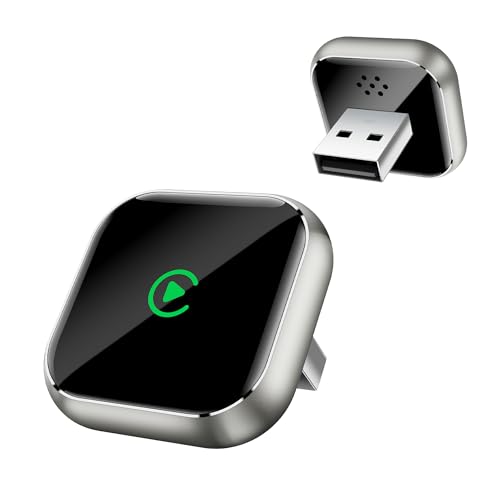
Drivers who own vehicles with factory wired CarPlay can transition to a wireless setup using compact conversion dongles from brands such as TKHIN, BeeMingle, Aurevita, SHALOM TECH, Yizro, and HYPAX. These compact adapters plug directly into the factory USB data port and act as a digital bridge between your car’s stereo system and your iPhone. The adapter mimics a physical wired phone connection to the car’s computer, receiving wireless audio data from your phone over local Wi-Fi and sending it straight into the vehicle USB data bus. This process allows your factory amplifier to play your music, podcasts, and navigation prompts without requiring a physical cord connected to your handset.
Hardware designs among these conversion adapters vary from flexible mini cords to compact T-shaped plugs that sit flush inside your dashboard console. Adapters utilizing 5.8 GHz wireless bands generally provide lower transmission latency and reduced interference compared to single-band devices operating in congested 2.4 GHz environments. During initial configuration, the handset pairs with the adapter over Bluetooth to exchange security keys before switching the connection to the adapter’s internal Wi-Fi network. Once this pairing sequence completes, the phone establishes an automatic link every time you start the engine, routing audio through your car speakers without manual intervention.
If an adapter connects successfully for screen mapping but fails to output audio through the speakers, the vehicle head unit may have initialized before the dongle finished loading its sound firmware. Disconnecting the adapter from the vehicle USB port for five seconds and reinserting it forces the infotainment system to re-read the audio stream as a new connection. Checking the adapter manufacturer’s browser-based configuration portal for periodic firmware updates can also resolve recurring audio communication bugs between newer phone software and the car head unit.
Routing Audio from Standalone Portable CarPlay Displays
Vehicles lacking factory CarPlay compatibility often utilize standalone dashboard displays, such as the BIGASUO 9-inch portable touchscreen, to access smartphone navigation and media. Because these portable screens mount on the dashboard or windshield, they do not connect directly to your car’s hidden amplifier or factory door speakers. Instead, portable units offer multiple external audio bridges to transfer sound from the aftermarket display to your vehicle sound system. Selecting the appropriate output mode on the screen determines whether audio plays through your vehicle speakers or remains restricted to the small speaker built into the display.
An auxiliary 3.5mm stereo cable provides the cleanest and most dependable analog audio connection between a portable screen and your car stereo. Connecting the display unit’s audio-out jack to your vehicle’s auxiliary-in port eliminates wireless interference and delivers uncompressed stereo audio directly to the car speakers. Alternatively, where an auxiliary input is unavailable, the display unit’s built-in FM transmitter broadcasts audio over an empty radio frequency to your car’s tuner. Matching an unused FM station frequency between your stereo receiver and the portable screen enables cable-free audio playback across your vehicle sound system.
Correcting Infotainment Source Modes and Channel Volume Offsets
An unexpected volume offset between distinct audio channels on your infotainment receiver is a frequent cause of silent CarPlay playback. Automotive head units generally separate their sound memory registers into different categories for navigation prompts, incoming telephone calls, and musical entertainment. If a driver turns down the steering wheel volume knob while a turn-by-turn direction is spoken, the stereo lowers the navigation channel without altering the volume level of musical tracks. Conversely, muting audio during a phone call can leave media muted even after the call disconnects.
To correct unbalanced sound levels, access the sound settings menu on your vehicle dashboard screen and locate the channel volume adjustment sliders. Most vehicle manufacturers provide individual level controls for voice guidance, ringtones, system alerts, and media playback. Balancing these sliders ensures that the internal amplifier delivers adequate volume to every audio stream and prevents navigation instructions from being drowned out by background music. Additionally, verify that the master source mode on your stereo is actively switched to the smartphone input rather than AM, FM, or satellite radio.
Resolving iOS Audio Routing and Bluetooth Connection Conflicts
Your iPhone incorporates software controls that determine where audio is directed whenever multiple sound accessories are detected nearby. Swiping down from the top right corner of your phone screen opens the iOS Control Center, where the active media playback card displays a small AirPlay audio output icon. Tapping this audio routing icon displays every available playback destination, including the iPhone internal speaker, connected Bluetooth devices, and the vehicle CarPlay interface. If the selector has defaulted to the phone speaker, tapping your car’s name immediately redirects playback back through your car speakers.
Conflicting wireless connections can easily redirect your smartphone’s audio stream away from the vehicle dashboard. If you use wireless earbuds, a smartwatch, or a separate hands-free visor speaker, your phone might send audio to those devices instead of the car infotainment system. Disabling automatic audio routing to external accessories during your drive prevents your phone from directing spoken navigation into your pocket. Checking Screen Time settings to ensure CarPlay remains unrestricted also prevents background security toggles from blocking audio output to the car stereo amplifier.
Systematic Diagnostic Walkthrough for Silent CarPlay Audio
When your dashboard shows an active map display but produces no sound through the vehicle speakers, following a logical troubleshooting sequence isolates the problem quickly. Start by playing a familiar track from your primary music app while parked safely with the engine running. Increase the volume level using both your iPhone hardware buttons and the vehicle dashboard rotary knob to confirm that neither end is muted. If the playback counter on the screen advances while your car speakers remain silent, pause the track and press play again to clear temporary digital buffer stalls.
If silence continues, inspect the connection hardware between your phone and the dashboard port. For wired systems, unplug the USB cable from both the phone and the car, inspect the connector ports for dust or debris, and firmly reconnect the cable. For wireless adapters, remove the dongle from the dashboard USB port, wait several seconds for the port to lose residual power, and plug it back in. If necessary, press and hold the stereo power button for ten to fifteen seconds to reboot the head unit and clear transient memory cache errors that block audio decoding.
Evaluating Hardware Options and Signal Quality Differences
The connection method you select directly influences the dynamic clarity and overall fidelity produced by your car speakers. Direct wired USB links provide the highest audio quality because digital data flows straight into the vehicle digital-to-analog converter without wireless data compression. Conversely, FM transmitters on portable screens rely on analog radio modulation, which introduces subtle background hiss and limits stereo channel separation. If your vehicle features high-fidelity components or upgraded wireless stereo audio connections, a direct USB or 5.8 GHz Wi-Fi adapter preserves significantly more musical detail than an FM transmitter.
Auxiliary 3.5mm cables provide an exceptional balance of simplicity and sound clarity for older dashboard stereos. While an aux cable avoids wireless signal interference, setting the output volume on your portable screen or phone to roughly eighty percent prevents pre-amplifier clipping while allowing your car stereo to handle volume amplification cleanly. Avoiding extreme volume settings on the source device ensures clean bass response and crisp vocal clarity across your car speakers. Drivers who desire wireless convenience without sacrificing acoustic presence will find that high-quality Wi-Fi adapters provide dependable, distortion-free sound through factory car speakers.
Maintaining Connection Stability for Everyday Commuting
Keeping your CarPlay audio functioning reliably requires routine maintenance of both physical ports and software configurations. Automotive interiors encounter significant temperature fluctuations, airborne dust, and mechanical vibrations that can loosen connectors over time. Periodically clearing dust from your dashboard USB ports and cleaning your phone’s charging port prevents contact resistance that can disrupt digital audio streams. Investing in heavy-duty, braided USB cables with reinforced strain reliefs further prevents internal copper breaks during daily driving routines.
For drivers using wireless adapters, checking the adapter manufacturer’s support page for periodic firmware releases ensures ongoing compatibility with new phone operating systems. Connecting your phone to the adapter’s local IP address allows you to adjust audio latency buffers, select alternative Wi-Fi channels, and apply official firmware patches. Customizing these parameters reduces audio stuttering in crowded urban intersections where external Wi-Fi congestion can cause momentary packet drops. Establishing these regular checks ensures that your vehicle audio system delivers crisp navigation directions and uninterrupted music on every journey.




Write Your Review
No reviews yet. Be the first to share your experience!