
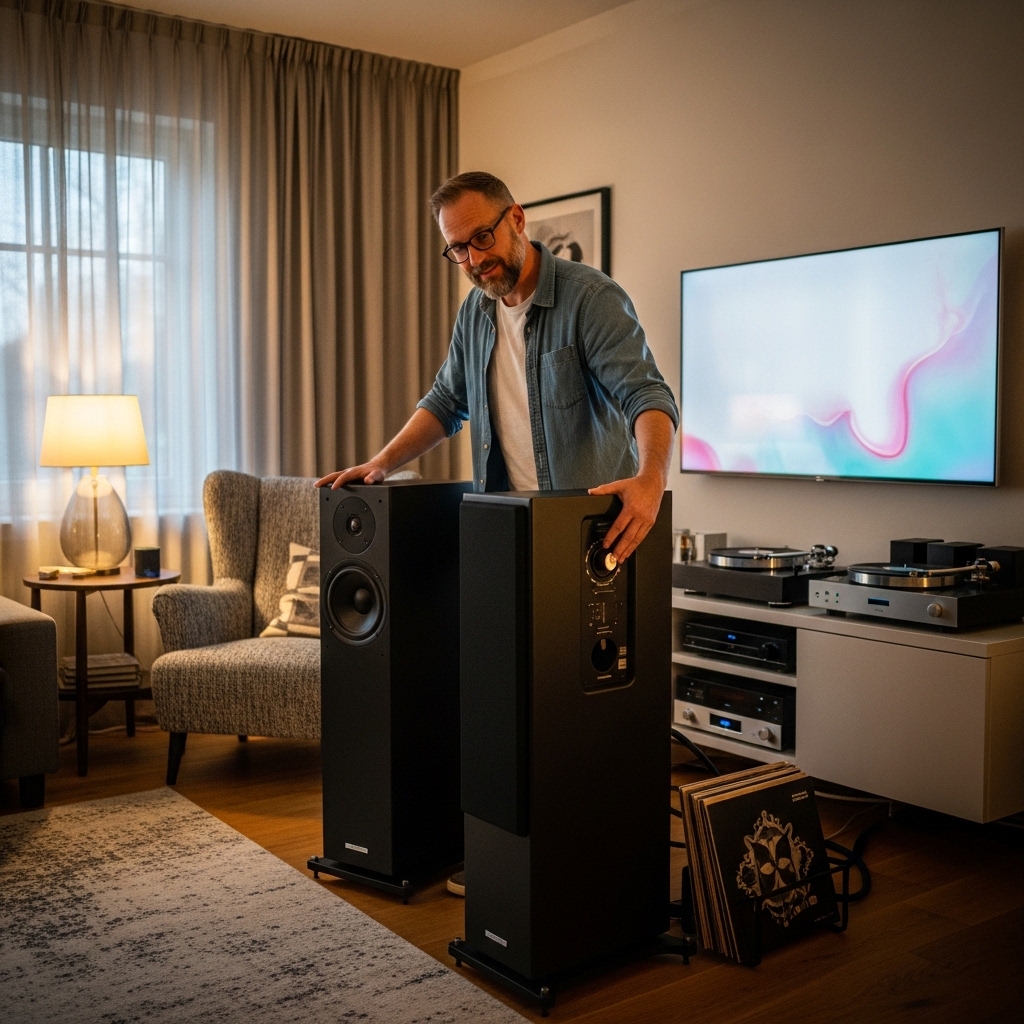

Gaming on a PlayStation 4 often feels flat when relying on built-in monitor speakers or basic television drivers. Players frequently seek fuller bass, crisper dialogue, and better spatial awareness for footsteps or soundtrack cues. Understanding how to connect external speakers to ps4 allows you to bypass weak display audio and route high-fidelity sound directly to desktop monitors, soundbars, or bookshelf systems. Whether you have standard desktop speakers or modern Bluetooth speaker options, identifying the available output paths makes the setup process straightforward.
The original PS4 and PS4 Pro feature optical ports and USB connections, while the PS4 Slim relies primarily on USB and HDMI audio extraction. Choosing the right connection method depends entirely on your speaker inputs, controller setup, and tolerance for wireless latency. Some setups benefit from direct digital audio connections, while others work best with dedicated USB transmitters or audio extractors. With the right hardware and console settings, you can enjoy immersive sound without complicated wiring or persistent audio delays.

Pros
- Sub-60ms audio response eliminates perceptible lip-sync lag during fast-paced gaming and movies.
- Seamless driver-free pairing with external speakers, soundbars, and wireless headphones.
- Advanced Bluetooth 5.3 connectivity resists interference across an expansive 33-foot radius.
- Direct USB power means zero battery degradation and unlimited continuous operation.
Cons
- Transmits audio only and cannot be used for wireless data transfers, mice, or game controllers.
- Requires aptX-enabled receiving speakers or headphones to unlock the lowest latency speeds.
- Allows only one microphone active at a time between the 3.5mm accessory and an external headset.
The UGREEN Bluetooth 5.3 Audio Transmitter CM668 solves one of modern gaming's biggest headaches: getting high-quality wireless sound out of platforms that lack native audio support. Designed to bridge the gap between your PlayStation 5, PlayStation 4, Nintendo Switch, or desktop computer and your favorite wireless speaker system, this pocket-sized dongle delivers broadcast-quality streaming without complicated setup hurdles.
Targeted squarely at gamers, home theater enthusiasts, and desktop remote workers, this transmitter eliminates the clutter of audio cables. Setup requires zero software or driver downloads. Simply plug the dongle into an available USB port, activate pairing mode on your soundbar, desktop speaker, or wireless headset, and the hardware links automatically in seconds. An included 3.5mm controller microphone ensures you maintain crisp communication with teammates without sacrificing your wireless audio feed.
In everyday use, the transmitter shines by supporting both aptX Adaptive and aptX HD codecs. This drastically reduces the audio latency to under 60 milliseconds, which is nearly four times faster than standard Bluetooth streaming. Whether you are pinpointing enemy footsteps in a competitive shooter or streaming an action-packed movie, dialogue and explosions hit your ears in absolute sync with on-screen action.
Ultimately, the UGREEN CM668 is an essential, budget-friendly accessory for anyone wanting to unleash the full potential of their wireless sound gear on gaming consoles or work stations. It combines dependable connection strength, lossless acoustic delivery, and seamless multi-platform usability into an exceptionally reliable package.
Equipped with advanced aptX HD and aptX Adaptive decoding, this transmitter preserves full dynamic frequency range when beaming audio to an external speaker. Bass response remains punchy and tight without becoming muddy, while mid-frequency vocals and high-end treble cues retain remarkable definition. Soundscapes come alive with expansive separation, giving your soundbar or desktop speaker setup the detailed clarity usually reserved for direct wired connections.
Performance stability is anchored by the latest Bluetooth 5.3 chipset, which significantly minimizes signal interference and drops. You get a steady wireless reach of up to 33 feet, allowing you to walk across the living room or grab a drink from the kitchen without your speaker stuttering or disconnecting. With low-latency transmission below 60ms, the notorious lip-sync delay common in budget adapters is completely resolved.
Weighing a mere 0.02 pounds and measuring barely an inch in length, the adapter sports an ultra-compact, low-profile footprint. The durable matte housing resists scratches and sits flush against the front of your console or computer, avoiding interference with neighboring USB ports. Its sturdy build makes it an easy piece of gear to slip into a travel case alongside your Nintendo Switch or gaming laptop.
Because the unit relies on direct USB bus power, there are no internal rechargeable batteries to monitor, charge, or replace over time. It provides truly limitless playback endurance, drawing negligible current from the host device while powering through weekend gaming marathons, all-day work calls, and late-night movie binges without ever shutting down.
Practical Guide to Connecting External Speakers to a PS4
Connecting dedicated external speakers to a PlayStation 4 transforms your gaming sessions by providing distinct dialogue, accurate directional sound cues, and fuller bass. The console supports several audio output routes, but the exact method depends on your console revision, your speaker inputs, and whether you prefer a wired or wireless layout. Navigating these hardware choices allows you to bypass weak monitor speakers and achieve crisp sound without distracting latency. Understanding each connection path ensures that your audio equipment performs reliably across every game.
Identifying PS4 Console Ports and Hardware Boundaries
The PlayStation 4 family includes three distinct hardware revisions, and their rear panel connections differ in meaningful ways. The original launch console and the subsequent PS4 Pro both include a dedicated digital optical out port alongside standard USB and HDMI connections. In contrast, the slimmer PS4 Slim revision omits the optical audio port entirely, relying solely on HDMI and USB ports for all audio transmission. Checking the rear panel of your specific console is the first step before choosing cables or audio adapters.
Wireless connectivity presents another hardware boundary that often surprises console owners. The PS4 operating system restricts native Bluetooth pairing to official controllers, keyboards, and licensed gaming headsets. Standard wireless speakers cannot pair directly through the console’s internal Bluetooth menu due to profile restrictions and latency safeguards. Overcoming this restriction requires either an external USB transmitter or a wired connection through the available console ports.
Connecting via the Digital Optical Audio Port
The optical audio connection, commonly known as TOSLINK, provides a pristine digital signal for original PS4 and PS4 Pro owners. This connection transmits light pulses through a fiber optic cable, isolating the audio signal from electrical interference and ground loop noise. Optical connections are common on soundbars, home theater receivers, and powered desktop monitors. Because optical audio bypasses television processing, it introduces virtually zero latency into your gaming setup.
Setting up an optical connection requires a standard optical cable and a quick adjustment within the console settings menu. Remove the protective plastic caps from both ends of the optical cable before attempting to insert them into the ports. Align the cable connector with the port shape, as optical jacks feature flat sides that only insert in one orientation. Once the cable clicks securely into both the console and the speaker input, you must configure the audio output path.
Navigate to the PS4 Settings menu, select Sound and Screen, and open the Audio Output Settings page. Set the Primary Output Port to Digital Out Optical, which tells the console to prioritize the optical jack over the HDMI line. For standard two-channel stereo speakers, leave the Dolby and DTS format boxes unchecked and select Linear PCM. Selecting Linear PCM ensures uncompressed stereo delivery directly to your powered speakers without downmixing errors or processing delay.
Using a USB Bluetooth Transmitter for Wireless Audio
Gamers who want to use wireless speakers without running long cords across the room can use a specialized USB Bluetooth audio transmitter. Because the PS4 operating system locks out standard Bluetooth audio devices, a hardware transmitter acts as an external sound card that handles pairing independently. The console outputs a digital audio stream through its USB port, and the transmitter converts that stream into a wireless Bluetooth signal. This setup bypasses console software restrictions entirely while keeping the connection stable.
The UGREEN Bluetooth 5.3 Adapter for PS4 PS5 APTX USB illustrates how modern USB transmitters streamline this wireless setup. This compact dongle plugs directly into an available USB port on the console, operating as a plug-and-play audio device without requiring driver installations. The adapter pairs automatically with external speakers once they are placed into pairing mode. It operates strictly as an audio transmitter, meaning it focuses system resources solely on sound transmission rather than data transfer.
Latency is an important consideration when routing game audio over wireless connections. Standard Bluetooth connections often introduce noticeable delay, causing sound effects to lag behind fast onscreen action. The UGREEN adapter supports advanced low-latency protocols, including aptX Adaptive, which can reduce transmission delay to less than 60 milliseconds when paired with compatible speakers. Once plugged in, set the console’s Output to Headphones option to All Audio in the Devices menu so that game sound flows freely.
Extracting Audio from HDMI for PS4 Slim Consoles
Owners of the PS4 Slim often find themselves in an awkward spot when their preferred speakers only accept optical or analog connections. Because the Slim model lacks an optical audio port, connecting to legacy soundbars or studio monitors requires an HDMI audio extractor. An HDMI audio extractor is an external hardware box that sits between your console and your television screen. It intercepts the incoming HDMI signal, separates the digital audio stream, and passes the pristine video through to the monitor.
The extractor provides dedicated audio output jacks, typically offering both an optical TOSLINK port and a 3.5mm stereo auxiliary jack. To install the unit, connect an HDMI cable from the PS4 Slim output into the HDMI input on the extractor box. Then, run a second HDMI cable from the extractor’s output port to your television or monitor display. Finally, run an optical or 3.5mm cable from the extractor directly into your external speaker inputs.
Powering the extractor is usually handled via an included USB power cable, which can plug into an open USB port on the console or an external wall brick. Most extractors feature an audio mode switch labeled with options such as 2CH, 5.1CH, and Pass. Set this switch to 2CH if you are connecting stereo bookshelf speakers, or 5.1CH if you are routing optical sound to a surround soundbar. This hardware switch ensures that the console sends an audio stream that your external speakers can decode without stuttering.
Routing Audio Through Your TV or Monitor Outputs
A practical and cost-effective method involves letting your television or gaming monitor act as an audio pass-through bridge. In this arrangement, the PS4 sends combined video and audio signals to the screen through a standard HDMI cable. The display receives the signal and passes the audio track to external speakers via its own 3.5mm headphone jack or optical audio output. This setup is convenient because it keeps all speaker connections linked directly to the screen.
Using monitor pass-through simplifies setups where multiple gaming consoles or streaming devices share the same display. When you switch input sources on the monitor, the audio routing switches automatically to match the active screen image. However, the built-in digital-to-analog converters inside budget gaming monitors are occasionally prone to background hiss. Testing your monitor’s 3.5mm output with headphones first helps determine whether the audio circuitry is clean enough for your external speakers.
Connecting Directly Through the DualShock 4 Controller
The DualShock 4 wireless controller features a standard 3.5mm stereo jack on its bottom edge that can drive external audio gear. While designed primarily for gaming headsets, this port can accept a standard auxiliary cable running to powered desktop speakers. This method requires no extra adapters, HDMI splitters, or optical cables, making it an accessible solution for quick gaming sessions. It works reliably across every PS4 model regardless of the console’s rear port selection.
To enable full sound through the controller, hold down the central PS button to open the Quick Menu. Select Sound/Devices from the sidebar and locate the Output to Headphones setting. Change this setting from Chat Audio to All Audio so that all game music, sound effects, and voice channels flow through the 3.5mm jack. Keep in mind that continuous audio streaming accelerates controller battery drain and tethers your gamepad to the speaker wire.
Configuring PS4 System Audio Settings for Optimal Quality
Proper console configuration is essential to ensure that your external speakers receive the best possible signal quality. After establishing your physical connection, open the Settings menu and navigate to Sound and Screen, followed by Audio Output Settings. Confirm that the Primary Output Port matches your physical wiring, whether that is HDMI Out, Digital Out Optical, or a detected USB device. Misconfigured output ports can cause the console to send blank signals or downsample audio tracks unexpectedly.
The Audio Format Priority setting determines how the PS4 encodes sound before sending it to your speakers. The console provides three primary options: Linear PCM, Bitstream Dolby, and Bitstream DTS. Linear PCM is the uncompressed standard, making it the ideal choice for two-channel stereo speakers, computer soundbars, and USB audio adapters. Selecting Linear PCM avoids unnecessary audio encoding and decoding steps, ensuring the lowest latency and cleanest fidelity.
Bitstream formats become beneficial when routing multi-channel surround sound to an AV receiver or an advanced soundbar system. If your sound system carries official Dolby or DTS decoding badges, selecting the matching bitstream format allows the receiver to handle discrete surround separation. If your sound system only supports stereo sound, forcing a bitstream format can introduce slight processing delays or center-channel dialogue attenuation. Testing both settings within your favorite game allows you to hear which profile delivers the clearest vocal clarity.
Managing Audio Latency and Wireless Synchronization
Audio latency refers to the delay between an action occurring on screen and the sound reaching your ears. While a minor delay is tolerable when watching pre-recorded video, interactive gaming demands immediate acoustic feedback. In shooting games, racing titles, and rhythm games, a sound delay of even a tenth of a second feels disorienting and disrupts timing. Minimizing transmission lag is vital when choosing between wired optical cords and wireless Bluetooth transmitters.
Wired optical, HDMI, and direct analog connections exhibit virtually imperceptible latency, operating well under ten milliseconds. Wireless setups, however, rely entirely on the compression algorithms used by the transmitter and the receiving speaker. Standard SBC Bluetooth compression introduces noticeable lag, making it frustrating for fast-paced titles. Ensuring that both your transmitter and your wireless speaker support low-latency codecs prevents this synchronization mismatch.
Resolving Common Audio Troubleshooting Issues
A persistent low-frequency buzzing or humming noise is one of the most frequent problems when connecting speakers to gaming consoles. This hum is typically caused by a ground loop, which occurs when the console, screen, and speakers share different ground potentials across power outlets. Ground loop noise is particularly noticeable when using 3.5mm analog connections while powering the speakers from a nearby USB port. Plugging all audio components into the same surge protector or adding an inexpensive 3.5mm ground loop isolator eliminates this unwanted hum.
Sudden loss of audio output usually points to an unintended setting change in the console menu. If you unplug a headset or turn off a controller, the PS4 may automatically revert its audio output back to default HDMI television sound. Checking the Quick Menu by holding the PS button allows you to verify that Output to Headphones remains set to All Audio. Additionally, confirm that your external speakers are switched to the correct input channel, such as Optical, Aux, or Bluetooth.
Muffled dialogue or missing sound effects often occur when a multi-channel audio stream is improperly downmixed into two-channel stereo speakers. If the PS4 is configured to output 5.1 surround sound over optical, but your speakers only have left and right drivers, the center audio channel containing character voices may be lost. Switching the Audio Format Priority setting back to Linear PCM forces the console to mix all audio channels into a clean stereo stream. This simple adjustment restores clear speech and balanced background audio immediately.
Matching Speaker Configurations to Your Setup Needs
Selecting the right speaker style depends on your available desk space, listening habits, and console layout. Powered desktop bookshelf speakers offer an exceptional balance of acoustic power and connectivity, often featuring built-in optical, RCA, and auxiliary inputs. These active speakers contain their own internal amplifiers, allowing them to accept direct signals from the console or an audio extractor without extra equipment. They provide superior stereo separation compared to compact soundbars.
Gamers who prioritize portability or minimal cable clutter often turn to standalone Bluetooth speaker options paired with a low-latency USB transmitter. These portable speakers are easy to reposition around a bedroom or living room, making them ideal for casual gaming sessions. While portable units lack the broad soundstage of separated studio monitors, their compact footprints and wireless freedom make them practical for smaller gaming stations.
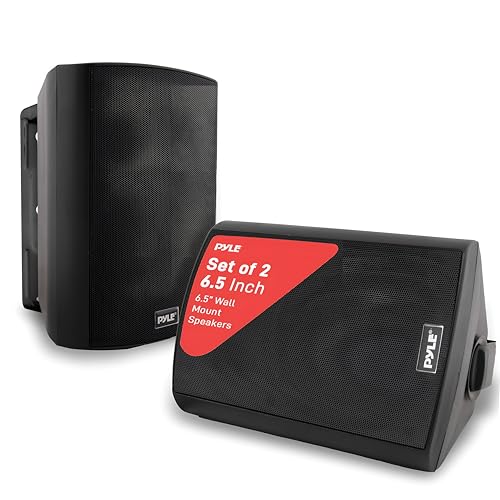
For larger gaming environments and living rooms, integrating wall-mounted home audio speakers connected to a dedicated receiver creates an expansive soundstage. Elevating your speakers to ear height keeps the sound unobstructed by furniture and optimizes spatial imaging for immersive open-world titles. Passive speakers require an external amplifier or AV receiver to drive them, which connects cleanly to the PS4 using optical or HDMI cables. Matching your speaker choice to room acoustics ensures you get the full dynamic impact of your games.
Practical Verification and Pre-Game Audio Checklist
Before jumping into an intense gaming match, take a minute to verify that your audio setup is working properly. Navigate through the PS4 home dashboard and listen for the subtle system navigation clicks and background music. These interface sounds confirm that your primary output port is transmitting data and that volume levels are balanced between channels. If you hear no menu audio, double-check that your speaker volume is turned up and that all physical cable jacks are seated firmly.
Load a game with prominent environmental sound effects to test directional separation and dynamic range. Listen closely to footsteps, ambient weather, and dialogue to confirm that the left and right stereo channels are properly aligned with onscreen action. Adjust the game’s internal master audio settings to prevent sound clipping or distortion during loud explosions. Taking these final verification steps guarantees a seamless acoustic experience, letting you focus entirely on your gameplay.






Write Your Review
No reviews yet. Be the first to share your experience!